> ## Documentation Index
> Fetch the complete documentation index at: https://docs.dodopayments.com/llms.txt
> Use this file to discover all available pages before exploring further.
# Digital Wallets
> 在结账时接受 Apple Pay、Google Pay、Amazon Pay、Cash App Pay 和 RevolutPay。涵盖可用性、Apple Pay 域名验证和测试。
数字钱包让客户可以使用设备上已保存的卡或账户付款,无需输入卡片详情。钱包会发送 token 而不是卡号,客户只需轻点或通过生物识别验证即可确认付款。
## 支持的钱包
Dodo Payments 仅在结账符合其国家/地区、货币和付款类型时显示相应的钱包:
| 钱包 | 可用范围 | 货币 | 订阅 | 所需设置 |
| :- | :- | :- | :-: | :- |
| **Apple Pay** | 全球,包括印度 | 所有货币,包括 INR | 是 | Inline Checkout 需要进行域名验证 |
| **Google Pay** | 全球(印度除外) | 所有货币 | 是 | 无 |
| **Amazon Pay** | 全球(印度除外) | USD、EUR、GBP、AUD、CHF、DKK、HKD、JPY、NOK、NZD、SEK、ZAR | 否 | 无 |
| **Cash App Pay** | 仅限美国 | USD | 是 | 无 |
| **RevolutPay** | 全球 | GBP | 否 | 无 |
PayPal 暂时无法用于新交易。
## Apple Pay
Apple Pay 让客户可以使用 Apple Wallet 中保存的卡付款,并通过 Face ID 或 Touch ID 确认。
即使首次扣款为 \$0(例如免费试用),订阅仍会显示 Apple Pay,以便在注册时设置付款授权。对于一次性付款,只有金额大于 \$0 时才会显示 Apple Pay。
### 要求
* \*\*设备:\*\*iOS 17 或更高版本、iPadOS 17 或更高版本,或 macOS 上的 Safari 17 或更高版本。在印度,Apple 要求使用运行 iOS 18 或更高版本的 iPhone XR 或更高版本。
* \*\*协议:\*\*页面必须通过 HTTPS 加载。
* \*\*域名:\*\*对于 Inline Checkout,必须先在 Apple 中验证域名。
### 印度的 Apple Pay
在印度,客户可以使用 Apple Pay 支付以 INR 计费的 Checkout。
在以下条件下,Apple Pay 可在印度使用:
* \*\*货币:\*\*Checkout 使用 INR 计费。以 INR 计费的支付必须满足 [INR 最低金额](/features/payment-methods/india#supported-methods)要求。
* \*\*卡片:\*\*客户的 Apple Wallet 中有来自支持 Apple Pay 的印度银行的卡片。哪些银行和卡片符合条件由 Apple 决定。
* \*\*桌面设备:\*\*在桌面浏览器中,客户可以使用 iPhone 扫描代码,然后在手机上确认支付。
* \*\*订阅:\*\*以 INR 计费的 Apple Pay 订阅使用 [RBI mandates](/features/payment-methods/india#subscriptions-with-rbi-mandates)。与其他印度发行的卡片一样,每笔续费扣款大约在续费日期后 48 小时完成。
要向印度客户以 INR 计费,请遵循 [India Payment Methods](/features/payment-methods/india) 中关于计费国家/地区和 Adaptive Currency 的要求。
### 域名验证
只有 **inline(嵌入式)Checkout** 需要进行域名验证。Hosted Checkout 和 payment links 无需验证即可显示 Apple Pay。
Apple Pay 不适用于 overlay checkout。要提供 Apple Pay,请使用 Inline Checkout、Hosted Checkout 或 payment link。
要为 Inline Checkout 验证域名,请在 dashboard 中执行以下步骤:
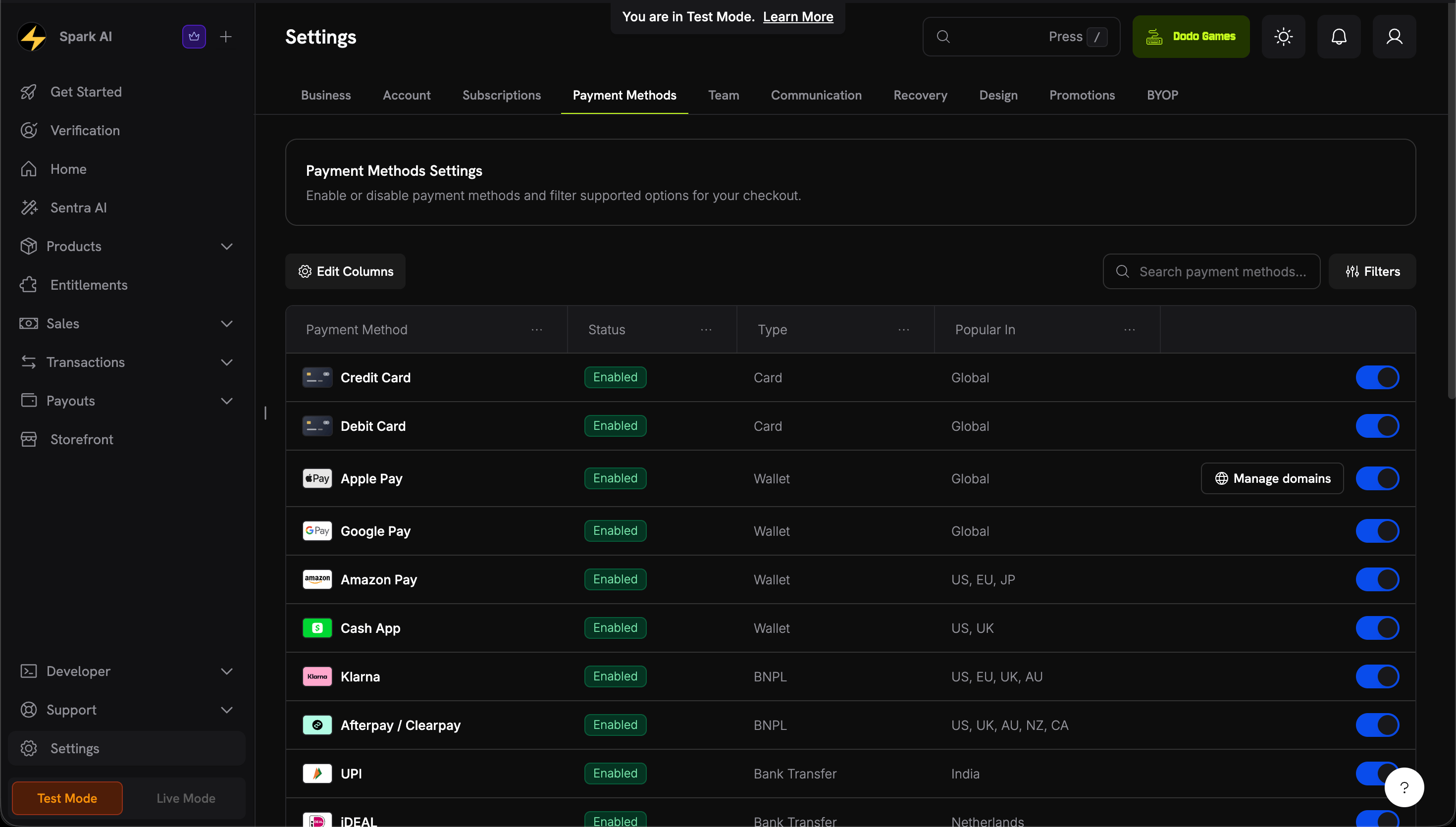
前往 **Settings → Payment Methods**。在 **Apple Pay** 行中,点击 **Manage domains**。
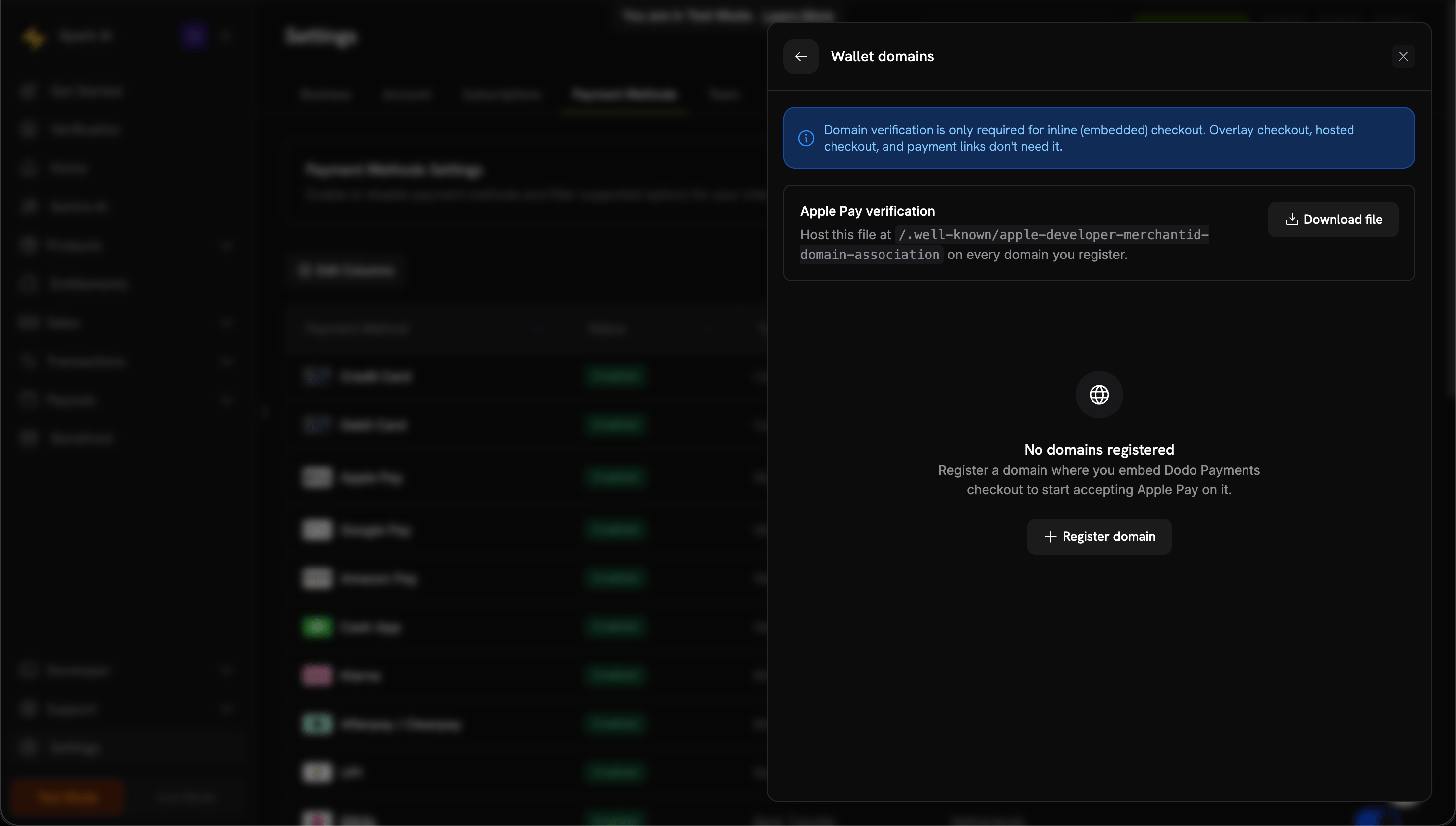
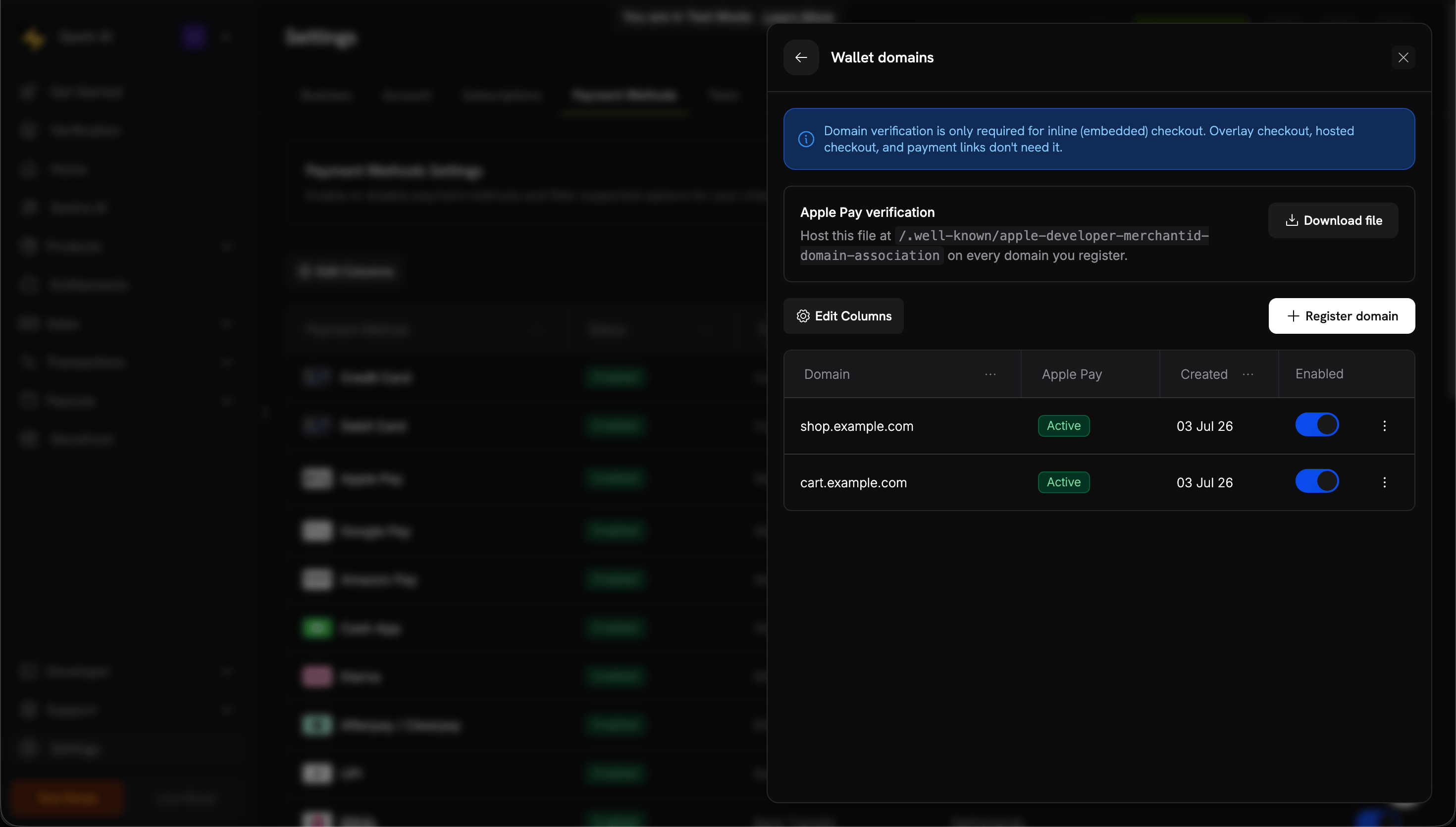
 在 **Apple Pay domains** 面板中,点击 **Download file**。
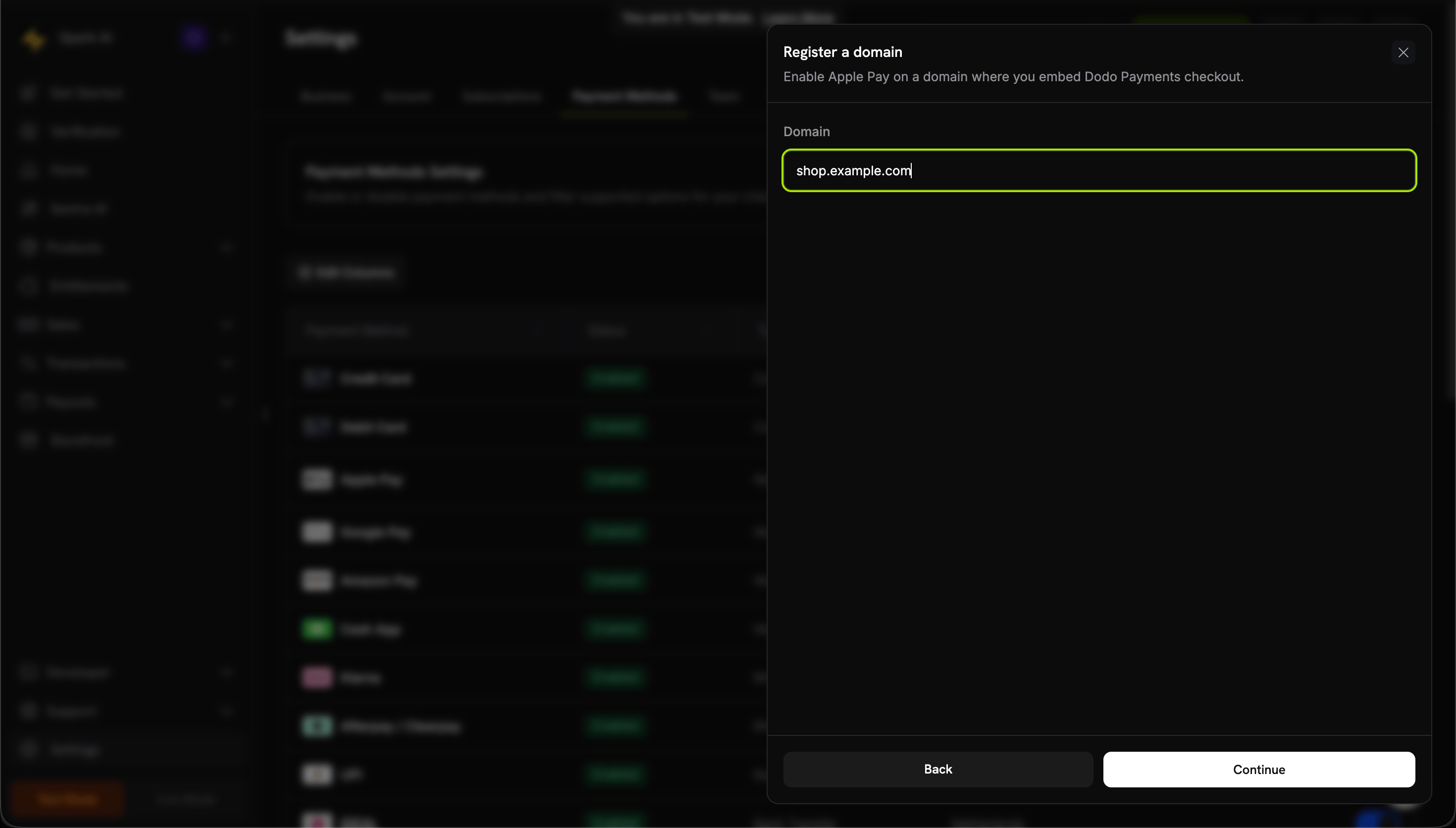
 点击 **Register domain**,输入嵌入 Checkout 的域名(例如 `shop.example.com`),然后点击 **Continue**。
 将文件上传到服务器上的以下路径:
```text theme={null}
https://shop.example.com/.well-known/apple-developer-merchantid-domain-association
```
通过 HTTPS 提供文件,且不得重定向,并使用 `Content-Type: application/octet-stream` 或 `text/plain`。
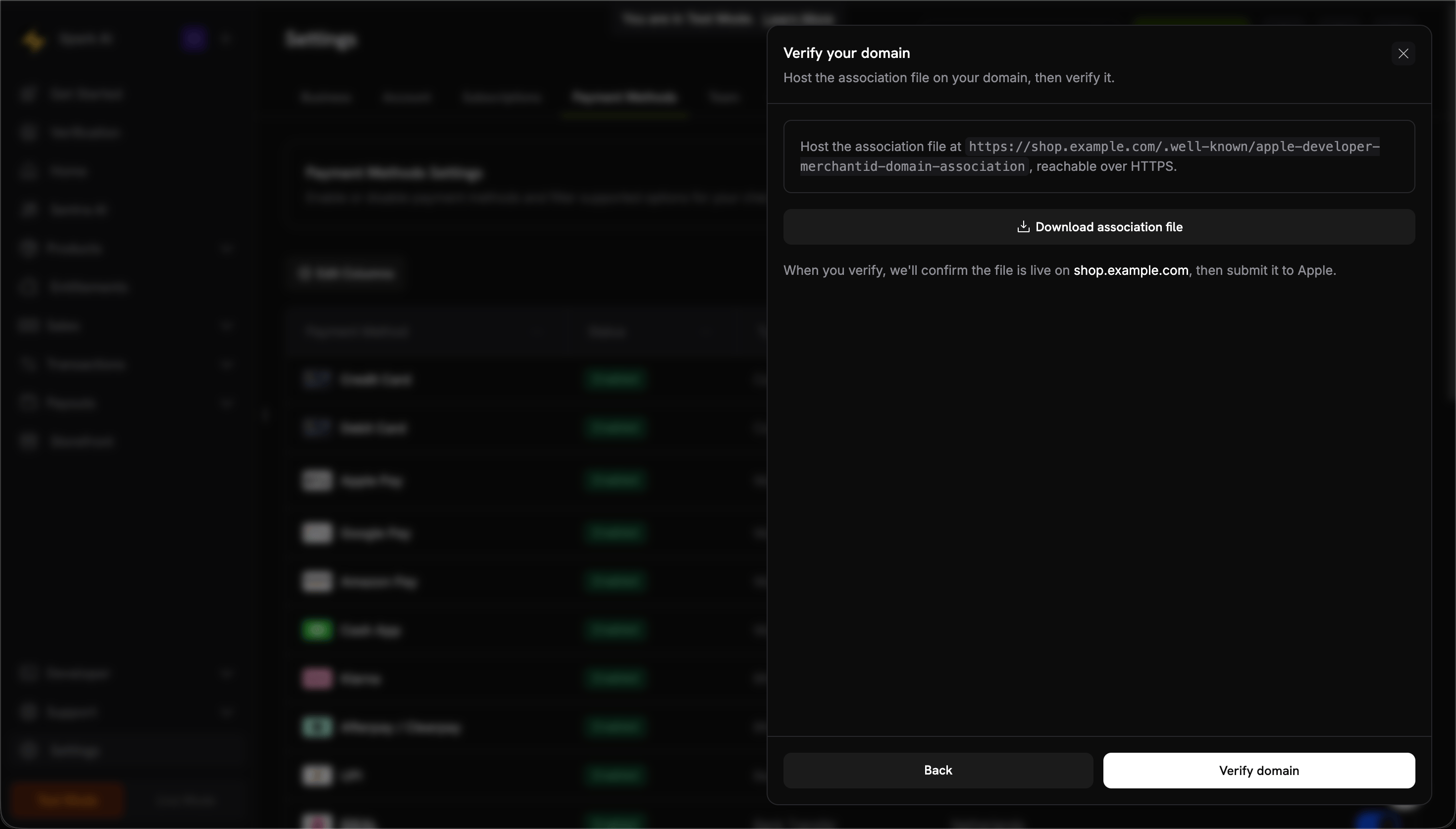
点击 **Verify domain**。Dodo Payments 会检查托管的文件,并将你的域名提交给 Apple。
将文件上传到服务器上的以下路径:
```text theme={null}
https://shop.example.com/.well-known/apple-developer-merchantid-domain-association
```
通过 HTTPS 提供文件,且不得重定向,并使用 `Content-Type: application/octet-stream` 或 `text/plain`。
点击 **Verify domain**。Dodo Payments 会检查托管的文件,并将你的域名提交给 Apple。
 当状态显示为 **Active** 时,Apple Pay 即已在该域名上启用。要为某个域名开启或关闭 Apple Pay,请使用其 **Enabled** 开关。
 1. 在 Apple 设备上打开 Checkout。
2. 确认 Apple Pay 按钮显示。
3. 完成一笔测试交易。
### 配置
要将 Checkout 会话限制为 Apple Pay 和卡片,请传入 `allowed_payment_method_types`:
```javascript theme={null}
// `client` is an initialized DodoPayments client.
const session = await client.checkoutSessions.create({
product_cart: [{ product_id: 'pdt_123', quantity: 1 }],
allowed_payment_method_types: ['apple_pay', 'credit', 'debit'],
return_url: 'https://example.com/success'
});
```
## Google Pay
Google Pay 允许客户使用其 Google 账户中保存的卡片付款。
### 要求
* \*\*浏览器:\*\*桌面设备和 Android 上的 Chrome,以及桌面设备上的 Firefox。Checkout 不会在 Safari 或 iOS 上的任何浏览器中显示 Google Pay。在这些浏览器中,客户可以使用 Apple Pay 或卡片付款。
* \*\*设备:\*\*安装了 Google Pay 应用的 Android 设备。
* \*\*设置:\*\*在 Chrome 中,必须开启 **Allow sites to check if you have payment methods saved**。
### 配置
要将 Checkout 会话限制为 Google Pay 和卡片,请传入 `allowed_payment_method_types`:
```javascript theme={null}
// `client` is an initialized DodoPayments client.
const session = await client.checkoutSessions.create({
product_cart: [{ product_id: 'pdt_123', quantity: 1 }],
allowed_payment_method_types: ['google_pay', 'credit', 'debit'],
return_url: 'https://example.com/success'
});
```
Google Pay 无需进行域名验证。
## Amazon Pay
Amazon Pay 允许客户使用其 Amazon 账户中保存的支付方式结账。
### 可用性
* \*\*地区:\*\*全球,印度除外。
* \*\*货币:\*\*USD、EUR、GBP、AUD、CHF、DKK、HKD、JPY、NOK、NZD、SEK、ZAR。Checkout 提供哪些货币取决于为其提供服务的处理商。
* \*\*订阅:\*\*不支持。
### 配置
要将 Checkout 会话限制为 Amazon Pay 和卡片,请传入 `allowed_payment_method_types`:
```javascript theme={null}
// `client` is an initialized DodoPayments client.
const session = await client.checkoutSessions.create({
product_cart: [{ product_id: 'pdt_123', quantity: 1 }],
allowed_payment_method_types: ['amazon_pay', 'credit', 'debit'],
return_url: 'https://example.com/success'
});
```
## Cash App Pay
Cash App Pay 允许美国客户通过其 Cash App 账户付款。
### 可用性
* \*\*地区:\*\*仅限美国。计费国家/地区必须是美国。
* \*\*货币:\*\*仅限 USD。
* \*\*订阅:\*\*支持。
### 配置
要将 Checkout 会话限制为 Cash App Pay 和卡片,请传入 `allowed_payment_method_types`:
```javascript theme={null}
// `client` is an initialized DodoPayments client.
const session = await client.checkoutSessions.create({
product_cart: [{ product_id: 'pdt_123', quantity: 1 }],
allowed_payment_method_types: ['cashapp', 'credit', 'debit'],
return_url: 'https://example.com/success'
});
```
## RevolutPay
RevolutPay 允许 Revolut 用户使用其 Revolut 账户余额或关联卡片付款。
### 可用性
* \*\*地区:\*\*全球。
* \*\*货币:\*\*仅限 GBP。
* \*\*订阅:\*\*不支持。
### 配置
要将 Checkout 会话限制为 RevolutPay 和卡片,请传入 `allowed_payment_method_types`:
```javascript theme={null}
// `client` is an initialized DodoPayments client.
const session = await client.checkoutSessions.create({
product_cart: [{ product_id: 'pdt_123', quantity: 1 }],
allowed_payment_method_types: ['revolut_pay', 'credit', 'debit'],
return_url: 'https://example.com/success'
});
```
## 测试
在测试模式下,钱包支付使用相同的 Checkout 流程,但不会转移真实资金。
### Apple Pay 测试
关闭 dashboard 侧边栏中的 **Live Mode** 开关,并使用在测试模式下创建的 API keys。
将一张真实卡片添加到 Apple Wallet。在测试模式下不会扣款。
在 Apple 设备上打开 Checkout,并完成 Apple Pay 流程。
Apple Pay 要求使用 HTTPS。除非页面通过 HTTPS 提供,否则 Apple Pay 不会在 `localhost` 上显示。
### Google Pay 测试
[加入 Google Pay 测试卡组](https://groups.google.com/g/googlepay-test-mode-stub-data),将测试卡添加到你的钱包中。
使用在测试模式下创建的 API keys。
在 Google Pay 中选择一张测试卡以完成交易。
### Amazon Pay 和 Cash App Pay
使用测试模式 API keys,并按照标准 Checkout 流程操作。测试交易是模拟的,不会产生真实扣款。
## SDK 支持
钱包的可用性取决于你呈现 Checkout 的方式。
### Web SDK
数字钱包可用于:
* Overlay Checkout,但 Apple Pay 除外。
* Inline Checkout。Apple Pay 需要进行[域名验证](#domain-verification)。
* 通过 Hosted Checkout 进行 Direct API integration。
### Mobile SDK(Checkout)
[Android](/developer-resources/sdks/android)、[iOS](/developer-resources/sdks/ios)、
[React Native](/developer-resources/sdks/react-native) 和
[Flutter](/developer-resources/sdks/flutter) Checkout SDK 会在平台的系统浏览器中打开 Dodo Payments Hosted
Checkout(iOS 上为 `SFSafariViewController`,
Android 上为 Chrome Custom Tabs),而不是在 WebView 中打开。Apple Pay 和 Google Pay
在其中的工作方式与 Web 上相同。有关设置,请参阅 [Mobile Integration Guide](/developer-resources/mobile-integration)。
## 最佳实践
移动端客户希望使用 Apple Pay 和 Google Pay。在移动端 Checkout 中突出显示这些选项。
如果使用 Inline Checkout,请在开发期间验证 Apple Pay 域名,而不要等到发布当天再验证。
并非每位客户都有数字钱包。请在 `allowed_payment_method_types` 中加入 `credit` 和 `debit`。
模拟器无法完全复现钱包行为。发布前请在真实的 iOS 和 Android 设备上进行测试。
在不受支持的设备上,或客户没有保存的卡片时,钱包不会显示。请为这些客户保留其他支付方式。
## 故障排除
**检查:**
1. 对于 Inline Checkout,域名是否已在 **Manage domains** 中验证?
2. 页面是否通过 HTTPS 加载?
3. 设备是否运行 iOS 17、iPadOS 17 或 Safari 17 及更高版本?
4. 客户的 Apple Wallet 中是否有卡片?
5. `apple_pay` 是否包含在 `allowed_payment_method_types` 中?
6. Checkout 是否为 overlay?Apple Pay 不适用于 overlay checkout。
\*\*解决方案:\*\*完成域名验证,并通过 HTTPS 提供页面。请在真实的 Apple 设备上测试。
点击 **Verify domain** 后,Dodo Payments 会从你的域名获取关联文件,并将域名提交给 Apple。保持在 **Pending** 状态的域名通常是因为 Dodo Payments 无法按预期获取文件。
**检查:**
1. 文件可通过 `https:///.well-known/apple-developer-merchantid-domain-association` 访问。
2. 文件通过 HTTPS 提供,且证书有效。
3. 文件可在不重定向的情况下解析。重定向到 `www`、其他主机或错误页面都会导致检查失败。
4. 文件以 `Content-Type: application/octet-stream` 或 `text/plain` 提供,而不是以 `text/html` 提供。
5. 这是从该企业的 **Manage domains** 下载的文件,而不是从其他账户或服务提供商重复使用的文件。
要确认文件可从公网访问,请从你自己的网络之外发起 URL 请求,例如在隐私浏览窗口中请求。Staging 密码、身份验证墙和防火墙规则通常会让请求对你自己成功,但对 Dodo Payments 失败。
\*\*解决方案:\*\*修复托管问题,然后再次点击 **Verify domain**。如果成功检查后域名仍未变为 **Active**,请通过 [support@dodopayments.com](mailto:support@dodopayments.com) 联系支持团队,并提供域名名称。
**检查:**
1. 客户是否使用受支持的浏览器?Google Pay 不会在 Safari 或 iOS 上的任何浏览器中显示。
2. 客户的 Google Pay 中是否有卡片?
3. Chrome 设置 **Allow sites to check if you have payment methods saved** 是否已开启?
4. `google_pay` 是否包含在 `allowed_payment_method_types` 中?
\*\*解决方案:\*\*检查浏览器和客户的 Google Pay 设置。
**常见原因:**
* 钱包中的卡片已过期或无效。
* 银行拒绝了交易。
* 网络连接问题中断了支付。
\*\*解决方案:\*\*请客户检查钱包中的卡片,或使用其他支付方式。
数字钱包仅在兼容的设备上显示:
* Apple Pay:仅限 Apple 设备。
* Google Pay:Chrome 或 Android 设备。
\*\*解决方案:\*\*这是预期行为。请保留卡片支付作为备用方式。
## 相关页面
所有受支持的支付方式。
在你的页面上以 overlay 形式打开 Checkout。
每种支付方式的测试数据。
在系统浏览器中打开 Hosted Checkout,在那里 Apple Pay 和 Google Pay 的工作方式与 Web 上相同。
This documentation is built and hosted on [Mintlify](https://mintlify.com), a developer documentation platform.
1. 在 Apple 设备上打开 Checkout。
2. 确认 Apple Pay 按钮显示。
3. 完成一笔测试交易。
### 配置
要将 Checkout 会话限制为 Apple Pay 和卡片,请传入 `allowed_payment_method_types`:
```javascript theme={null}
// `client` is an initialized DodoPayments client.
const session = await client.checkoutSessions.create({
product_cart: [{ product_id: 'pdt_123', quantity: 1 }],
allowed_payment_method_types: ['apple_pay', 'credit', 'debit'],
return_url: 'https://example.com/success'
});
```
## Google Pay
Google Pay 允许客户使用其 Google 账户中保存的卡片付款。
### 要求
* \*\*浏览器:\*\*桌面设备和 Android 上的 Chrome,以及桌面设备上的 Firefox。Checkout 不会在 Safari 或 iOS 上的任何浏览器中显示 Google Pay。在这些浏览器中,客户可以使用 Apple Pay 或卡片付款。
* \*\*设备:\*\*安装了 Google Pay 应用的 Android 设备。
* \*\*设置:\*\*在 Chrome 中,必须开启 **Allow sites to check if you have payment methods saved**。
### 配置
要将 Checkout 会话限制为 Google Pay 和卡片,请传入 `allowed_payment_method_types`:
```javascript theme={null}
// `client` is an initialized DodoPayments client.
const session = await client.checkoutSessions.create({
product_cart: [{ product_id: 'pdt_123', quantity: 1 }],
allowed_payment_method_types: ['google_pay', 'credit', 'debit'],
return_url: 'https://example.com/success'
});
```
Google Pay 无需进行域名验证。
## Amazon Pay
Amazon Pay 允许客户使用其 Amazon 账户中保存的支付方式结账。
### 可用性
* \*\*地区:\*\*全球,印度除外。
* \*\*货币:\*\*USD、EUR、GBP、AUD、CHF、DKK、HKD、JPY、NOK、NZD、SEK、ZAR。Checkout 提供哪些货币取决于为其提供服务的处理商。
* \*\*订阅:\*\*不支持。
### 配置
要将 Checkout 会话限制为 Amazon Pay 和卡片,请传入 `allowed_payment_method_types`:
```javascript theme={null}
// `client` is an initialized DodoPayments client.
const session = await client.checkoutSessions.create({
product_cart: [{ product_id: 'pdt_123', quantity: 1 }],
allowed_payment_method_types: ['amazon_pay', 'credit', 'debit'],
return_url: 'https://example.com/success'
});
```
## Cash App Pay
Cash App Pay 允许美国客户通过其 Cash App 账户付款。
### 可用性
* \*\*地区:\*\*仅限美国。计费国家/地区必须是美国。
* \*\*货币:\*\*仅限 USD。
* \*\*订阅:\*\*支持。
### 配置
要将 Checkout 会话限制为 Cash App Pay 和卡片,请传入 `allowed_payment_method_types`:
```javascript theme={null}
// `client` is an initialized DodoPayments client.
const session = await client.checkoutSessions.create({
product_cart: [{ product_id: 'pdt_123', quantity: 1 }],
allowed_payment_method_types: ['cashapp', 'credit', 'debit'],
return_url: 'https://example.com/success'
});
```
## RevolutPay
RevolutPay 允许 Revolut 用户使用其 Revolut 账户余额或关联卡片付款。
### 可用性
* \*\*地区:\*\*全球。
* \*\*货币:\*\*仅限 GBP。
* \*\*订阅:\*\*不支持。
### 配置
要将 Checkout 会话限制为 RevolutPay 和卡片,请传入 `allowed_payment_method_types`:
```javascript theme={null}
// `client` is an initialized DodoPayments client.
const session = await client.checkoutSessions.create({
product_cart: [{ product_id: 'pdt_123', quantity: 1 }],
allowed_payment_method_types: ['revolut_pay', 'credit', 'debit'],
return_url: 'https://example.com/success'
});
```
## 测试
在测试模式下,钱包支付使用相同的 Checkout 流程,但不会转移真实资金。
### Apple Pay 测试
关闭 dashboard 侧边栏中的 **Live Mode** 开关,并使用在测试模式下创建的 API keys。
将一张真实卡片添加到 Apple Wallet。在测试模式下不会扣款。
在 Apple 设备上打开 Checkout,并完成 Apple Pay 流程。
Apple Pay 要求使用 HTTPS。除非页面通过 HTTPS 提供,否则 Apple Pay 不会在 `localhost` 上显示。
### Google Pay 测试
[加入 Google Pay 测试卡组](https://groups.google.com/g/googlepay-test-mode-stub-data),将测试卡添加到你的钱包中。
使用在测试模式下创建的 API keys。
在 Google Pay 中选择一张测试卡以完成交易。
### Amazon Pay 和 Cash App Pay
使用测试模式 API keys,并按照标准 Checkout 流程操作。测试交易是模拟的,不会产生真实扣款。
## SDK 支持
钱包的可用性取决于你呈现 Checkout 的方式。
### Web SDK
数字钱包可用于:
* Overlay Checkout,但 Apple Pay 除外。
* Inline Checkout。Apple Pay 需要进行[域名验证](#domain-verification)。
* 通过 Hosted Checkout 进行 Direct API integration。
### Mobile SDK(Checkout)
[Android](/developer-resources/sdks/android)、[iOS](/developer-resources/sdks/ios)、
[React Native](/developer-resources/sdks/react-native) 和
[Flutter](/developer-resources/sdks/flutter) Checkout SDK 会在平台的系统浏览器中打开 Dodo Payments Hosted
Checkout(iOS 上为 `SFSafariViewController`,
Android 上为 Chrome Custom Tabs),而不是在 WebView 中打开。Apple Pay 和 Google Pay
在其中的工作方式与 Web 上相同。有关设置,请参阅 [Mobile Integration Guide](/developer-resources/mobile-integration)。
## 最佳实践
移动端客户希望使用 Apple Pay 和 Google Pay。在移动端 Checkout 中突出显示这些选项。
如果使用 Inline Checkout,请在开发期间验证 Apple Pay 域名,而不要等到发布当天再验证。
并非每位客户都有数字钱包。请在 `allowed_payment_method_types` 中加入 `credit` 和 `debit`。
模拟器无法完全复现钱包行为。发布前请在真实的 iOS 和 Android 设备上进行测试。
在不受支持的设备上,或客户没有保存的卡片时,钱包不会显示。请为这些客户保留其他支付方式。
## 故障排除
**检查:**
1. 对于 Inline Checkout,域名是否已在 **Manage domains** 中验证?
2. 页面是否通过 HTTPS 加载?
3. 设备是否运行 iOS 17、iPadOS 17 或 Safari 17 及更高版本?
4. 客户的 Apple Wallet 中是否有卡片?
5. `apple_pay` 是否包含在 `allowed_payment_method_types` 中?
6. Checkout 是否为 overlay?Apple Pay 不适用于 overlay checkout。
\*\*解决方案:\*\*完成域名验证,并通过 HTTPS 提供页面。请在真实的 Apple 设备上测试。
点击 **Verify domain** 后,Dodo Payments 会从你的域名获取关联文件,并将域名提交给 Apple。保持在 **Pending** 状态的域名通常是因为 Dodo Payments 无法按预期获取文件。
**检查:**
1. 文件可通过 `https:///.well-known/apple-developer-merchantid-domain-association` 访问。
2. 文件通过 HTTPS 提供,且证书有效。
3. 文件可在不重定向的情况下解析。重定向到 `www`、其他主机或错误页面都会导致检查失败。
4. 文件以 `Content-Type: application/octet-stream` 或 `text/plain` 提供,而不是以 `text/html` 提供。
5. 这是从该企业的 **Manage domains** 下载的文件,而不是从其他账户或服务提供商重复使用的文件。
要确认文件可从公网访问,请从你自己的网络之外发起 URL 请求,例如在隐私浏览窗口中请求。Staging 密码、身份验证墙和防火墙规则通常会让请求对你自己成功,但对 Dodo Payments 失败。
\*\*解决方案:\*\*修复托管问题,然后再次点击 **Verify domain**。如果成功检查后域名仍未变为 **Active**,请通过 [support@dodopayments.com](mailto:support@dodopayments.com) 联系支持团队,并提供域名名称。
**检查:**
1. 客户是否使用受支持的浏览器?Google Pay 不会在 Safari 或 iOS 上的任何浏览器中显示。
2. 客户的 Google Pay 中是否有卡片?
3. Chrome 设置 **Allow sites to check if you have payment methods saved** 是否已开启?
4. `google_pay` 是否包含在 `allowed_payment_method_types` 中?
\*\*解决方案:\*\*检查浏览器和客户的 Google Pay 设置。
**常见原因:**
* 钱包中的卡片已过期或无效。
* 银行拒绝了交易。
* 网络连接问题中断了支付。
\*\*解决方案:\*\*请客户检查钱包中的卡片,或使用其他支付方式。
数字钱包仅在兼容的设备上显示:
* Apple Pay:仅限 Apple 设备。
* Google Pay:Chrome 或 Android 设备。
\*\*解决方案:\*\*这是预期行为。请保留卡片支付作为备用方式。
## 相关页面
所有受支持的支付方式。
在你的页面上以 overlay 形式打开 Checkout。
每种支付方式的测试数据。
在系统浏览器中打开 Hosted Checkout,在那里 Apple Pay 和 Google Pay 的工作方式与 Web 上相同。
This documentation is built and hosted on [Mintlify](https://mintlify.com), a developer documentation platform.