> ## Documentation Index
> Fetch the complete documentation index at: https://docs.dodopayments.com/llms.txt
> Use this file to discover all available pages before exploring further.
# 报告
> 对账余额,查看每项费用,并将任意日期范围内的付款、调整、付款出账和余额账本导出为 CSV 或 XLSX。
## 简介
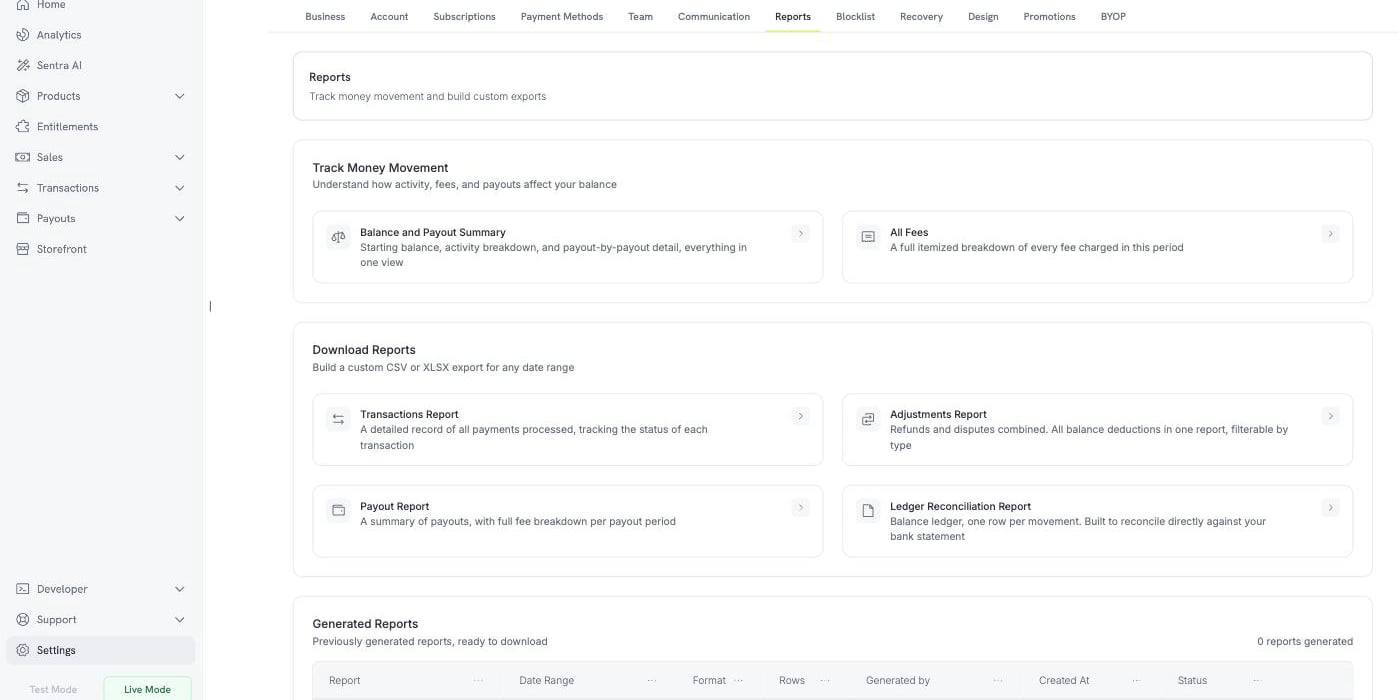
**Reports** 说明资金如何在您的余额中流动,并为您的会计工作生成导出文件。要打开它,请前往 **Settings → Reports**。
该页面包含三个部分:
两个实时视图,用于在页面上说明您的余额和费用。
四种导出文件,可针对日期范围生成 CSV 或 XLSX。
您之前生成的每份报告都可以再次下载。
 Reports 仅在 **Live Mode** 中可用。它读取实时余额账本,而测试模式中的活动不会写入该账本,因此在 **Test Mode** 中,Reports 页面会显示一条消息,而不是报告。生成报告前,请打开侧边栏中的 **Live Mode** 开关。
## 跟踪资金流动
两个视图可以直接在页面上回答问题,无需下载。每个视图都需要指定日期范围,并提供一个 **Export** 按钮,可将相同视图保存为文件。
### 余额和付款汇总
此视图会核对指定期间的余额。它包含三个区块。
Reports 仅在 **Live Mode** 中可用。它读取实时余额账本,而测试模式中的活动不会写入该账本,因此在 **Test Mode** 中,Reports 页面会显示一条消息,而不是报告。生成报告前,请打开侧边栏中的 **Live Mode** 开关。
## 跟踪资金流动
两个视图可以直接在页面上回答问题,无需下载。每个视图都需要指定日期范围,并提供一个 **Export** 按钮,可将相同视图保存为文件。
### 余额和付款汇总
此视图会核对指定期间的余额。它包含三个区块。
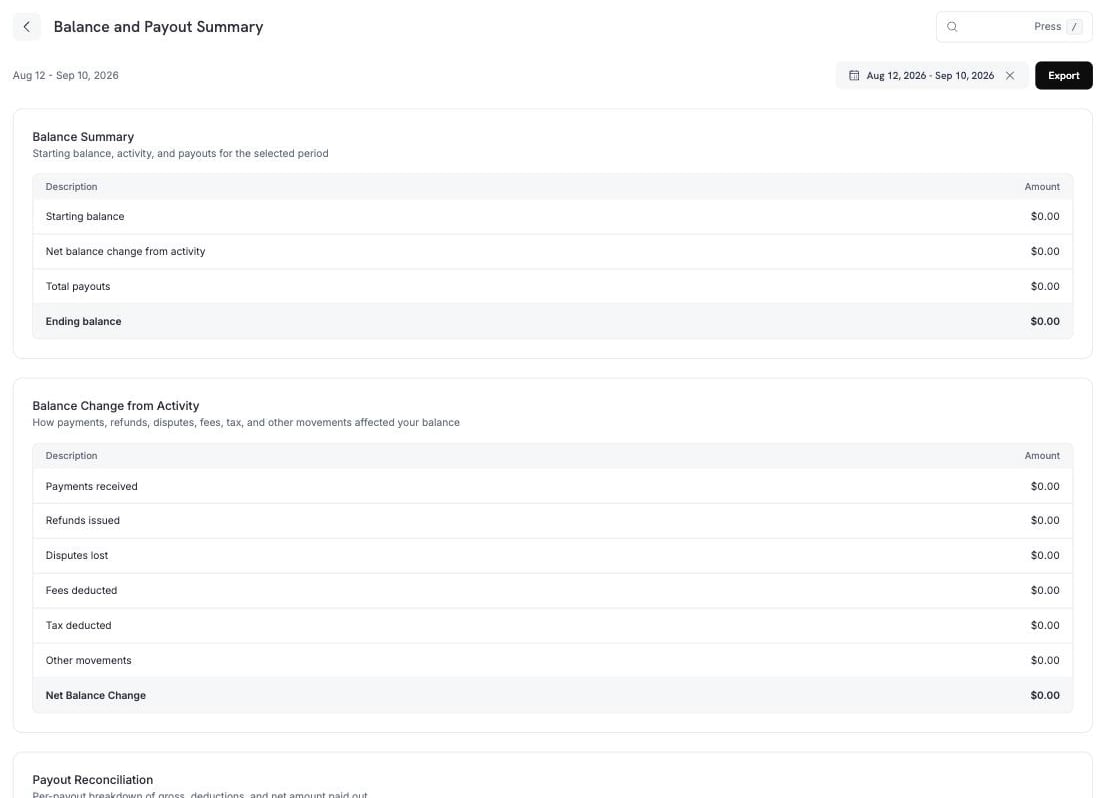 **Balance Summary** 显示从期间开始到结束的余额。
| 行 | 含义 |
| - | - |
| Starting balance | 期间开始时的余额。 |
| Net balance change from activity | 期间内发生的所有变动,不包括付款。 |
| Total payouts | 通过付款转出的金额。 |
| Ending balance | Starting balance + 活动变动 − 付款。 |
**Balance Change from Activity** 将中间一行拆分为各个组成部分。
| 行 | 包含内容 |
| - | - |
| 收到的付款 | 成功的付款。 |
| 已发放的退款 | 退款和退款手续费,减去其中任何一项的冲销。 |
| 丢失的争议 | 争议、争议手续费和 Visa RDR 手续费,减去任何争议或争议手续费冲销。 |
| 扣除的费用 | 付款手续费、打款手续费、催收手续费、付款重试手续费、BYOP 手续费、弃单挽回手续费、Ethoca 手续费、转化手续费和审核手续费,减去任何冲销。 |
| 扣除的税款 | 税款,减去任何税款冲销。 |
| 其他变动 | Dodo Credits、手动调整、货币转换,以及准备金的冻结和释放。 |
| 净余额变动 | 上述各行的总和。 |
**Other movements** 包含不属于上述任何命名行的条目:**Dodo Credits**(Dodo Payments 应用到您余额中的额度)、**manual adjustments**(Dodo Payments 团队发布的更正)以及 **currency conversion**(余额在不同货币之间转换时记录的差额)。
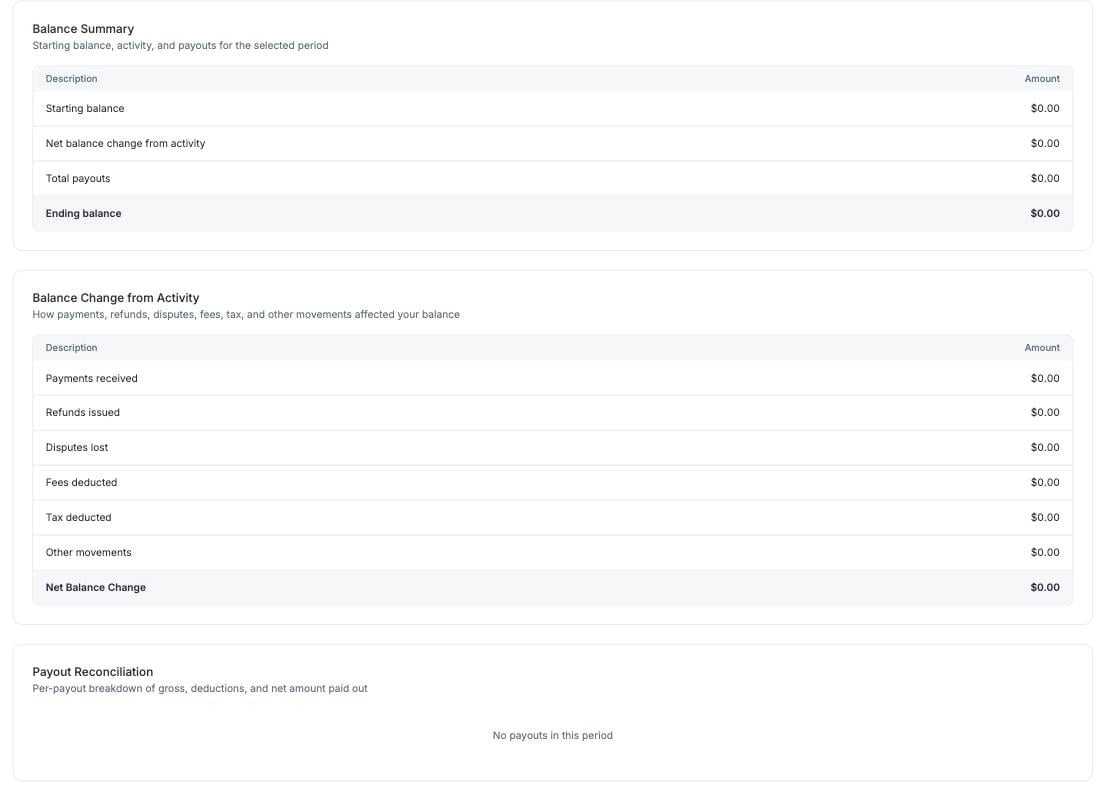
**Payout Reconciliation** 会将该期间的每笔打款单独列为一行,并显示总额、每项扣除额和实际打款净额。
**Balance Summary** 显示从期间开始到结束的余额。
| 行 | 含义 |
| - | - |
| Starting balance | 期间开始时的余额。 |
| Net balance change from activity | 期间内发生的所有变动,不包括付款。 |
| Total payouts | 通过付款转出的金额。 |
| Ending balance | Starting balance + 活动变动 − 付款。 |
**Balance Change from Activity** 将中间一行拆分为各个组成部分。
| 行 | 包含内容 |
| - | - |
| 收到的付款 | 成功的付款。 |
| 已发放的退款 | 退款和退款手续费,减去其中任何一项的冲销。 |
| 丢失的争议 | 争议、争议手续费和 Visa RDR 手续费,减去任何争议或争议手续费冲销。 |
| 扣除的费用 | 付款手续费、打款手续费、催收手续费、付款重试手续费、BYOP 手续费、弃单挽回手续费、Ethoca 手续费、转化手续费和审核手续费,减去任何冲销。 |
| 扣除的税款 | 税款,减去任何税款冲销。 |
| 其他变动 | Dodo Credits、手动调整、货币转换,以及准备金的冻结和释放。 |
| 净余额变动 | 上述各行的总和。 |
**Other movements** 包含不属于上述任何命名行的条目:**Dodo Credits**(Dodo Payments 应用到您余额中的额度)、**manual adjustments**(Dodo Payments 团队发布的更正)以及 **currency conversion**(余额在不同货币之间转换时记录的差额)。
**Payout Reconciliation** 会将该期间的每笔打款单独列为一行,并显示总额、每项扣除额和实际打款净额。
 一笔打款会包含截至其截止日期之前所有尚未认领的账本条目,而不仅仅是该期间内的付款。因此,Dodo Credits 和调整项可能会为一笔打款提供部分资金,并显示在 **Other** 下。
### All Fees
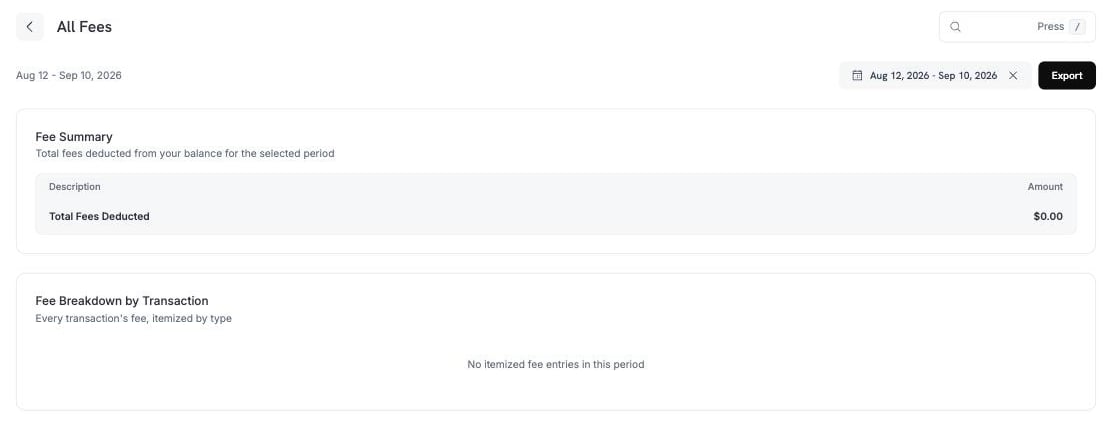
**All Fees** 会列出该期间从您余额中扣除的每项费用,并提供总额和按交易划分的明细。
一笔打款会包含截至其截止日期之前所有尚未认领的账本条目,而不仅仅是该期间内的付款。因此,Dodo Credits 和调整项可能会为一笔打款提供部分资金,并显示在 **Other** 下。
### All Fees
**All Fees** 会列出该期间从您余额中扣除的每项费用,并提供总额和按交易划分的明细。
 ## 下载报告
四种报告都可以针对任意日期范围生成文件。打开每种报告时,都会显示一个面板,供您选择期间、格式和该报告的筛选条件。
每种报告都可以导出为 **CSV** 或 **XLSX**。四种报告包含:
| 报告 | 包含内容 |
| - | - |
| **Transactions Report** | 处理过的每笔付款,以及每笔交易的状态。 |
| **Adjustments Report** | 将退款和争议放在一起:在一个文件中显示每项余额扣除。 |
| **Payout Report** | 打款摘要,以及每个打款期间的完整费用明细。 |
| **Ledger Reconciliation Report** | 余额账本,每次变动占一行,用于与您的银行对账单进行核对。 |
### Transactions Report
## 下载报告
四种报告都可以针对任意日期范围生成文件。打开每种报告时,都会显示一个面板,供您选择期间、格式和该报告的筛选条件。
每种报告都可以导出为 **CSV** 或 **XLSX**。四种报告包含:
| 报告 | 包含内容 |
| - | - |
| **Transactions Report** | 处理过的每笔付款,以及每笔交易的状态。 |
| **Adjustments Report** | 将退款和争议放在一起:在一个文件中显示每项余额扣除。 |
| **Payout Report** | 打款摘要,以及每个打款期间的完整费用明细。 |
| **Ledger Reconciliation Report** | 余额账本,每次变动占一行,用于与您的银行对账单进行核对。 |
### Transactions Report
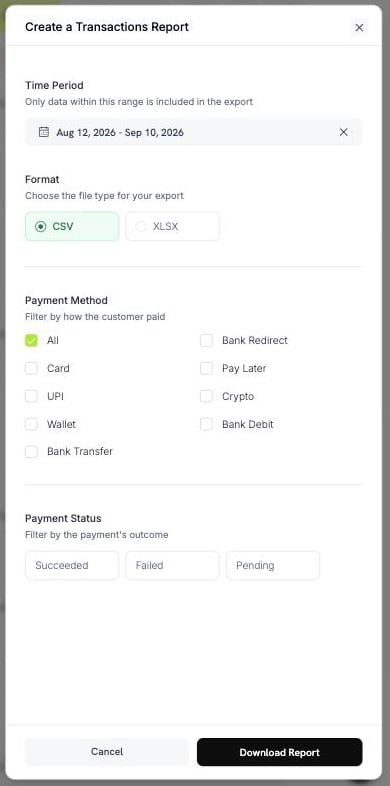 Transactions Report 有两个筛选条件:
* **Payment Method**:Card、UPI、Wallet、Bank Transfer、Bank Redirect、Pay Later、Crypto 或 Bank Debit。选择 **All** 可包含所有方式。
* **Payment Status**:Succeeded、Failed 或 Pending。
### Adjustments Report
Transactions Report 有两个筛选条件:
* **Payment Method**:Card、UPI、Wallet、Bank Transfer、Bank Redirect、Pay Later、Crypto 或 Bank Debit。选择 **All** 可包含所有方式。
* **Payment Status**:Succeeded、Failed 或 Pending。
### Adjustments Report
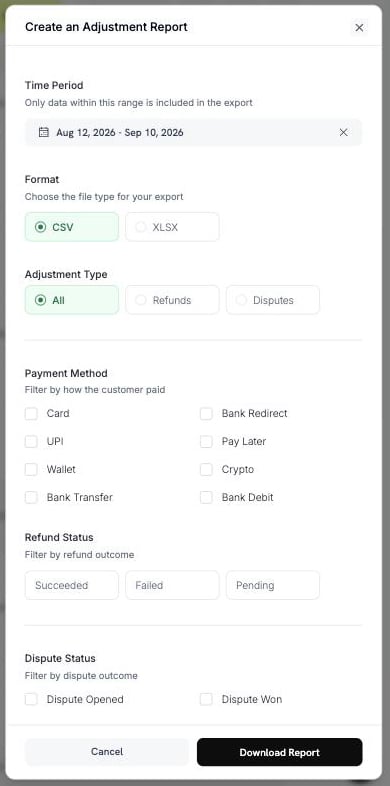 Adjustments Report 有四个筛选条件:
* **Adjustment Type**:All、Refunds 或 Disputes。
* **Payment Method**:与 Transactions Report 中相同的八种方式。
* **Refund Status**:Succeeded、Failed 或 Pending。
* **Dispute Status**:Opened、Challenged、Accepted、Lost、Won、Cancelled 或 Expired。
### Payout Report
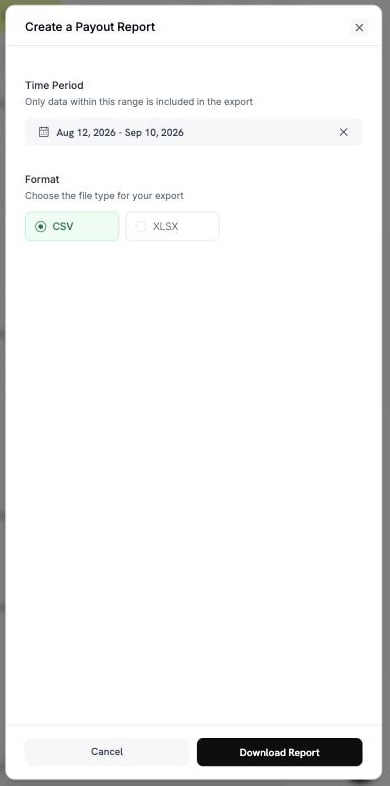
选择期间和格式。此报告没有其他筛选条件。
Adjustments Report 有四个筛选条件:
* **Adjustment Type**:All、Refunds 或 Disputes。
* **Payment Method**:与 Transactions Report 中相同的八种方式。
* **Refund Status**:Succeeded、Failed 或 Pending。
* **Dispute Status**:Opened、Challenged、Accepted、Lost、Won、Cancelled 或 Expired。
### Payout Report
选择期间和格式。此报告没有其他筛选条件。
 ### Ledger Reconciliation Report
此报告有两种模式。使用 **Reconciliation by** 选择模式。
### Ledger Reconciliation Report
此报告有两种模式。使用 **Reconciliation by** 选择模式。
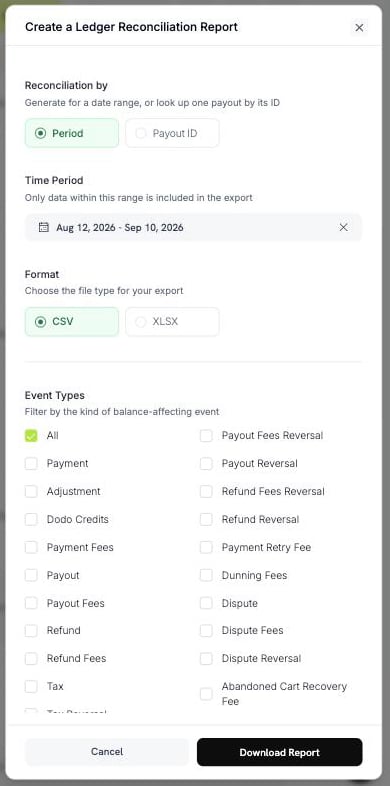 **Period** 会导出日期范围内的每次账本变动。
**Payout ID** 会导出一笔打款的所有变动。输入打款参考编号,例如 `pyt_kxncrebha`,即可获取该笔打款结算的准确行。
**Period** 会导出日期范围内的每次账本变动。
**Payout ID** 会导出一笔打款的所有变动。输入打款参考编号,例如 `pyt_kxncrebha`,即可获取该笔打款结算的准确行。
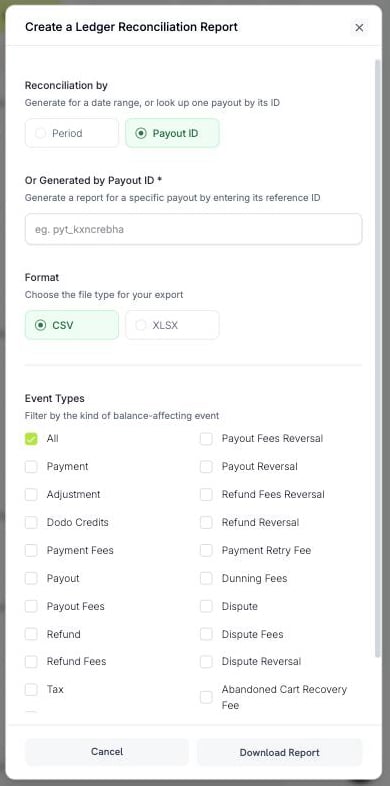 不存在的打款 ID 会返回错误,而不是空文件。
**Event Types** 会根据余额变动的类型筛选行。选择 **All** 保留所有类型,或从以下选项中选择:
| 分组 | 选项 |
| - | - |
| 资金流入 | Payment、Dodo Credits、Adjustment、Currency Conversion |
| 付款 | Payout、Payout Reversal、Payout Fees、Payout Fees Reversal |
| 退款 | Refund、Refund Reversal、Refund Fees、Refund Fees Reversal |
| 争议 | Dispute、Dispute Fees、Dispute Reversal、Dispute Fees Reversal、Visa RDR Fee |
| 费用 | Payment Fees、Payment Retry Fee、Dunning Fees、Abandoned Cart Recovery Fee、BYOP Fee、Deflection Fees、Deflection Fees Reversal、Moderation Fees |
| 税费 | Tax、Tax Reversal |
并非每种类型都有冲销。只有 Payout、Payout Fees、Refund、Refund Fees、Dispute、Dispute Fees、Deflection Fees 和 Tax 具有冲销类型。
要回答“这笔打款包含什么?”,请使用 **Payout ID** 模式。要逐行核对银行对账单,请使用 **Period** 并选择 **All** 事件类型。
## 生成并下载报告
生成并下载报告:
前往 **Settings → Reports**,选择所需的报告。
选择日期范围。只有此范围内的数据会写入文件。
选择 **CSV** 或 **XLSX**,然后设置该报告的筛选条件。
选择 **Download Report**。文件将开始下载,同时报告会添加到 **Generated Reports**。
文件名包含报告名称和日期范围,因此无需打开文件即可识别下载内容。例如:`dodo_ledger_1Jun2026-30Jun2026.csv`。
CSV 导出文件以 UTF-8 字节顺序标记开头,因此 Excel 可以正确显示带重音符号的字符和非拉丁文字。
### 行数限制
单次导出有行数限制,因此您可能需要拆分较大的期间。
| 报告 | CSV | XLSX |
| - | - | - |
| Ledger Reconciliation | 500,000 行 | 100,000 行 |
| 其他所有报告 | 100,000 行 | 50,000 行 |
如果日期范围超出限制,导出会被拒绝并显示消息。请缩小范围或添加筛选条件,然后重新生成报告。
对于较大的期间,请选择 CSV。它的行数限制更高。
## 已生成的报告
您生成的每份报告都会被记录,因此无需重新生成即可再次下载。**Generated Reports** 表包含以下列:
| 列 | 含义 |
| - | - |
| Report | 报告类型。 |
| Date Range | 报告涵盖的期间。 |
| Format | CSV 或 XLSX。 |
| Rows | 文件包含的行数。 |
| Generated by | 生成报告的团队成员。 |
| Created At | 报告生成时间。 |
| Status | **Completed** 或 **Failed**。 |
下载链接在短时间内有效。如果存储的文件已过期,Dodo Payments 会使用相同的参数重新生成文件,并将该行标记为已重新生成。
重新生成的报告可能与原始报告不同,因为日期范围内的数据会持续变化。例如,首次生成报告后记录的退款或争议会出现在重新生成的报告中。如果您需要保留当时的准确数据,请保存下载的文件。
## 我需要哪种报告?
将您的问题与报告对应起来:
| 问题 | 报告 |
| - | - |
| 为什么我的余额是这个数? | Balance and Payout Summary |
| 这笔打款包含什么? | Ledger Reconciliation,按 **Payout ID** |
| 我支付了哪些费用? | All Fees |
| 我需要提供给会计的每笔付款。 | Transactions Report |
| 退款和争议让我损失了多少? | Adjustments Report |
| 我需要核对银行对账单。 | Ledger Reconciliation,按 **Period** |
## 最佳实践
* 首先使用 **Balance and Payout Summary** 进行核对。只有在需要解释某个数据时,才下载详细报告。
* 对于较长的期间,请导出 **CSV**;只有计划手动处理文件时,才使用 **XLSX**。
* 保存下载的文件。重新生成的报告可能与其不一致。
* 在扩大日期范围之前添加筛选条件。筛选条件可以帮助导出文件保持在行数限制以内。
如果某个数据看起来不正确,请先检查日期范围和筛选条件。如果仍然不正确,请联系支持团队,并提供报告类型和期间。
请发送邮件至 [support@dodopayments.com](mailto:support@dodopayments.com),并提供报告类型和期间。
## 后续步骤
跟踪收入、客户、留存率和交易状况。
了解您的收入、扣除项和打款周期。
了解打款如何以及何时到账您的银行账户。
发起并监控退款。
This documentation is built and hosted on [Mintlify](https://mintlify.com), a developer documentation platform.
不存在的打款 ID 会返回错误,而不是空文件。
**Event Types** 会根据余额变动的类型筛选行。选择 **All** 保留所有类型,或从以下选项中选择:
| 分组 | 选项 |
| - | - |
| 资金流入 | Payment、Dodo Credits、Adjustment、Currency Conversion |
| 付款 | Payout、Payout Reversal、Payout Fees、Payout Fees Reversal |
| 退款 | Refund、Refund Reversal、Refund Fees、Refund Fees Reversal |
| 争议 | Dispute、Dispute Fees、Dispute Reversal、Dispute Fees Reversal、Visa RDR Fee |
| 费用 | Payment Fees、Payment Retry Fee、Dunning Fees、Abandoned Cart Recovery Fee、BYOP Fee、Deflection Fees、Deflection Fees Reversal、Moderation Fees |
| 税费 | Tax、Tax Reversal |
并非每种类型都有冲销。只有 Payout、Payout Fees、Refund、Refund Fees、Dispute、Dispute Fees、Deflection Fees 和 Tax 具有冲销类型。
要回答“这笔打款包含什么?”,请使用 **Payout ID** 模式。要逐行核对银行对账单,请使用 **Period** 并选择 **All** 事件类型。
## 生成并下载报告
生成并下载报告:
前往 **Settings → Reports**,选择所需的报告。
选择日期范围。只有此范围内的数据会写入文件。
选择 **CSV** 或 **XLSX**,然后设置该报告的筛选条件。
选择 **Download Report**。文件将开始下载,同时报告会添加到 **Generated Reports**。
文件名包含报告名称和日期范围,因此无需打开文件即可识别下载内容。例如:`dodo_ledger_1Jun2026-30Jun2026.csv`。
CSV 导出文件以 UTF-8 字节顺序标记开头,因此 Excel 可以正确显示带重音符号的字符和非拉丁文字。
### 行数限制
单次导出有行数限制,因此您可能需要拆分较大的期间。
| 报告 | CSV | XLSX |
| - | - | - |
| Ledger Reconciliation | 500,000 行 | 100,000 行 |
| 其他所有报告 | 100,000 行 | 50,000 行 |
如果日期范围超出限制,导出会被拒绝并显示消息。请缩小范围或添加筛选条件,然后重新生成报告。
对于较大的期间,请选择 CSV。它的行数限制更高。
## 已生成的报告
您生成的每份报告都会被记录,因此无需重新生成即可再次下载。**Generated Reports** 表包含以下列:
| 列 | 含义 |
| - | - |
| Report | 报告类型。 |
| Date Range | 报告涵盖的期间。 |
| Format | CSV 或 XLSX。 |
| Rows | 文件包含的行数。 |
| Generated by | 生成报告的团队成员。 |
| Created At | 报告生成时间。 |
| Status | **Completed** 或 **Failed**。 |
下载链接在短时间内有效。如果存储的文件已过期,Dodo Payments 会使用相同的参数重新生成文件,并将该行标记为已重新生成。
重新生成的报告可能与原始报告不同,因为日期范围内的数据会持续变化。例如,首次生成报告后记录的退款或争议会出现在重新生成的报告中。如果您需要保留当时的准确数据,请保存下载的文件。
## 我需要哪种报告?
将您的问题与报告对应起来:
| 问题 | 报告 |
| - | - |
| 为什么我的余额是这个数? | Balance and Payout Summary |
| 这笔打款包含什么? | Ledger Reconciliation,按 **Payout ID** |
| 我支付了哪些费用? | All Fees |
| 我需要提供给会计的每笔付款。 | Transactions Report |
| 退款和争议让我损失了多少? | Adjustments Report |
| 我需要核对银行对账单。 | Ledger Reconciliation,按 **Period** |
## 最佳实践
* 首先使用 **Balance and Payout Summary** 进行核对。只有在需要解释某个数据时,才下载详细报告。
* 对于较长的期间,请导出 **CSV**;只有计划手动处理文件时,才使用 **XLSX**。
* 保存下载的文件。重新生成的报告可能与其不一致。
* 在扩大日期范围之前添加筛选条件。筛选条件可以帮助导出文件保持在行数限制以内。
如果某个数据看起来不正确,请先检查日期范围和筛选条件。如果仍然不正确,请联系支持团队,并提供报告类型和期间。
请发送邮件至 [support@dodopayments.com](mailto:support@dodopayments.com),并提供报告类型和期间。
## 后续步骤
跟踪收入、客户、留存率和交易状况。
了解您的收入、扣除项和打款周期。
了解打款如何以及何时到账您的银行账户。
发起并监控退款。
This documentation is built and hosted on [Mintlify](https://mintlify.com), a developer documentation platform.