> ## Documentation Index
> Fetch the complete documentation index at: https://docs.dodopayments.com/llms.txt
> Use this file to discover all available pages before exploring further.
# 计量器
> 将原始使用事件转换为可计费数量,进行聚合和过滤。
计量器将原始事件转换为可计费数量。它们会过滤事件并应用聚合函数(Count、Sum、Max、Last)来计算每个客户的使用量。
 ## API 资源
通过 API 以编程方式创建计量器。
检索您帐户中的所有计量器。
按 ID 获取特定计量器的详细信息。
归档计量器以停止追踪使用量。
恢复已归档的计量器以继续追踪。
## 创建计量器
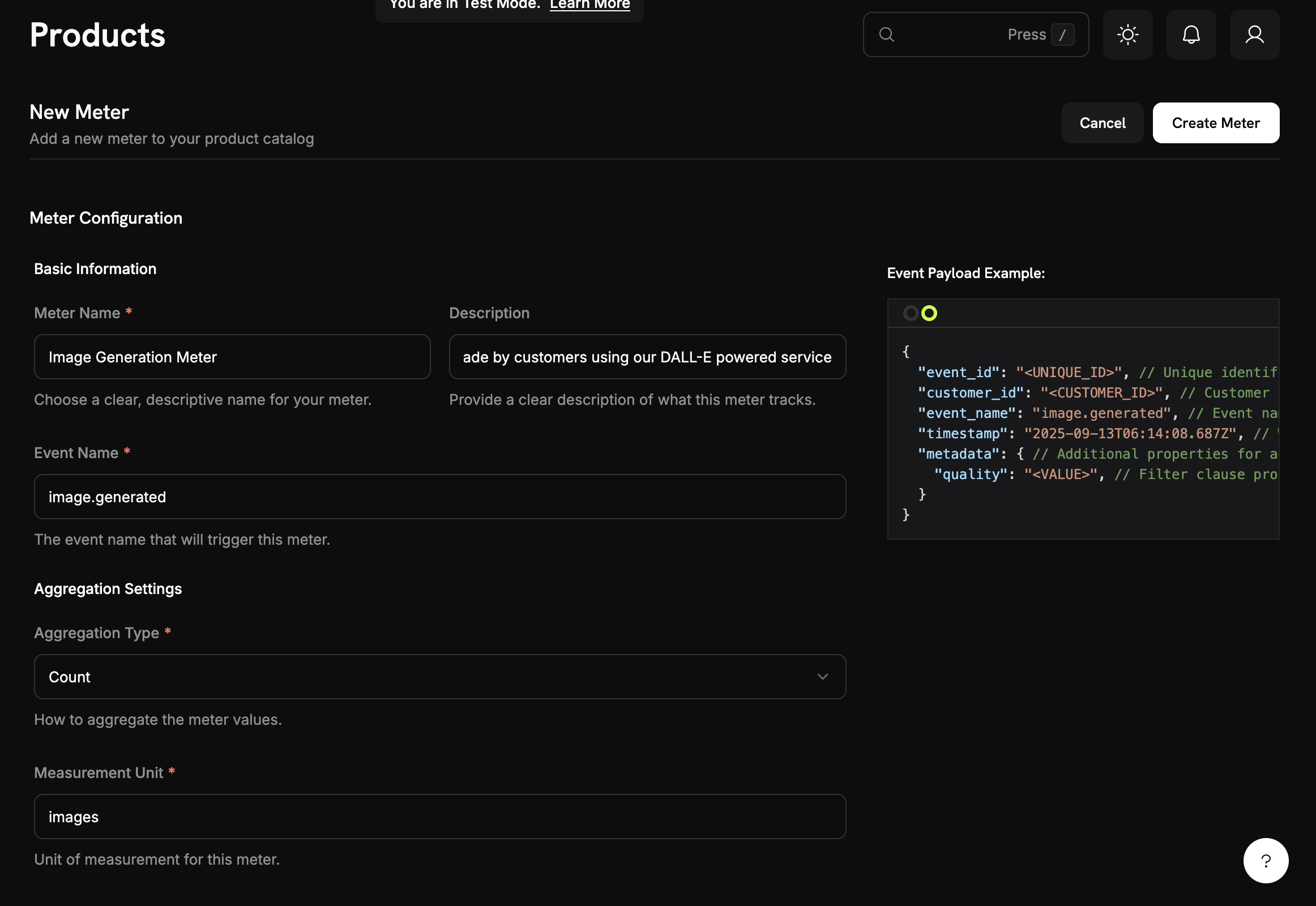
描述性名称(例如“API Requests”、“Token Usage”)
需要匹配的精确事件名称(区分大小写)。例如:`api.call`、`image.generated`
选择事件的聚合方式:
* **Count**:事件总数(API 调用、上传)
* **Sum**:将数值相加(tokens、bytes)
* **Max**:期间内的最高值(峰值用户)
* **Last**:最近的值
用于聚合的元数据键(除 Count 外所有类型均需要)。示例:`tokens`、`bytes`、`duration_ms`
发票的单位标签。示例:`calls`、`tokens`、`GB`、`hours`
## API 资源
通过 API 以编程方式创建计量器。
检索您帐户中的所有计量器。
按 ID 获取特定计量器的详细信息。
归档计量器以停止追踪使用量。
恢复已归档的计量器以继续追踪。
## 创建计量器
描述性名称(例如“API Requests”、“Token Usage”)
需要匹配的精确事件名称(区分大小写)。例如:`api.call`、`image.generated`
选择事件的聚合方式:
* **Count**:事件总数(API 调用、上传)
* **Sum**:将数值相加(tokens、bytes)
* **Max**:期间内的最高值(峰值用户)
* **Last**:最近的值
用于聚合的元数据键(除 Count 外所有类型均需要)。示例:`tokens`、`bytes`、`duration_ms`
发票的单位标签。示例:`calls`、`tokens`、`GB`、`hours`
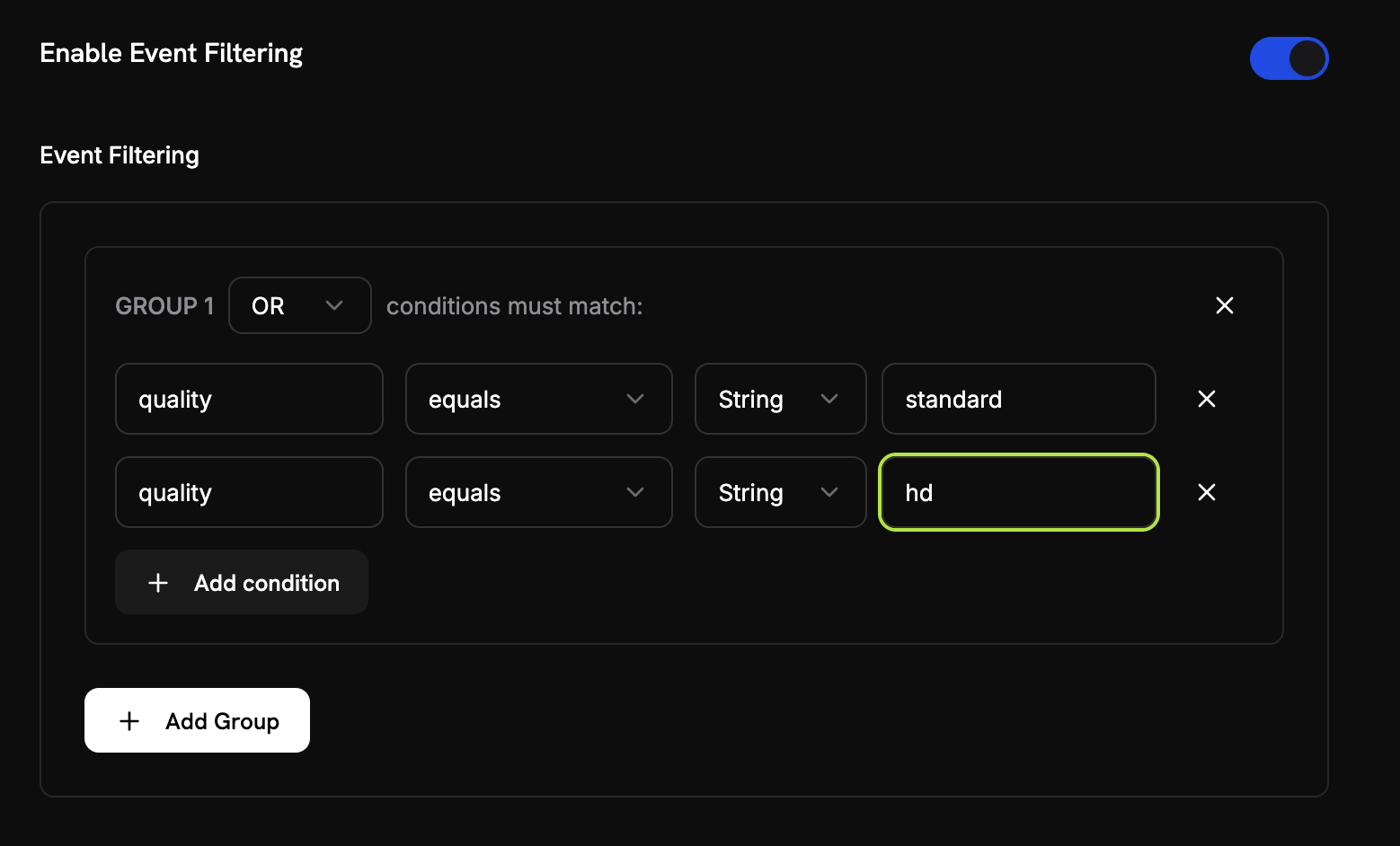 添加条件以过滤计入的事件:
* **与逻辑**:所有条件必须匹配
* **或逻辑**:任何条件都可以匹配
**比较器**:等于、不等于、大于、小于、包含
启用过滤,选择逻辑,添加具有属性键、比较符和值的条件。
审查配置并点击 **Create Meter**。
## 查看分析
添加条件以过滤计入的事件:
* **与逻辑**:所有条件必须匹配
* **或逻辑**:任何条件都可以匹配
**比较器**:等于、不等于、大于、小于、包含
启用过滤,选择逻辑,添加具有属性键、比较符和值的条件。
审查配置并点击 **Create Meter**。
## 查看分析
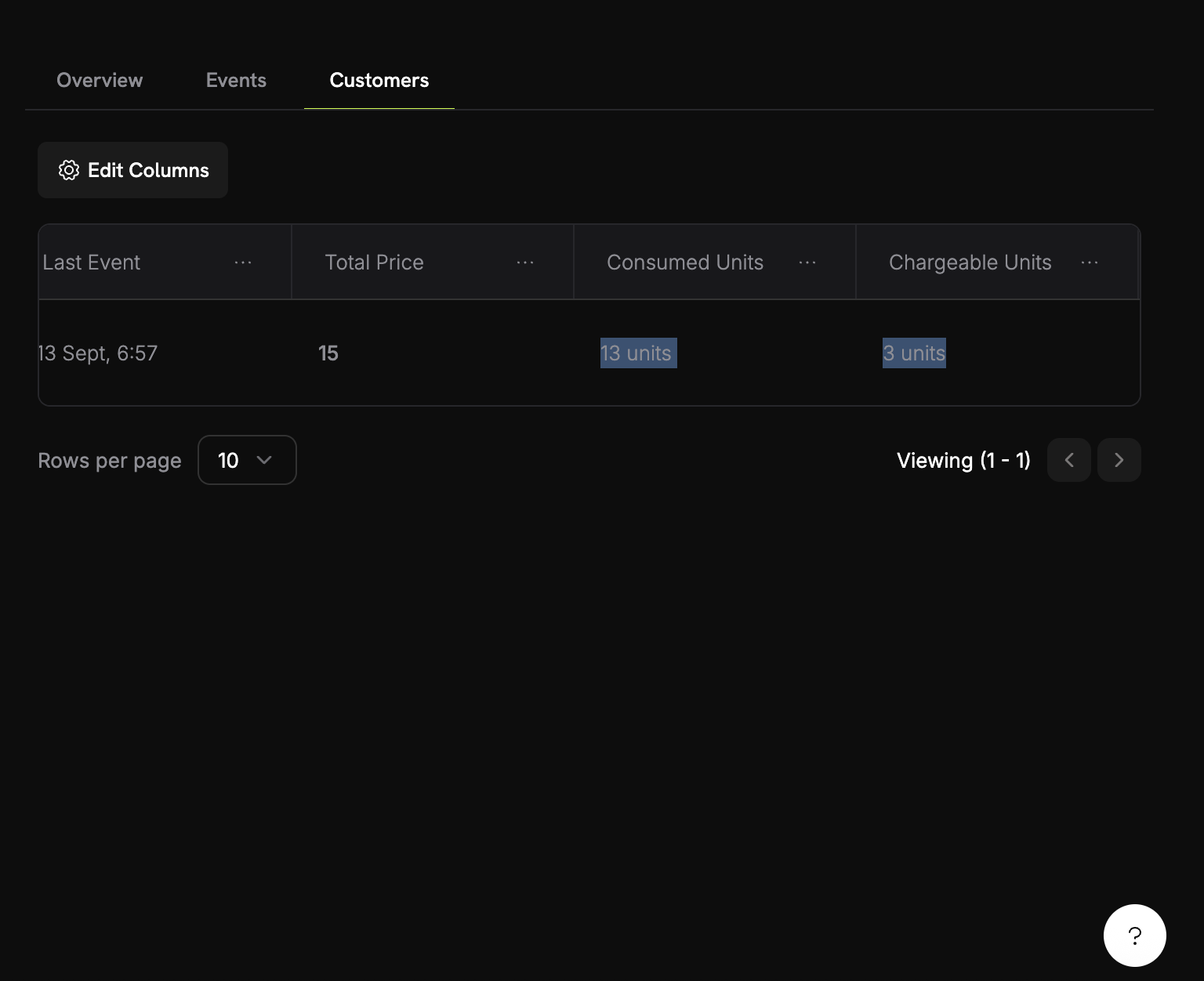 您的计量器仪表板显示:
* **概述**:总使用量和使用图表
* **事件**:接收到的单个事件
* **客户**:每个客户的使用情况和费用
## 以积分计费而非货币
默认情况下,计量器按美元(或您配置的货币)对每单位进行收费。您也可以配置计量器**从余额积分中扣除**——这样使用量就会消耗积分,而不是产生货币费用。
基于积分的扣费需要一个附属于同一产品的[积分权益](/features/credit-based-billing)。先创建您的积分,再将其链接到计量器。
### 何时使用基于积分的扣费
| 场景 | 标准(货币) | 基于积分 |
| --------------------------- | ----------- | ----------------------- |
| 简单按单位定价(每次调用 \$0.01) | ✅ 最适合 | 不必要的额外开销 |
| 预付积分包(购买 10K 令牌,随时间使用) | ❌ 无法表达 | ✅ 最适合 |
| 订阅包含捆绑使用量(专业版计划包括 100K 次调用) | 通过免费阈值可实现 | ✅ 更佳 - 积分可结转、过期,并在门户中显示 |
| 共享积分池的多计量器产品 | ❌ 每个计量器单独计费 | ✅ 所有计量器均从同一余额扣除 |
### 配置计量器以扣除积分
首先,在**产品 → 积分**中创建一个积分。定义单位(例如“API 调用”、“令牌”)、精度以及生命周期设置(过期、结转、超额)。
详见[基于积分的计费指南](/features/credit-based-billing)了解详细说明。
进入您的基于使用量的产品,然后打开**计量器**配置部分。
点击\*\*+\*\*按钮以附加计量器。按常规配置事件名称、聚合类型和度量单位。
在计量器配置中切换**以积分计费**。这会显示积分设置:
您的计量器仪表板显示:
* **概述**:总使用量和使用图表
* **事件**:接收到的单个事件
* **客户**:每个客户的使用情况和费用
## 以积分计费而非货币
默认情况下,计量器按美元(或您配置的货币)对每单位进行收费。您也可以配置计量器**从余额积分中扣除**——这样使用量就会消耗积分,而不是产生货币费用。
基于积分的扣费需要一个附属于同一产品的[积分权益](/features/credit-based-billing)。先创建您的积分,再将其链接到计量器。
### 何时使用基于积分的扣费
| 场景 | 标准(货币) | 基于积分 |
| --------------------------- | ----------- | ----------------------- |
| 简单按单位定价(每次调用 \$0.01) | ✅ 最适合 | 不必要的额外开销 |
| 预付积分包(购买 10K 令牌,随时间使用) | ❌ 无法表达 | ✅ 最适合 |
| 订阅包含捆绑使用量(专业版计划包括 100K 次调用) | 通过免费阈值可实现 | ✅ 更佳 - 积分可结转、过期,并在门户中显示 |
| 共享积分池的多计量器产品 | ❌ 每个计量器单独计费 | ✅ 所有计量器均从同一余额扣除 |
### 配置计量器以扣除积分
首先,在**产品 → 积分**中创建一个积分。定义单位(例如“API 调用”、“令牌”)、精度以及生命周期设置(过期、结转、超额)。
详见[基于积分的计费指南](/features/credit-based-billing)了解详细说明。
进入您的基于使用量的产品,然后打开**计量器**配置部分。
点击\*\*+\*\*按钮以附加计量器。按常规配置事件名称、聚合类型和度量单位。
在计量器配置中切换**以积分计费**。这会显示积分设置:
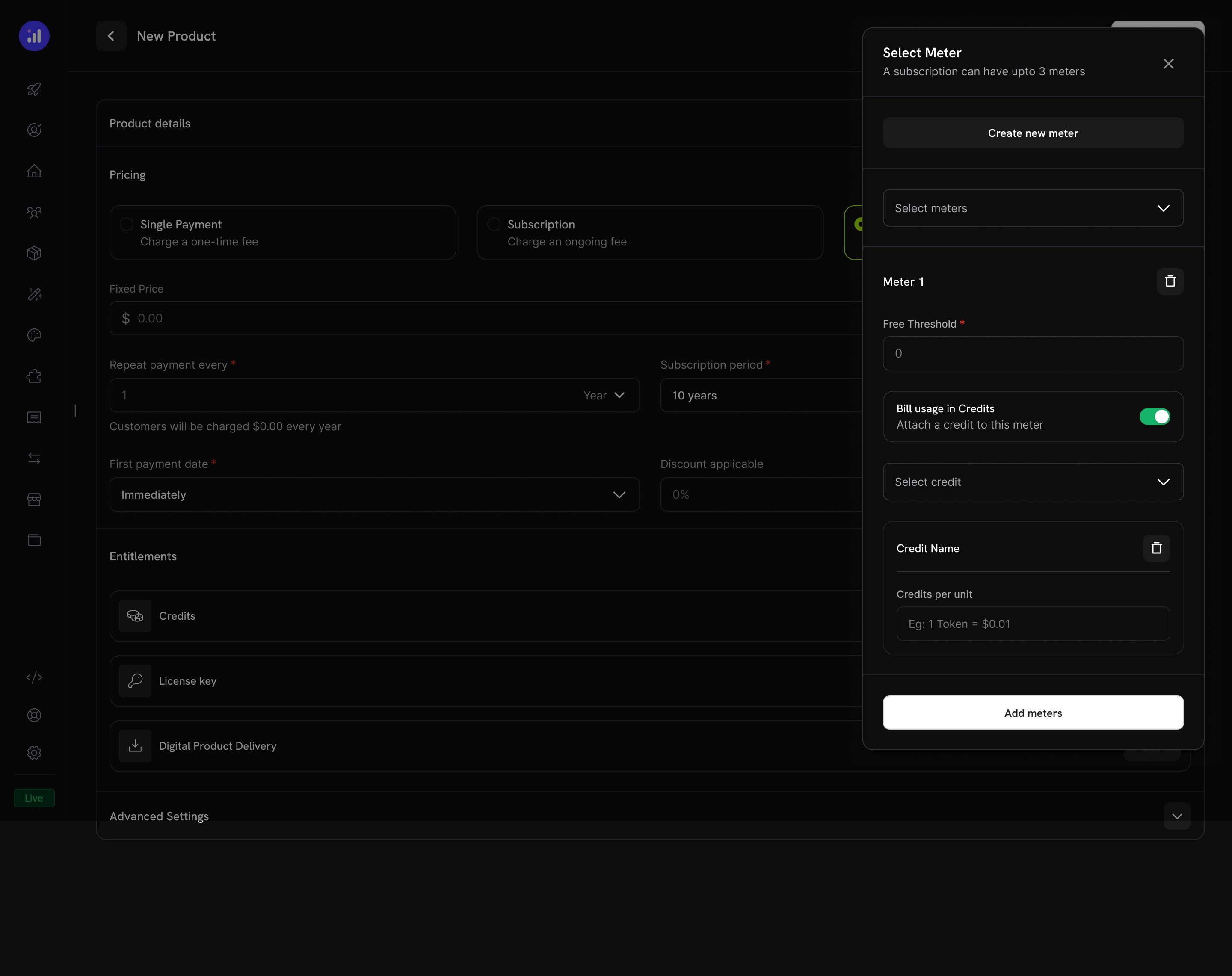 选择这个计量器应从中扣除积分的权益。
每扣除 1 个积分所需的使用单位数量。例如:
* `1` = 每个计量器事件扣除 1 个积分
* `100` = 100 个计量器事件扣除 1 个积分
* `1000` = 1,000 次 API 调用消耗 1 个积分
**免费阈值**依旧适用——低于此阈值的事件不会扣除积分。
**示例**:免费阈值为 1,000,计量器单位与积分比为 1:
* 客户使用了 2,500 次 API 调用
* 前 1,000 次免费
* 剩余 1,500 次从其余额中扣除 1,500 个积分
### 积分扣除如何运作
配置完成后,扣除管道会自动运行:
1. **事件到达** - 您的应用通过[事件摄取 API](/features/usage-based-billing/event-ingestion)发送使用事件
2. **计量器聚合** - 事件根据您的计量器配置进行聚合(Count、Sum、Max、Last)
3. **后台工作进程处理** - 每分钟,一个工作进程会获取自上一个检查点以来的新事件
4. **积分扣除** - 聚合使用量通过 `meter_units_per_credit` 费率转换为积分,并使用**FIFO 顺序**扣除(先消耗最旧的权益)
5. **记录超额** - 如果余额归零且启用了超额,使用将继续,并根据配置的行为(在重置时豁免、在下一张发票中计费或作为赤字结转)处理超额
```mermaid theme={null}
flowchart LR
A[Usage Event] --> B[Meter Aggregation]
B --> C{Credits Available?}
C -->|Yes| D[Deduct from Balance]
C -->|No| E{Overage Enabled?}
E -->|Yes| F[Track Overage]
E -->|No| G[Block Usage]
D --> H[Update Ledger]
F --> H
```
积分扣除是异步运行的(约每分钟一次)。事件摄取与余额扣除之间可能会有短暂延迟。请在应用中考虑此延迟——不要依赖实时余额检查来控制单个请求的访问权限。
### 多计量器,共用一个积分池
您可以将同一产品上的多个计量器链接到**相同的积分权益**。所有计量器均从一个共享的余额中扣除。
**示例**:一个 AI 平台有两个计量器:
* `text.generation` - 每 1,000 个令牌扣除 1 个积分
* `image.generation` - 每张图像扣除 10 个积分
两者均从同一个“AI 积分”池中扣除。客户在其门户中看到一个统一的余额。
在不同计量器间使用不同的 `meter_units_per_credit` 费率以表达相对成本。昂贵的操作(图像生成)每积分所需的计量器单位比廉价的操作(文本补全)少。
查看客户的完整积分扣除历史。
通过 API 检查客户当前的积分余额。
## 故障排除
* 事件名称必须完全匹配(区分大小写)
* 检查计量器过滤器是否排除了事件
* 验证客户 ID 是否存在
* 暂时禁用过滤器进行测试
* 验证 Over Property 是否与元数据键完全匹配
* 使用数字而非字符串:`tokens: 150`,而不是 `"150"`
* 在所有事件中包含必需的属性
* 完全匹配大小写
* 对数据类型使用正确的运算符
* 确保事件包含被过滤的属性
* 检查“事件”选项卡以统计实际接收的事件
* 验证聚合类型(Count 与 Sum)
* 确保 Sum/Max 的值为数字
## 下一步
开始从您的应用向计量器发送使用事件。
使用现成的计量器配置满足常见用例。
选择这个计量器应从中扣除积分的权益。
每扣除 1 个积分所需的使用单位数量。例如:
* `1` = 每个计量器事件扣除 1 个积分
* `100` = 100 个计量器事件扣除 1 个积分
* `1000` = 1,000 次 API 调用消耗 1 个积分
**免费阈值**依旧适用——低于此阈值的事件不会扣除积分。
**示例**:免费阈值为 1,000,计量器单位与积分比为 1:
* 客户使用了 2,500 次 API 调用
* 前 1,000 次免费
* 剩余 1,500 次从其余额中扣除 1,500 个积分
### 积分扣除如何运作
配置完成后,扣除管道会自动运行:
1. **事件到达** - 您的应用通过[事件摄取 API](/features/usage-based-billing/event-ingestion)发送使用事件
2. **计量器聚合** - 事件根据您的计量器配置进行聚合(Count、Sum、Max、Last)
3. **后台工作进程处理** - 每分钟,一个工作进程会获取自上一个检查点以来的新事件
4. **积分扣除** - 聚合使用量通过 `meter_units_per_credit` 费率转换为积分,并使用**FIFO 顺序**扣除(先消耗最旧的权益)
5. **记录超额** - 如果余额归零且启用了超额,使用将继续,并根据配置的行为(在重置时豁免、在下一张发票中计费或作为赤字结转)处理超额
```mermaid theme={null}
flowchart LR
A[Usage Event] --> B[Meter Aggregation]
B --> C{Credits Available?}
C -->|Yes| D[Deduct from Balance]
C -->|No| E{Overage Enabled?}
E -->|Yes| F[Track Overage]
E -->|No| G[Block Usage]
D --> H[Update Ledger]
F --> H
```
积分扣除是异步运行的(约每分钟一次)。事件摄取与余额扣除之间可能会有短暂延迟。请在应用中考虑此延迟——不要依赖实时余额检查来控制单个请求的访问权限。
### 多计量器,共用一个积分池
您可以将同一产品上的多个计量器链接到**相同的积分权益**。所有计量器均从一个共享的余额中扣除。
**示例**:一个 AI 平台有两个计量器:
* `text.generation` - 每 1,000 个令牌扣除 1 个积分
* `image.generation` - 每张图像扣除 10 个积分
两者均从同一个“AI 积分”池中扣除。客户在其门户中看到一个统一的余额。
在不同计量器间使用不同的 `meter_units_per_credit` 费率以表达相对成本。昂贵的操作(图像生成)每积分所需的计量器单位比廉价的操作(文本补全)少。
查看客户的完整积分扣除历史。
通过 API 检查客户当前的积分余额。
## 故障排除
* 事件名称必须完全匹配(区分大小写)
* 检查计量器过滤器是否排除了事件
* 验证客户 ID 是否存在
* 暂时禁用过滤器进行测试
* 验证 Over Property 是否与元数据键完全匹配
* 使用数字而非字符串:`tokens: 150`,而不是 `"150"`
* 在所有事件中包含必需的属性
* 完全匹配大小写
* 对数据类型使用正确的运算符
* 确保事件包含被过滤的属性
* 检查“事件”选项卡以统计实际接收的事件
* 验证聚合类型(Count 与 Sum)
* 确保 Sum/Max 的值为数字
## 下一步
开始从您的应用向计量器发送使用事件。
使用现成的计量器配置满足常见用例。