> ## Documentation Index
> Fetch the complete documentation index at: https://docs.dodopayments.com/llms.txt
> Use this file to discover all available pages before exploring further.
# Bring Your Own Processor (BYOP)
> Keep your own Stripe or Adyen account and route payments through it, while Dodo Payments powers subscriptions, invoicing, and analytics on top.
**Bring Your Own Processor (BYOP)** lets you connect your own payment processor — currently **Stripe** or **Adyen**, with support for more processors coming soon — and keep using Dodo Payments for everything that sits on top of the transaction: products, subscriptions, license keys and the entitlement engine, invoicing, the customer portal, and analytics.
You decide, per customer country, whether a payment is processed by **your processor** (you remain the merchant of record for that route) or by **Dodo Payments** as your full-service Merchant of Record. Countries you don't explicitly route fall back to Dodo automatically.
Send payments from specific countries to your own processor, and everything else to Dodo.
Continue using your existing Stripe or Adyen accounts and relationships.
On your own routes, you remain the legal seller and control tax, disputes, and payouts.
Dodo powers products, subscriptions, invoices, and analytics across both routes.
## BYOP vs. Dodo as Merchant of Record
When you enable BYOP you choose how each payment is handled. The two models can run side by side, routed by customer country.
| Feature | Dodo as Merchant of Record | Bring Your Own Processor |
| -------------------------- | ---------------------------------------- | ------------------------------------------ |
| Legal seller of record | Dodo Payments | Your company |
| Tax (VAT, GST & sales tax) | Calculated, collected & remitted for you | You register, collect & file |
| Chargebacks & fraud | Liability & protection handled by Dodo | You manage with your processor's own tools |
| PCI compliance | Handled by Dodo | You manage |
| Payment methods | 30+ global & local, multi-currency | Cards only (credit/debit) |
| Payouts | Aggregated global payouts | Direct from your processor |
| Setup | Simple, go live in minutes | Moderate, add keys & routing |
| Best for | Selling globally, hands-off compliance | Existing processor & regional control |
A common setup is **hybrid**: route a country where you already have a registered entity and processor (for example, your home market) to your own processor, and let Dodo handle the rest of the world as Merchant of Record.
## Supported processors
Today you can connect **Stripe** or **Adyen**. Support for more processors is on the way.
Payments routed through your own processor currently support **credit and debit cards only**. We're adding more payment methods soon.
Both **Stripe** and **Adyen** require **raw card API access** enabled on your account so that Dodo can power billing on top of your processor. Each processor grants this on request — you arrange it by contacting the processor's support before you connect. See the [Stripe](/features/byop/stripe) and [Adyen](/features/byop/adyen) guides for details.
Connections are configured **per environment**. The processor you connect in **test mode** (Sandbox) is separate from the one in **live mode** (Production); set up both if you want to test before going live. The setup wizard follows your dashboard's global test/live toggle.
## Set up BYOP
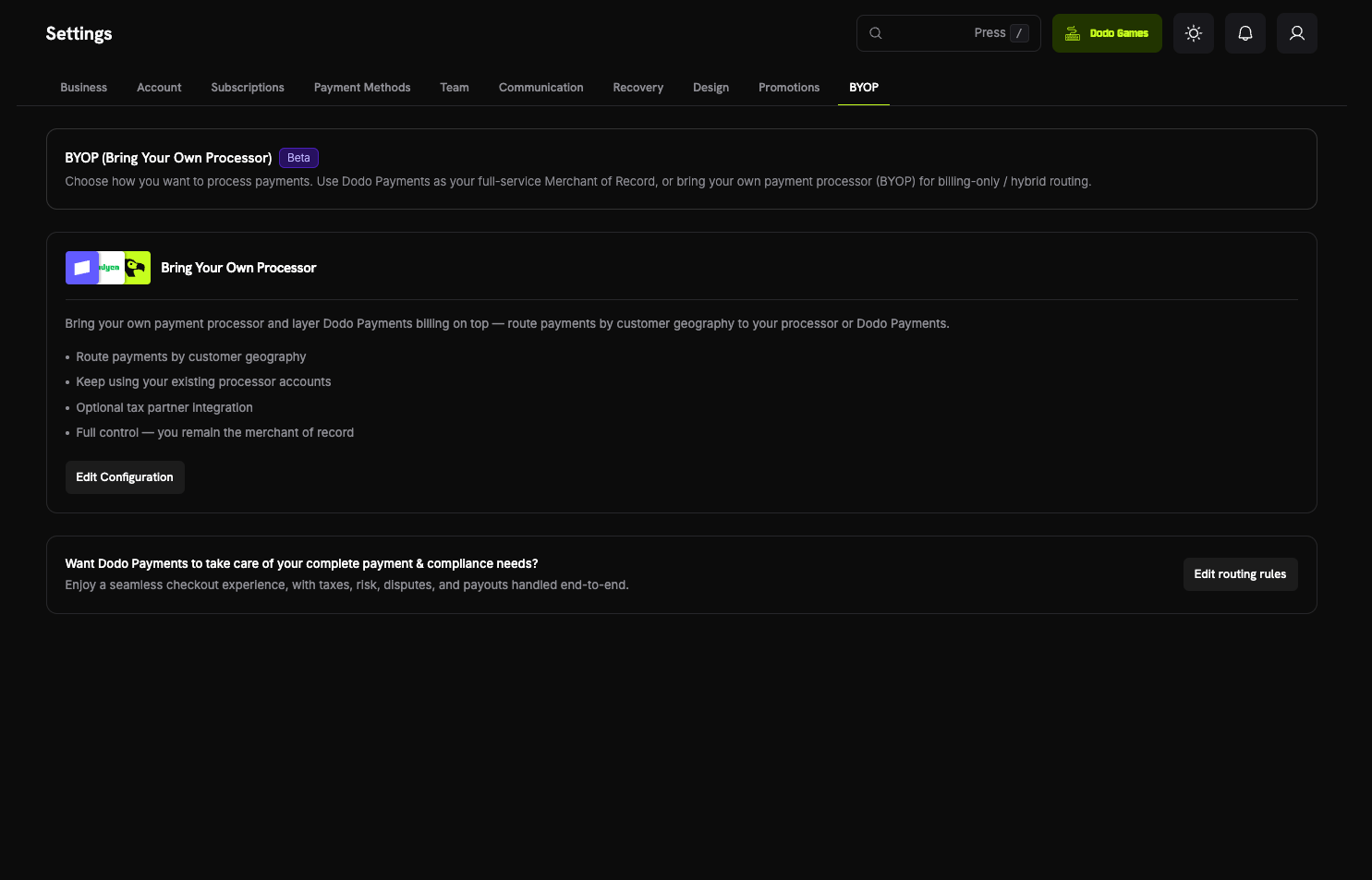
Open **Settings → BYOP** in the dashboard and select **Configure** on the *Bring Your Own Processor* card to launch the setup wizard.
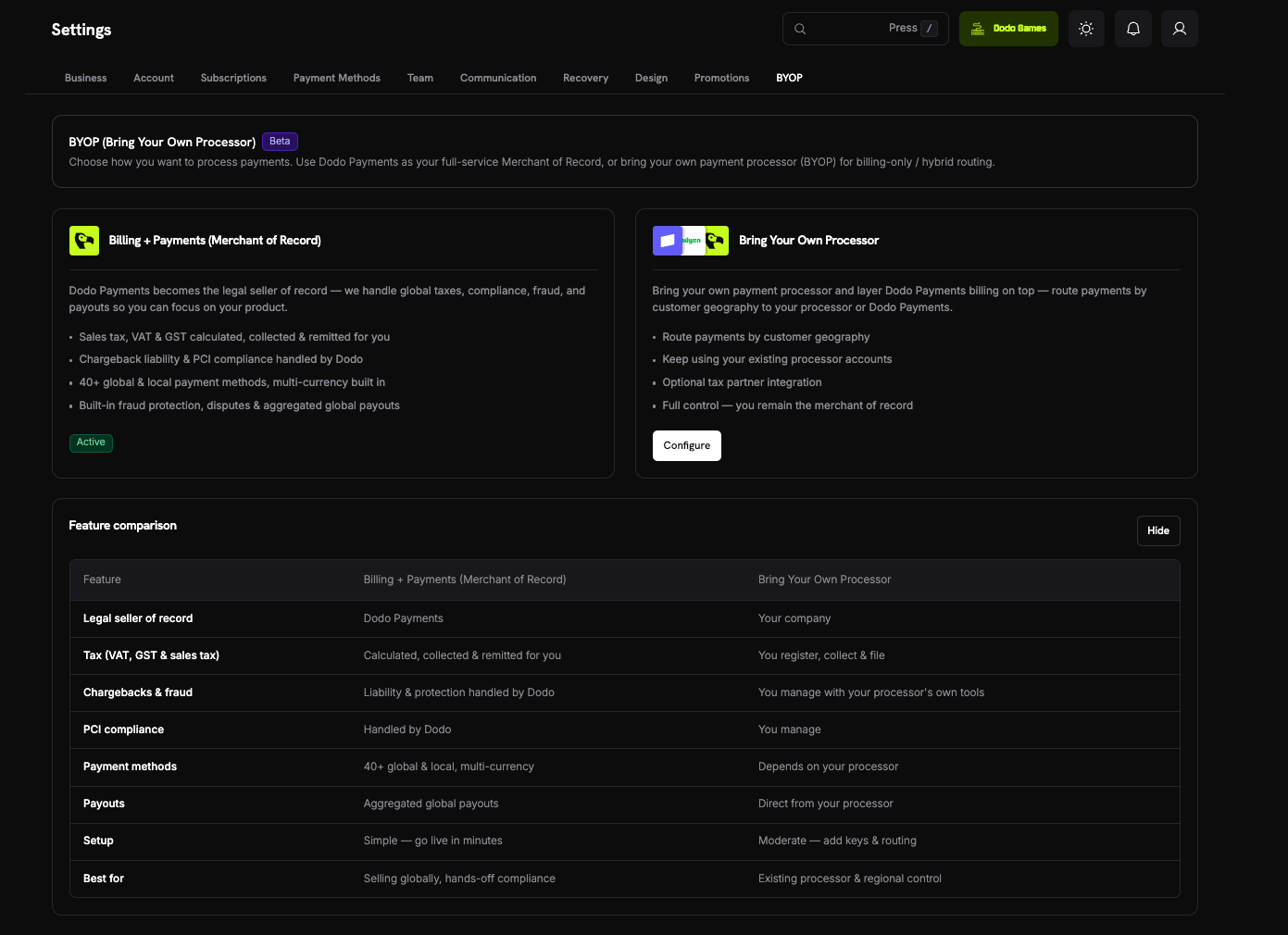 Select the processor you want to connect, **Stripe** or **Adyen**, and continue.
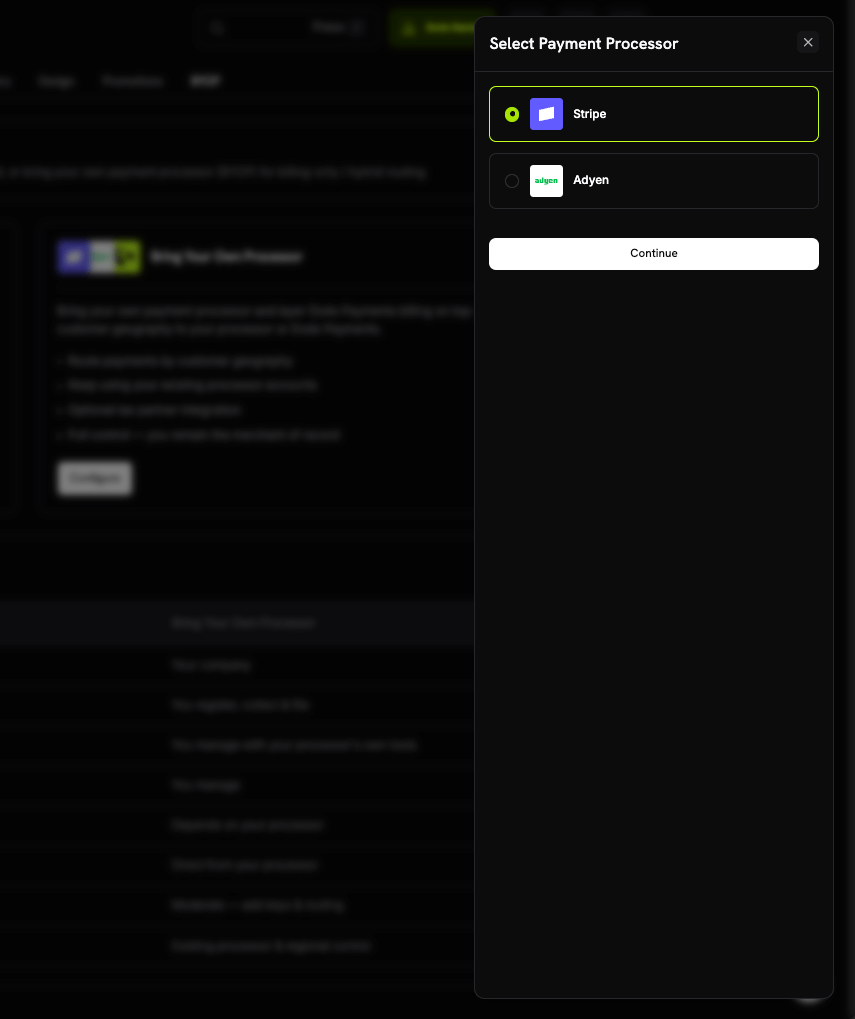 Give the connection a **Provider Name** (useful when you have multiple accounts from the same processor, e.g. *Stripe US* and *Stripe UK*), then enter your processor's **Secret Key** (for Stripe, your `sk_...` key).
For **Adyen**, also enter your **Merchant Account** identifier.
Give the connection a **Provider Name** (useful when you have multiple accounts from the same processor, e.g. *Stripe US* and *Stripe UK*), then enter your processor's **Secret Key** (for Stripe, your `sk_...` key).
For **Adyen**, also enter your **Merchant Account** identifier.
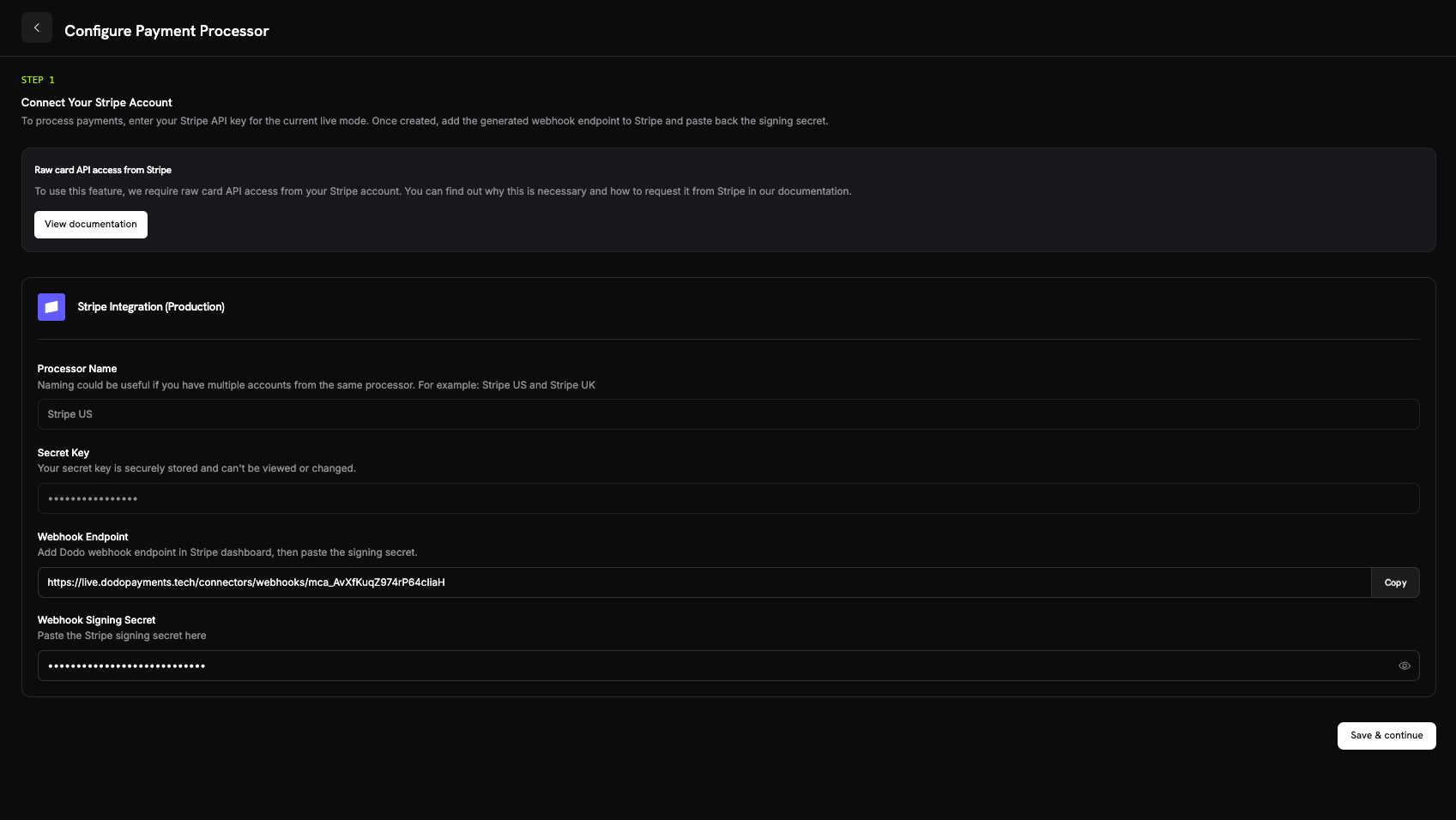 Saving creates the connection and generates a **Webhook Endpoint** unique to it. Add that URL as a webhook destination in your processor's dashboard, then paste the **Webhook Signing Secret** back into Dodo to finish:
* **Stripe**: paste the signing secret from the webhook endpoint you added.
* **Adyen**: paste the **HMAC key** from *Customer Area → Webhooks*.
Your secret key is stored securely and can't be viewed or changed after saving. You only ever configure the Dodo-generated webhook URL in your processor; you never interact with the underlying infrastructure directly.
Use **Verify connection** after saving to run a test call against your processor and confirm the keys and webhook secret are valid before you go live.
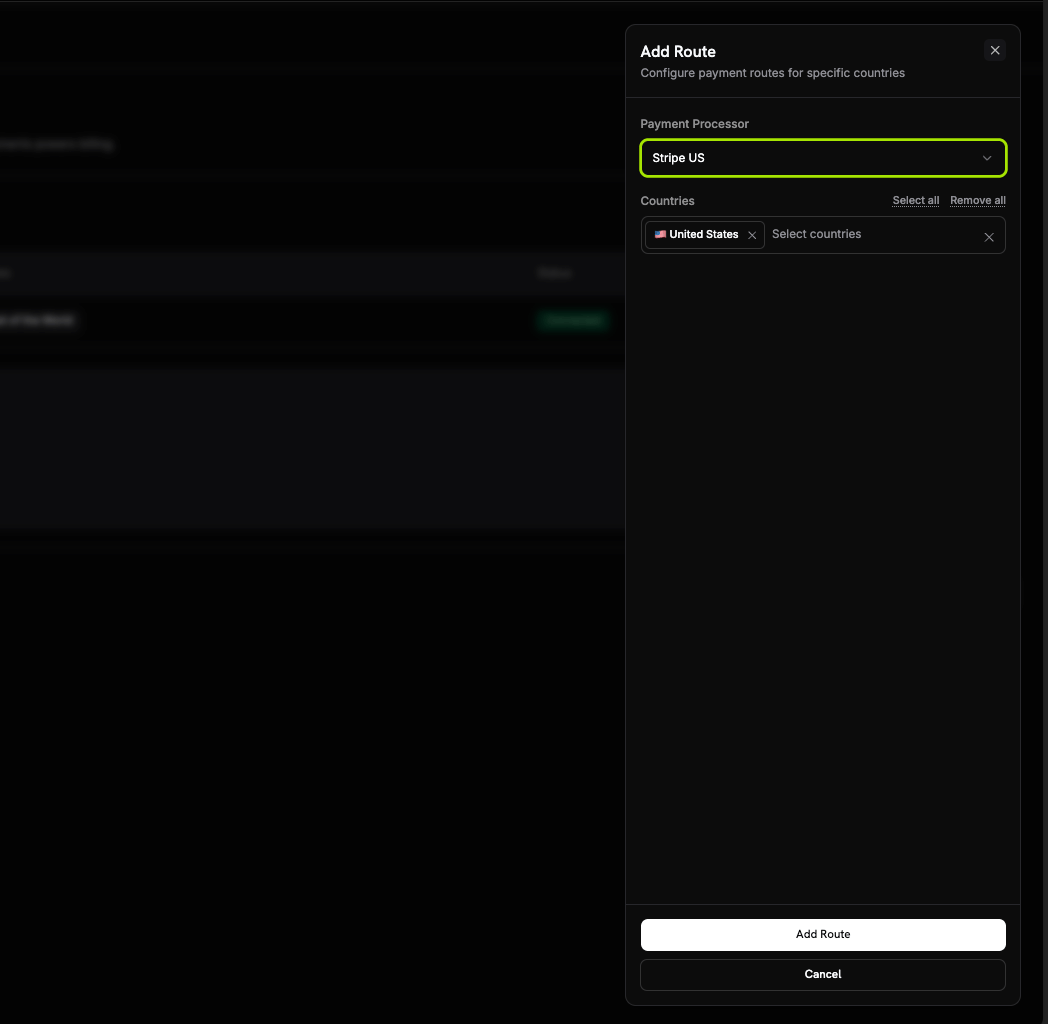
Add **routing rules** that map customer countries to a processor. Each country can be routed to exactly one processor.
* **Your processor** handles payments from the countries you assign to it.
* **Dodo Payments** handles **Rest of the World** (every country you don't explicitly route) as Merchant of Record.
Saving creates the connection and generates a **Webhook Endpoint** unique to it. Add that URL as a webhook destination in your processor's dashboard, then paste the **Webhook Signing Secret** back into Dodo to finish:
* **Stripe**: paste the signing secret from the webhook endpoint you added.
* **Adyen**: paste the **HMAC key** from *Customer Area → Webhooks*.
Your secret key is stored securely and can't be viewed or changed after saving. You only ever configure the Dodo-generated webhook URL in your processor; you never interact with the underlying infrastructure directly.
Use **Verify connection** after saving to run a test call against your processor and confirm the keys and webhook secret are valid before you go live.
Add **routing rules** that map customer countries to a processor. Each country can be routed to exactly one processor.
* **Your processor** handles payments from the countries you assign to it.
* **Dodo Payments** handles **Rest of the World** (every country you don't explicitly route) as Merchant of Record.
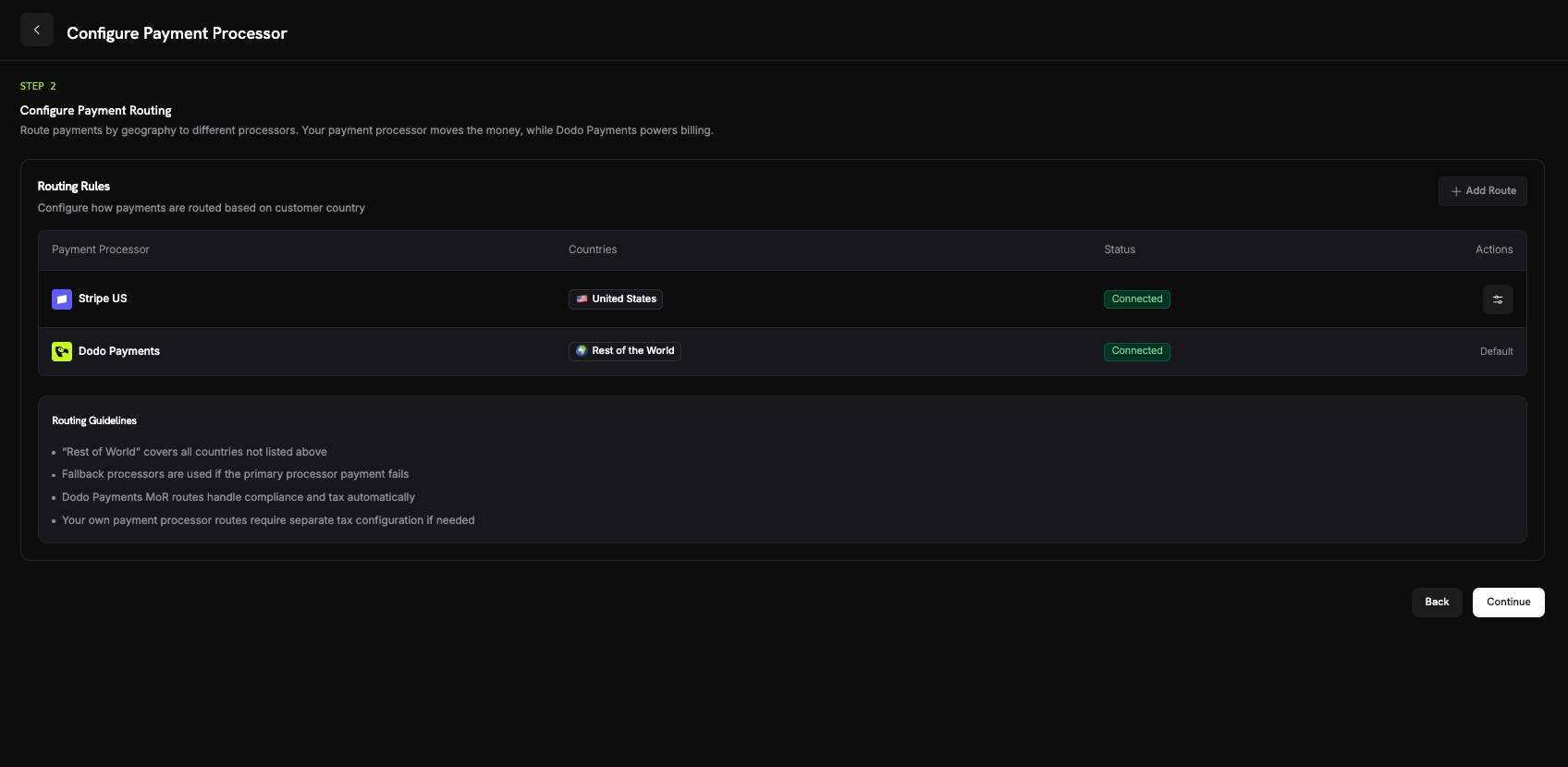 Use **Add Route** to assign one or more countries to a processor.
 **Routing guidelines**
* "Rest of World" covers all countries not listed above.
* Dodo Payments MoR routes handle compliance and tax automatically.
* Your own processor routes require separate tax configuration if needed.
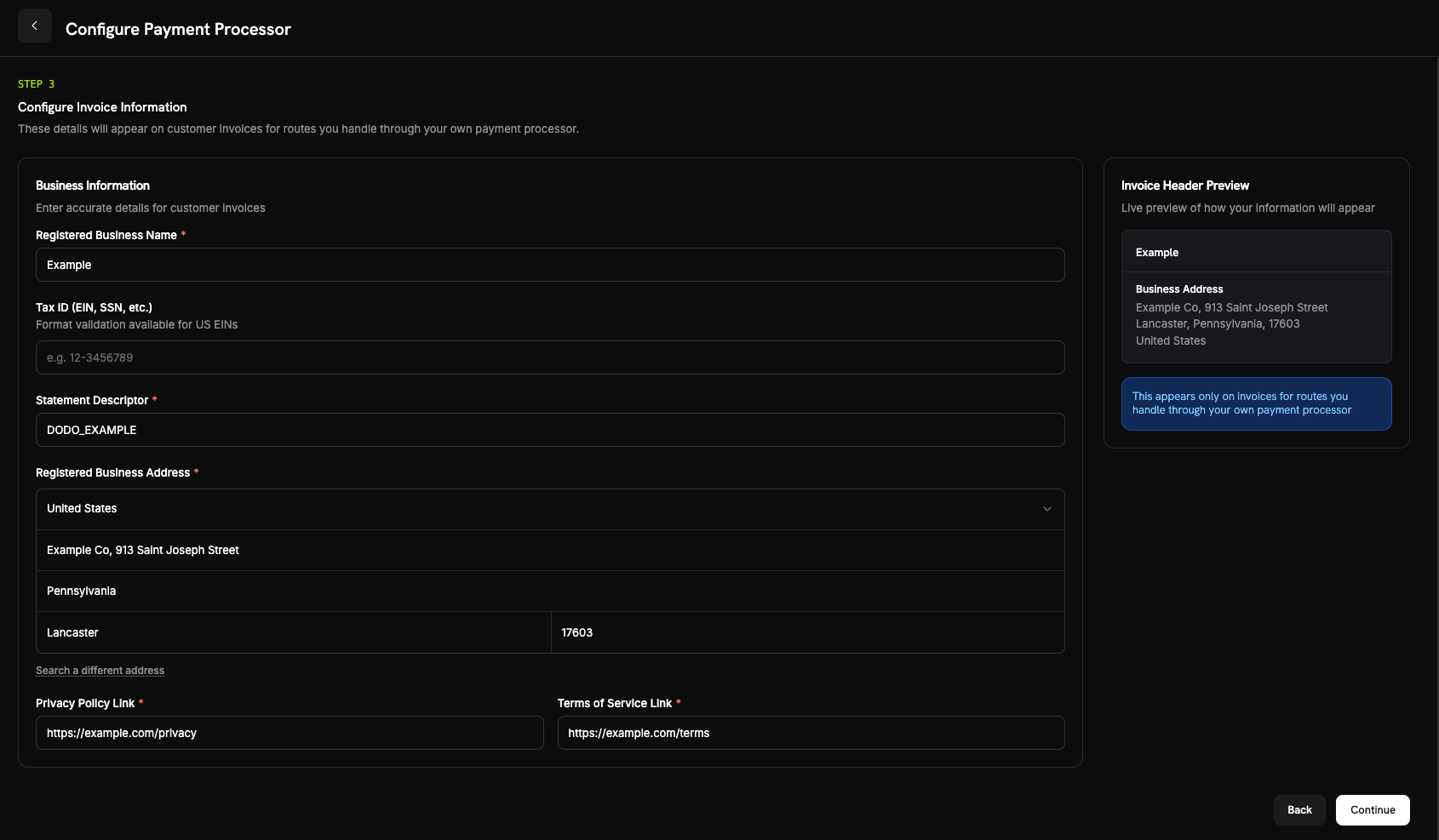
For payments routed through your own processor, **you** are the seller on the invoice. Enter the business details that should appear on those invoices:
* **Registered Business Name** (required)
* **Tax ID** (EIN, SSN, etc.; optional, with format validation available for US EINs)
* **Statement Descriptor** (required): what customers see on their bank statement (5 to 22 characters)
* **Registered Business Address** (required): start typing to search and autofill your address
* **Privacy Policy** and **Terms of Service** links (required)
A live **Invoice Header Preview** shows how the details will appear. These details apply **only** to invoices for routes you handle through your own processor; Dodo-routed payments continue to use Dodo's Merchant of Record details.
**Routing guidelines**
* "Rest of World" covers all countries not listed above.
* Dodo Payments MoR routes handle compliance and tax automatically.
* Your own processor routes require separate tax configuration if needed.
For payments routed through your own processor, **you** are the seller on the invoice. Enter the business details that should appear on those invoices:
* **Registered Business Name** (required)
* **Tax ID** (EIN, SSN, etc.; optional, with format validation available for US EINs)
* **Statement Descriptor** (required): what customers see on their bank statement (5 to 22 characters)
* **Registered Business Address** (required): start typing to search and autofill your address
* **Privacy Policy** and **Terms of Service** links (required)
A live **Invoice Header Preview** shows how the details will appear. These details apply **only** to invoices for routes you handle through your own processor; Dodo-routed payments continue to use Dodo's Merchant of Record details.
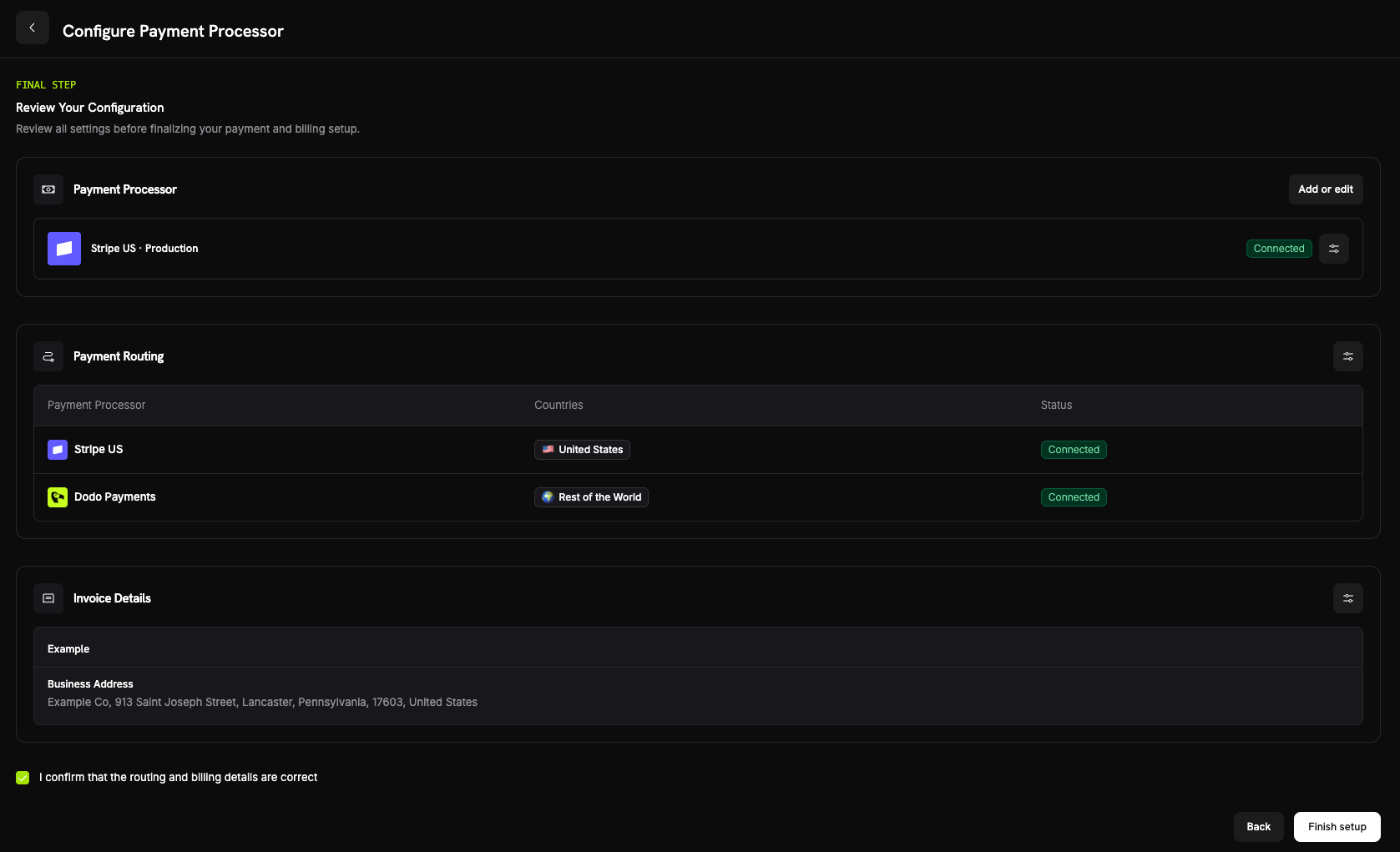
 Review your processor connection, routing rules, and invoice details. Confirm that the routing and billing details are correct, then select **Finish setup**.
 Once configured, the BYOP card shows **Edit Configuration**, and you can return to MoR-only at any time with **Edit routing rules**.
 ## How routing works
Routing is determined by the **customer's country** at payment time. The same logic applies across one-time payments, checkout sessions, and subscription sign-ups. Renewals reuse the processor the subscription was created on (see [Subscriptions](#subscriptions)).
```mermaid theme={null}
flowchart TD
A[👤 Customer pays] --> B{Customer country
## How routing works
Routing is determined by the **customer's country** at payment time. The same logic applies across one-time payments, checkout sessions, and subscription sign-ups. Renewals reuse the processor the subscription was created on (see [Subscriptions](#subscriptions)).
```mermaid theme={null}
flowchart TD
A[👤 Customer pays] --> B{Customer country
has a route?}
B -->|Yes| C[🏦 Your processor
You are merchant of record]
B -->|No, Rest of World| D[🟢 Dodo Payments
Dodo is Merchant of Record]
C --> E[🧾 Dodo powers billing,
invoicing & subscriptions]
D --> E
```
On a route handled by **your processor**:
* The payment is processed on **your** processor account in the billing currency.
* **No tax is calculated or collected** by Dodo; you remain responsible for tax on that route.
* Invoices use the **business details and statement descriptor** you configured, with no Merchant of Record references.
* Payouts settle **directly to you** from your processor; nothing flows through Dodo's wallet.
On a route handled by **Dodo** (Rest of World), Dodo behaves exactly as your full-service Merchant of Record, handling tax, compliance, disputes, fraud, and aggregated payouts.
## Subscriptions
Subscriptions stay on the processor they were created on. At renewal, Dodo charges the same payment processor that was used to purchase the subscription, reusing the payment mandate stored against it. Routing rules are not re-evaluated on every renewal.
## Seeing which processor handled a payment
Once BYOP is configured, the **Payments** and **Disputes** tables show a processor icon (Stripe, Adyen, or Dodo) next to each row, and the payment and dispute detail pages include a **Payment Processor** field, so you can always tell which route handled a given transaction.
## Refunds, disputes & payouts
You initiate refunds from the Dodo dashboard as usual. For payments routed through your own processor, the refund is executed on that processor; for Dodo-routed payments, Dodo processes the refund.
The Dodo dashboard shows disputes for **Dodo-processed** payments only.
> Only Dodo-processed disputes are shown here. Disputes on your own processor (e.g. Stripe) are managed in that processor's dashboard.
Evidence upload, accept, and challenge actions are available only for Dodo-processed disputes. Disputes on your processor are handled with your processor's own tools.
For routes on your own processor, your processor pays you **directly**; those payouts don't appear in Dodo.
> Only Dodo payouts are visible here. Payouts on your own processor occur in that processor.
Dodo payouts (for Rest-of-World MoR volume) follow the standard [payout structure](/features/payouts/payout-structure).
## Analytics
Revenue, tax, and subscription analytics include **both** routes so you see the full picture of your billing. Disputes and payouts widgets show **Dodo-processed** activity only, with a banner indicating that activity on your own processor lives in that processor's dashboard.
## Billing fee
Dodo applies a small **BYOP billing fee** on payments routed through your own processor, since Dodo still powers your products, subscriptions, invoicing, and analytics on those transactions. It appears as a `byop_fee` line in your balance ledger. The default rate is **0.5%**; the exact rate is confirmed as part of enabling BYOP for your account. [Reach out](mailto:founders@dodopayments.com) for details.
## Frequently asked questions
Stripe and Adyen are supported today, with support for more processors coming soon. Both require **raw card API access** enabled on your account, which you arrange by contacting the processor's support. See the [Stripe](/features/byop/stripe) and [Adyen](/features/byop/adyen) guides for details.
Yes. Assign specific countries to your processor and leave the rest as **Rest of the World**, which Dodo handles as Merchant of Record. Each country routes to exactly one processor.
You are. On routes handled by your own processor, you remain the legal seller and are responsible for tax, chargebacks, PCI compliance, and payouts on those transactions.
No. Tax is not calculated or collected on routes handled through your own processor; you manage tax for those transactions. Dodo continues to handle tax on Dodo-routed (MoR) payments.
Renewals on that processor will fail and surface as failed payments in the dashboard. Re-enable the processor to restore renewals.
## Get started
Understand how Dodo's full-service MoR model works.