> ## Documentation Index
> Fetch the complete documentation index at: https://docs.dodopayments.com/llms.txt
> Use this file to discover all available pages before exploring further.
# Digital Wallets
> Accept Apple Pay, Google Pay, Amazon Pay, Cash App Pay, and RevolutPay for fast, secure one-tap checkout. Learn about setup, domain verification, and testing.
Digital wallets let customers pay with a single tap using payment methods saved on their devices. They offer higher conversion rates, stronger security through tokenization, and a streamlined checkout experience.
## Supported Wallets
| Wallet | Availability | Currencies | Subscriptions | Setup Required |
| :--------------- | :------------------- | :--------- | :-----------: | :------------------ |
| **Apple Pay** | Global (excl. India) | All | Yes | Domain verification |
| **Google Pay** | Global (excl. India) | All | Yes | None |
| **Amazon Pay** | Global (excl. India) | USD | No | None |
| **Cash App Pay** | US only | USD | No | None |
| **RevolutPay** | Global | GBP | No | None |
**PayPal Support Paused:** PayPal is temporarily unavailable for new transactions.
## Apple Pay
Apple Pay allows customers to pay using cards saved in their Apple Wallet, with Face ID or Touch ID authentication.
Apple Pay is offered for subscriptions even when the first charge is \*\*$0** (for example, free trials) so the payment mandate can be set up at signup. For one-time payments, Apple Pay is only shown when the amount is greater than $0.
### Requirements
* **Devices:** iOS 17+, iPadOS 17+, Safari 17+ on macOS
* **Protocol:** HTTPS required
* **Domain:** Must be verified with Apple
### Domain Verification
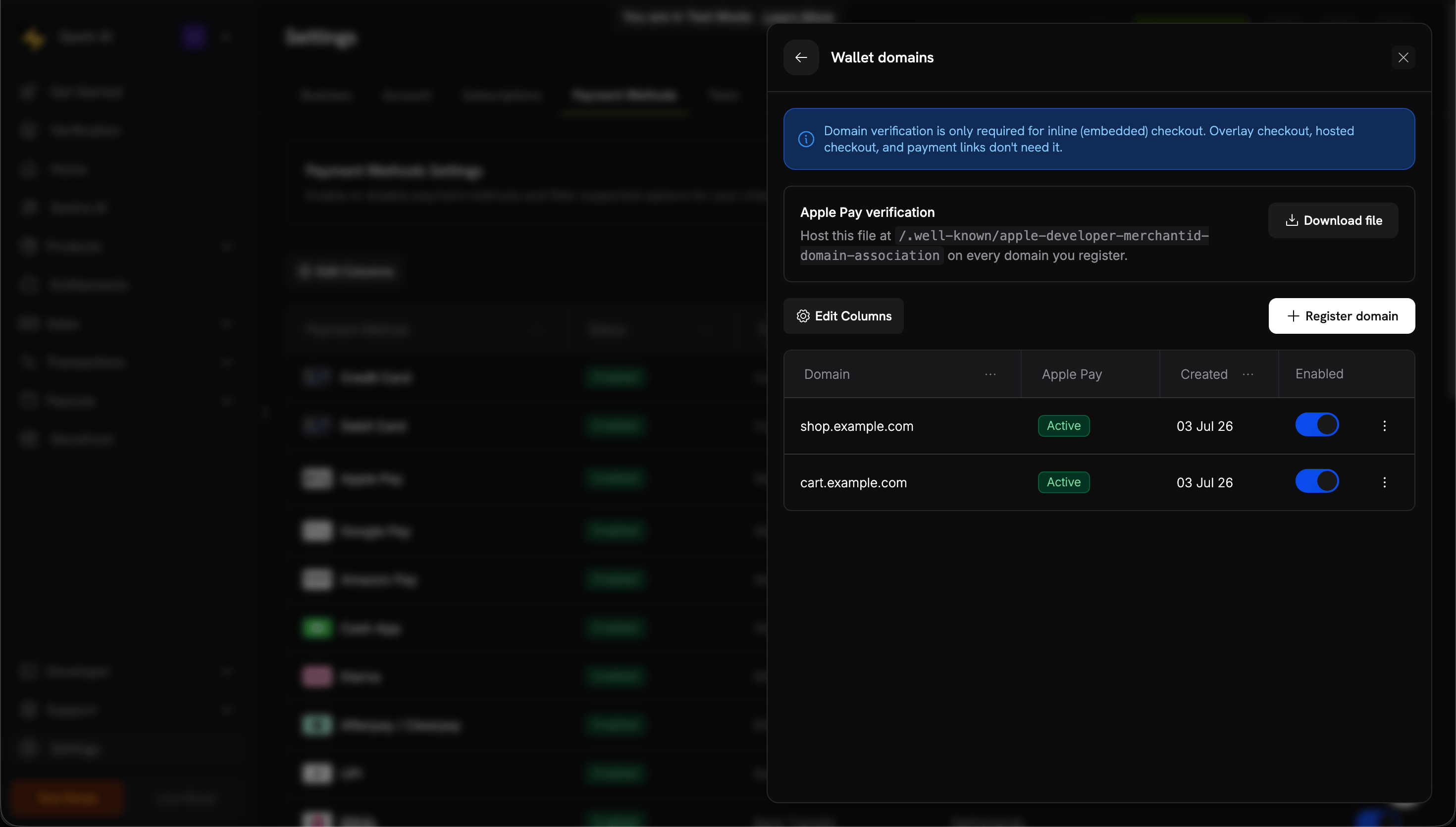
Domain verification is only required for **inline (embedded) checkout**. Overlay checkout, hosted checkout, and payment links don't need it.
In your dashboard, go to **Settings → Payment Methods** and, on the **Apple Pay** row, click **Manage domains**.
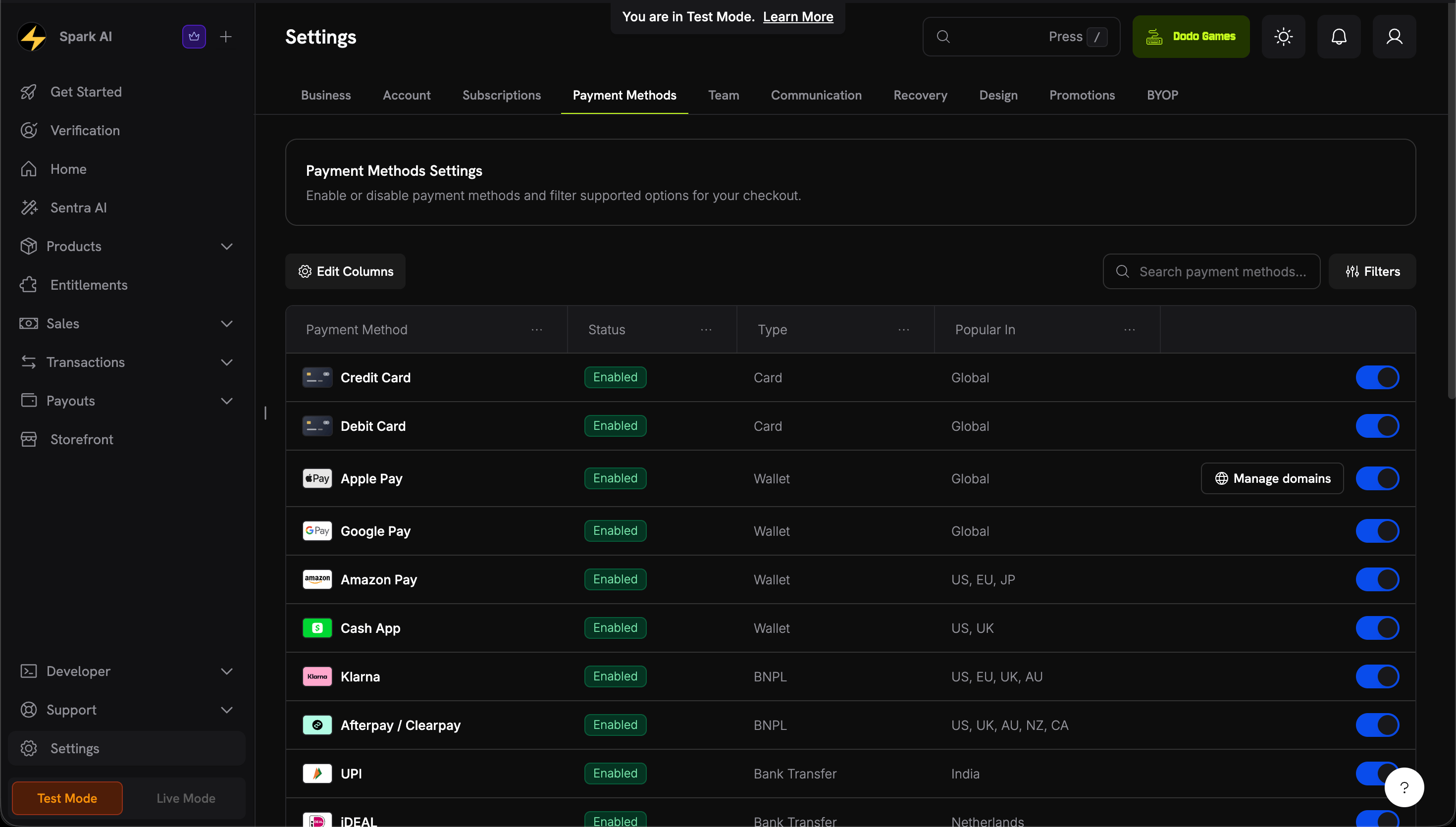 From the Wallet domains panel, download the association file.
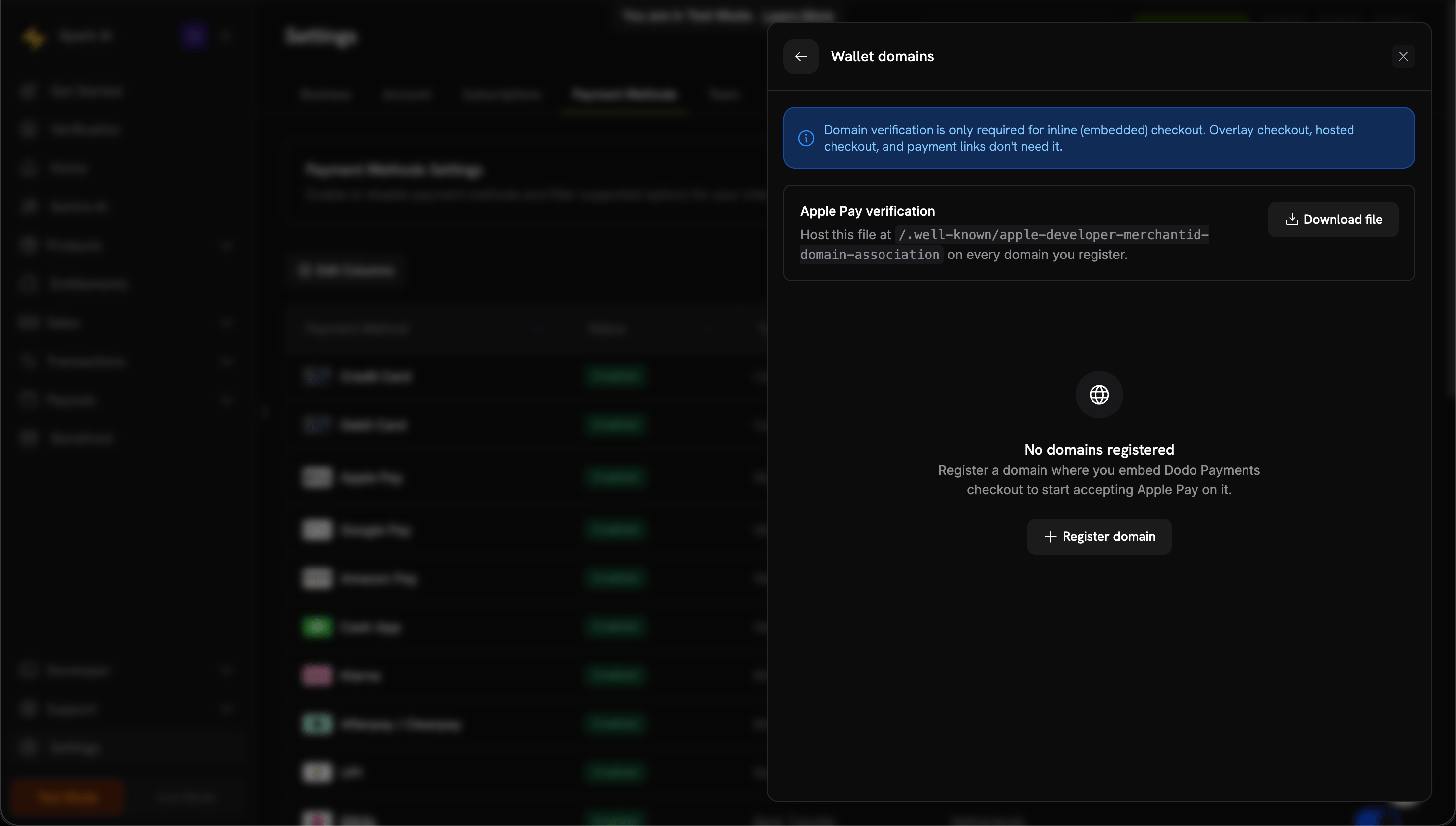 Click **Register domain** and enter the domain where you embed checkout (e.g., `shop.example.com`), then **Continue**.
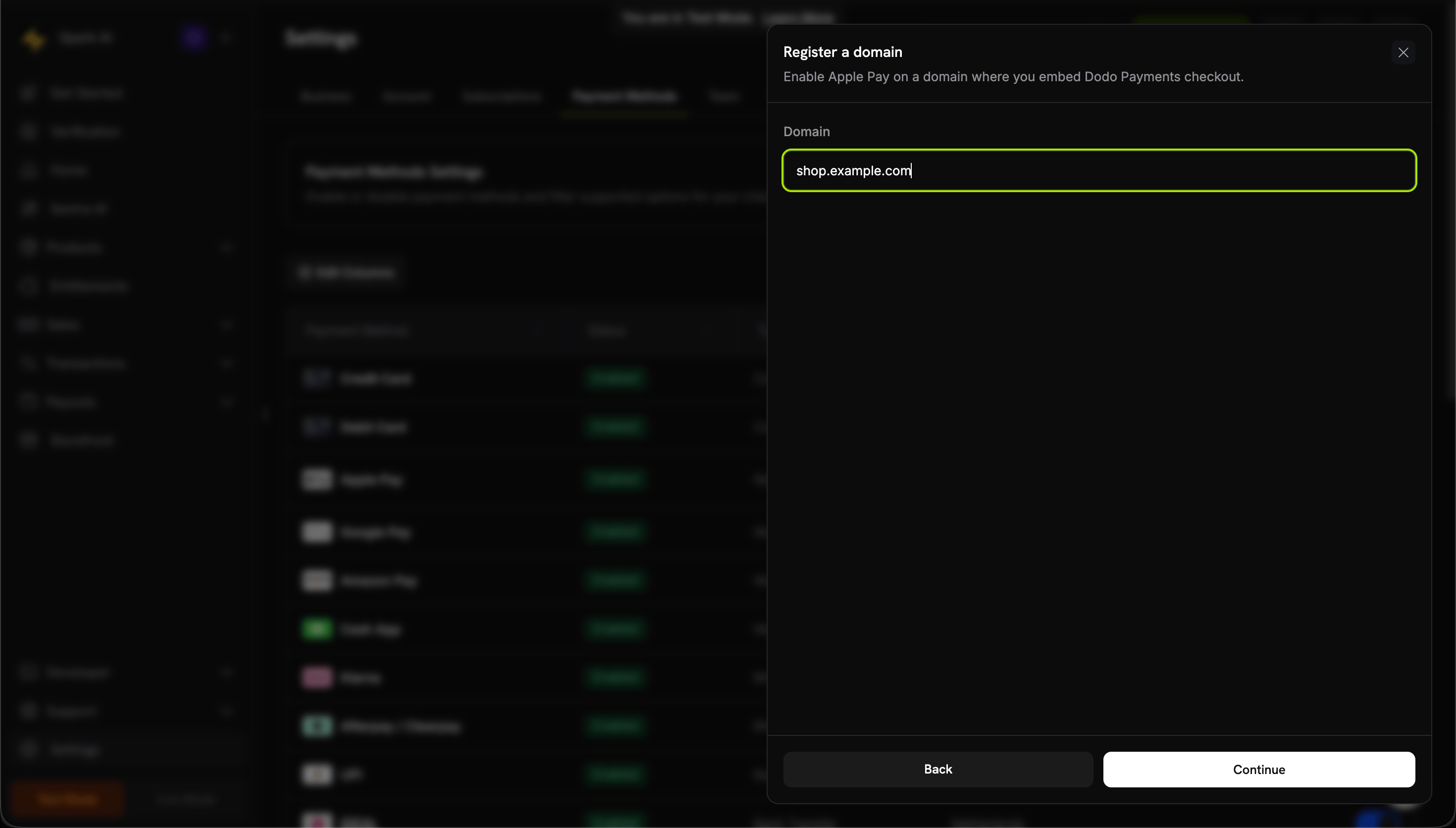 Upload to your server at:
```
https://shop.example.com/.well-known/apple-developer-merchantid-domain-association
```
The file must be served over HTTPS, accessible without redirects, and served with `Content-Type: application/octet-stream` or `text/plain`.
Click **Verify domain**. Dodo Payments checks the hosted file and submits your domain to Apple.
Upload to your server at:
```
https://shop.example.com/.well-known/apple-developer-merchantid-domain-association
```
The file must be served over HTTPS, accessible without redirects, and served with `Content-Type: application/octet-stream` or `text/plain`.
Click **Verify domain**. Dodo Payments checks the hosted file and submits your domain to Apple.
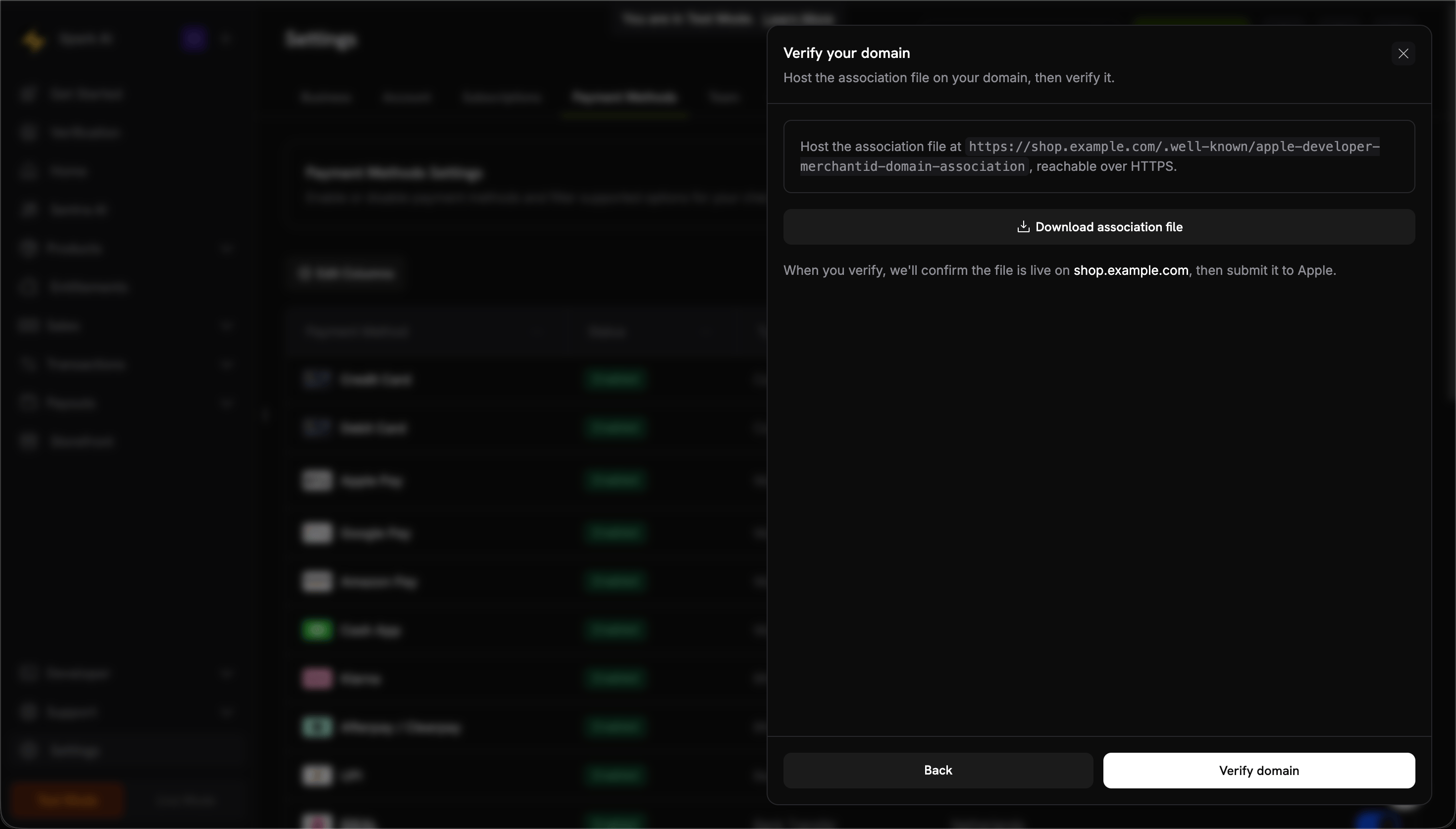 When the status shows **Active**, Apple Pay is live for that domain. Use the **Enabled** toggle to turn it on or off per domain.
 1. Open checkout on an Apple device
2. Verify Apple Pay button appears
3. Complete a test transaction
### Configuration
```javascript theme={null}
const session = await client.checkoutSessions.create({
product_cart: [{ product_id: 'prod_123', quantity: 1 }],
allowed_payment_method_types: ['apple_pay', 'credit', 'debit'],
return_url: 'https://example.com/success'
});
```
## Google Pay
Google Pay allows customers to pay using cards saved in their Google account, with built-in fraud protection.
### Requirements
* **Browsers:** Chrome (desktop/mobile), Safari, Firefox
* **Devices:** Android devices with Google Pay app
* **Settings:** "Allow sites to check if you have payment methods" enabled in Chrome
### Configuration
```javascript theme={null}
const session = await client.checkoutSessions.create({
product_cart: [{ product_id: 'prod_123', quantity: 1 }],
allowed_payment_method_types: ['google_pay', 'credit', 'debit'],
return_url: 'https://example.com/success'
});
```
No domain verification needed for Google Pay — it works automatically once your account is live.
## Amazon Pay
Amazon Pay lets customers use their Amazon account credentials and saved payment methods for a familiar checkout experience.
### Limitations
* **Currency:** USD only
* **Subscriptions:** Not supported
* **Region:** Not available in India
### Configuration
```javascript theme={null}
const session = await client.checkoutSessions.create({
product_cart: [{ product_id: 'prod_123', quantity: 1 }],
allowed_payment_method_types: ['amazon_pay', 'credit', 'debit'],
return_url: 'https://example.com/success'
});
```
## Cash App Pay
Cash App Pay enables payments from Cash App, popular among US consumers for peer-to-peer payments.
### Limitations
* **Region:** US only
* **Currency:** USD only
* **Subscriptions:** Not supported
### Configuration
```javascript theme={null}
const session = await client.checkoutSessions.create({
product_cart: [{ product_id: 'prod_123', quantity: 1 }],
allowed_payment_method_types: ['cashapp', 'credit', 'debit'],
return_url: 'https://example.com/success'
});
```
## RevolutPay
RevolutPay enables fast, seamless payments for Revolut users globally, leveraging their existing Revolut account balance or linked cards.
### Limitations
* **Currency:** GBP only
* **Subscriptions:** Not supported
### Configuration
```javascript theme={null}
const session = await client.checkoutSessions.create({
product_cart: [{ product_id: 'prod_123', quantity: 1 }],
allowed_payment_method_types: ['revolut_pay', 'credit', 'debit'],
return_url: 'https://example.com/success'
});
```
## Testing
### Apple Pay Testing
Enable test mode in your Dodo Payments dashboard.
Add a real card to your Apple Wallet. In test mode, the card won't be charged.
Open checkout on an Apple device and complete the Apple Pay flow.
Apple Pay requires HTTPS. It won't appear on `localhost` without proper SSL setup.
### Google Pay Testing
[Join the Google Pay test card group](https://groups.google.com/g/googlepay-test-mode-stub-data) to get test cards automatically added to your wallet.
Use your Dodo Payments test API keys.
Select one of the test cards in Google Pay to complete the transaction.
### Amazon Pay & Cash App Pay
Use your test API keys and follow the standard checkout flow. Test transactions will be simulated without actual charges.
## SDK Support
### Web SDKs
All digital wallets are fully supported in:
* Overlay Checkout
* Inline Checkout
* Direct API integration
### Mobile SDKs
**React Native Limitation:** Apple Pay, Google Pay, Cash App Pay, and UPI are **not currently supported** in the React Native SDK. Use the web-based checkout overlay for mobile apps that need these methods.
For native mobile support, consider:
* Opening checkout in a WebView
* Using the [Overlay Checkout](/developer-resources/overlay-checkout) in a web context
* Implementing platform-native Apple Pay / Google Pay SDKs separately
## Best Practices
Mobile users expect Apple Pay and Google Pay. Show these options prominently on mobile checkouts.
Apple Pay requires domain verification. Don't wait until launch day — start the process during development.
Not all customers have digital wallets. Always include `credit` and `debit` in your allowed methods.
Simulators don't fully replicate wallet behavior. Test on actual iOS and Android devices before launch.
If a wallet isn't available (wrong device, no cards saved), ensure other payment options are visible.
## Troubleshooting
**Check:**
1. Domain verified with Dodo Payments?
2. Using HTTPS?
3. Device is iOS 17+ / Safari 17+ / iPadOS 17+?
4. Customer has cards in Apple Wallet?
5. `apple_pay` included in `allowed_payment_method_types`?
**Solution:** Complete domain verification and ensure HTTPS. Test on a real Apple device.
**Check:**
1. Using Chrome or compatible browser?
2. Customer has cards in Google Pay?
3. Chrome setting "Allow sites to check payment methods" enabled?
4. `google_pay` included in `allowed_payment_method_types`?
**Solution:** Verify browser compatibility and customer's Google Pay setup.
**Common causes:**
* Card in wallet expired or invalid
* Bank declined the transaction
* Network connectivity issue
**Solution:** Customer should verify card in their wallet or try a different payment method.
Digital wallets only appear on compatible devices:
* Apple Pay: Apple devices only
* Google Pay: Chrome browser or Android devices
**Solution:** This is expected behavior. Ensure card fallbacks are available.
## Related Pages
See all supported payment methods.
Implement checkout with digital wallet support.
Complete testing guide for all payment methods.
Mobile SDK documentation and limitations.
1. Open checkout on an Apple device
2. Verify Apple Pay button appears
3. Complete a test transaction
### Configuration
```javascript theme={null}
const session = await client.checkoutSessions.create({
product_cart: [{ product_id: 'prod_123', quantity: 1 }],
allowed_payment_method_types: ['apple_pay', 'credit', 'debit'],
return_url: 'https://example.com/success'
});
```
## Google Pay
Google Pay allows customers to pay using cards saved in their Google account, with built-in fraud protection.
### Requirements
* **Browsers:** Chrome (desktop/mobile), Safari, Firefox
* **Devices:** Android devices with Google Pay app
* **Settings:** "Allow sites to check if you have payment methods" enabled in Chrome
### Configuration
```javascript theme={null}
const session = await client.checkoutSessions.create({
product_cart: [{ product_id: 'prod_123', quantity: 1 }],
allowed_payment_method_types: ['google_pay', 'credit', 'debit'],
return_url: 'https://example.com/success'
});
```
No domain verification needed for Google Pay — it works automatically once your account is live.
## Amazon Pay
Amazon Pay lets customers use their Amazon account credentials and saved payment methods for a familiar checkout experience.
### Limitations
* **Currency:** USD only
* **Subscriptions:** Not supported
* **Region:** Not available in India
### Configuration
```javascript theme={null}
const session = await client.checkoutSessions.create({
product_cart: [{ product_id: 'prod_123', quantity: 1 }],
allowed_payment_method_types: ['amazon_pay', 'credit', 'debit'],
return_url: 'https://example.com/success'
});
```
## Cash App Pay
Cash App Pay enables payments from Cash App, popular among US consumers for peer-to-peer payments.
### Limitations
* **Region:** US only
* **Currency:** USD only
* **Subscriptions:** Not supported
### Configuration
```javascript theme={null}
const session = await client.checkoutSessions.create({
product_cart: [{ product_id: 'prod_123', quantity: 1 }],
allowed_payment_method_types: ['cashapp', 'credit', 'debit'],
return_url: 'https://example.com/success'
});
```
## RevolutPay
RevolutPay enables fast, seamless payments for Revolut users globally, leveraging their existing Revolut account balance or linked cards.
### Limitations
* **Currency:** GBP only
* **Subscriptions:** Not supported
### Configuration
```javascript theme={null}
const session = await client.checkoutSessions.create({
product_cart: [{ product_id: 'prod_123', quantity: 1 }],
allowed_payment_method_types: ['revolut_pay', 'credit', 'debit'],
return_url: 'https://example.com/success'
});
```
## Testing
### Apple Pay Testing
Enable test mode in your Dodo Payments dashboard.
Add a real card to your Apple Wallet. In test mode, the card won't be charged.
Open checkout on an Apple device and complete the Apple Pay flow.
Apple Pay requires HTTPS. It won't appear on `localhost` without proper SSL setup.
### Google Pay Testing
[Join the Google Pay test card group](https://groups.google.com/g/googlepay-test-mode-stub-data) to get test cards automatically added to your wallet.
Use your Dodo Payments test API keys.
Select one of the test cards in Google Pay to complete the transaction.
### Amazon Pay & Cash App Pay
Use your test API keys and follow the standard checkout flow. Test transactions will be simulated without actual charges.
## SDK Support
### Web SDKs
All digital wallets are fully supported in:
* Overlay Checkout
* Inline Checkout
* Direct API integration
### Mobile SDKs
**React Native Limitation:** Apple Pay, Google Pay, Cash App Pay, and UPI are **not currently supported** in the React Native SDK. Use the web-based checkout overlay for mobile apps that need these methods.
For native mobile support, consider:
* Opening checkout in a WebView
* Using the [Overlay Checkout](/developer-resources/overlay-checkout) in a web context
* Implementing platform-native Apple Pay / Google Pay SDKs separately
## Best Practices
Mobile users expect Apple Pay and Google Pay. Show these options prominently on mobile checkouts.
Apple Pay requires domain verification. Don't wait until launch day — start the process during development.
Not all customers have digital wallets. Always include `credit` and `debit` in your allowed methods.
Simulators don't fully replicate wallet behavior. Test on actual iOS and Android devices before launch.
If a wallet isn't available (wrong device, no cards saved), ensure other payment options are visible.
## Troubleshooting
**Check:**
1. Domain verified with Dodo Payments?
2. Using HTTPS?
3. Device is iOS 17+ / Safari 17+ / iPadOS 17+?
4. Customer has cards in Apple Wallet?
5. `apple_pay` included in `allowed_payment_method_types`?
**Solution:** Complete domain verification and ensure HTTPS. Test on a real Apple device.
**Check:**
1. Using Chrome or compatible browser?
2. Customer has cards in Google Pay?
3. Chrome setting "Allow sites to check payment methods" enabled?
4. `google_pay` included in `allowed_payment_method_types`?
**Solution:** Verify browser compatibility and customer's Google Pay setup.
**Common causes:**
* Card in wallet expired or invalid
* Bank declined the transaction
* Network connectivity issue
**Solution:** Customer should verify card in their wallet or try a different payment method.
Digital wallets only appear on compatible devices:
* Apple Pay: Apple devices only
* Google Pay: Chrome browser or Android devices
**Solution:** This is expected behavior. Ensure card fallbacks are available.
## Related Pages
See all supported payment methods.
Implement checkout with digital wallet support.
Complete testing guide for all payment methods.
Mobile SDK documentation and limitations.