> ## Documentation Index
> Fetch the complete documentation index at: https://docs.dodopayments.com/llms.txt
> Use this file to discover all available pages before exploring further.
# Purchasing Power Parity
> Run purchasing power parity pricing on Dodo Payments with native Localized Pricing, fixed local prices per country, or with location-based discount codes via ParityDeals and Evendeals.
Purchasing power parity (PPP) pricing adjusts what you charge to match the buying power of each customer's location. There are two ways to do it on Dodo Payments.
**Recommended:** Use native [Localized Pricing](/features/localized-pricing) to set a fixed local price per country, for example ₹999 in India for a product with a \$20 base. You control the exact number, it carries across one-time, subscription, and usage-based products, and there is no banner or script to install.
Native, recommended. Set a fixed local price per country or currency, no third-party tool required.
Create and manage location-based discount codes in the Dodo Payments dashboard.
## Two ways to run PPP
| | Localized Pricing (native) | Location-based discount codes |
| :--------------------------- | :----------------------------------------------- | :-------------------------------------------------------------------------------------------------------------- |
| How it works | You set a fixed local price per country/currency | A percentage off your base price, applied via a code |
| Tooling | Built into Dodo Payments | [ParityDeals](https://www.paritydeals.com/) / [Evendeals](https://www.evendeals.com/integrations/dodo-payments) |
| Banner / script on your site | Not required | Required to surface the code |
| Price the customer sees | The exact amount you set | Base price minus the discount |
| Best for | Clean, market-tuned prices you fully control | Promotional banners and time/holiday-based deals |
For native setup, see [Localized Pricing](/features/localized-pricing). The rest of this page covers the location-based discount-code approach with ParityDeals and Evendeals.
***
## Location-based discount codes
[ParityDeals](https://www.paritydeals.com/) and [Evendeals](https://www.evendeals.com/integrations/dodo-payments) are platforms that enable automatic pricing optimization based on a customer's geographical location by generating discount codes.
While you can't directly embed discount banners on a Dodo Payments storefront (as custom scripts aren't supported), you can still implement these tools effectively on your own website or application.
### Choosing an Integration
Both platforms integrate directly with Dodo Payments to create and manage discount codes automatically. Use the comparison below to choose the tool that best fits your needs.
| Feature | ParityDeals | Evendeals |
| :--------------------------- | :--------------------------------------------------: | :-----------------------------------------------: |
| PPP / Location-based pricing | Yes | Yes |
| Holiday / Time-based deals | Yes | No |
| Subscription support | Yes | Yes |
| Auto coupon refresh | — | Yes |
| Banner customization | Yes | No |
| Pricing | [View Pricing](https://www.paritydeals.com/pricing/) | [View Pricing](https://www.evendeals.com/pricing) |
### ParityDeals
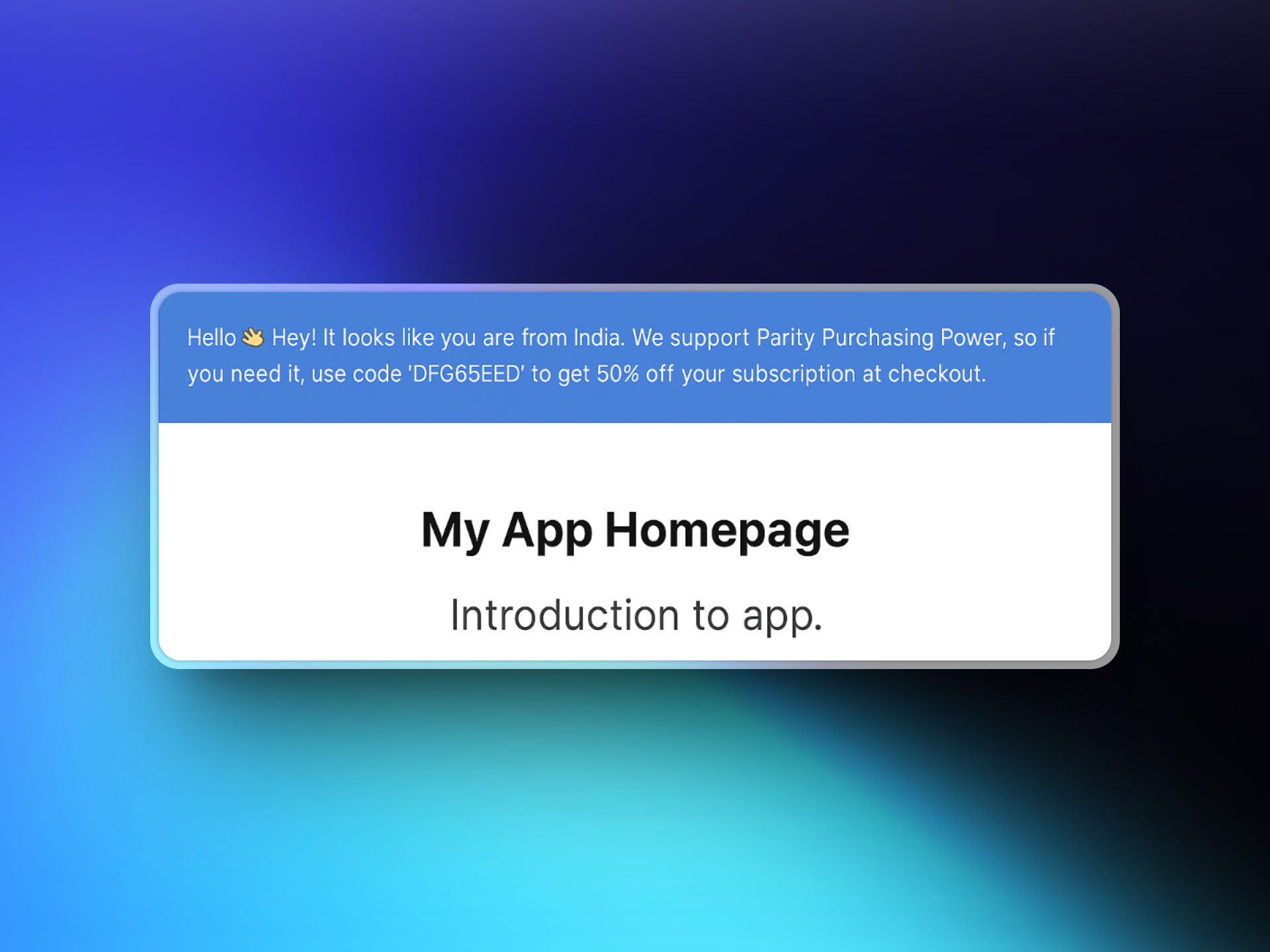
When ParityDeals is integrated into your website, eligible visitors will see a banner that includes a location-based discount code they can use at checkout. These discount codes are automatically created and managed by ParityDeals and will appear in your **Dodo Payments Dashboard** under **Sales → Discounts**.
 #### Setup
Visit [app.paritydeals.com](https://app.paritydeals.com/) and create an account.
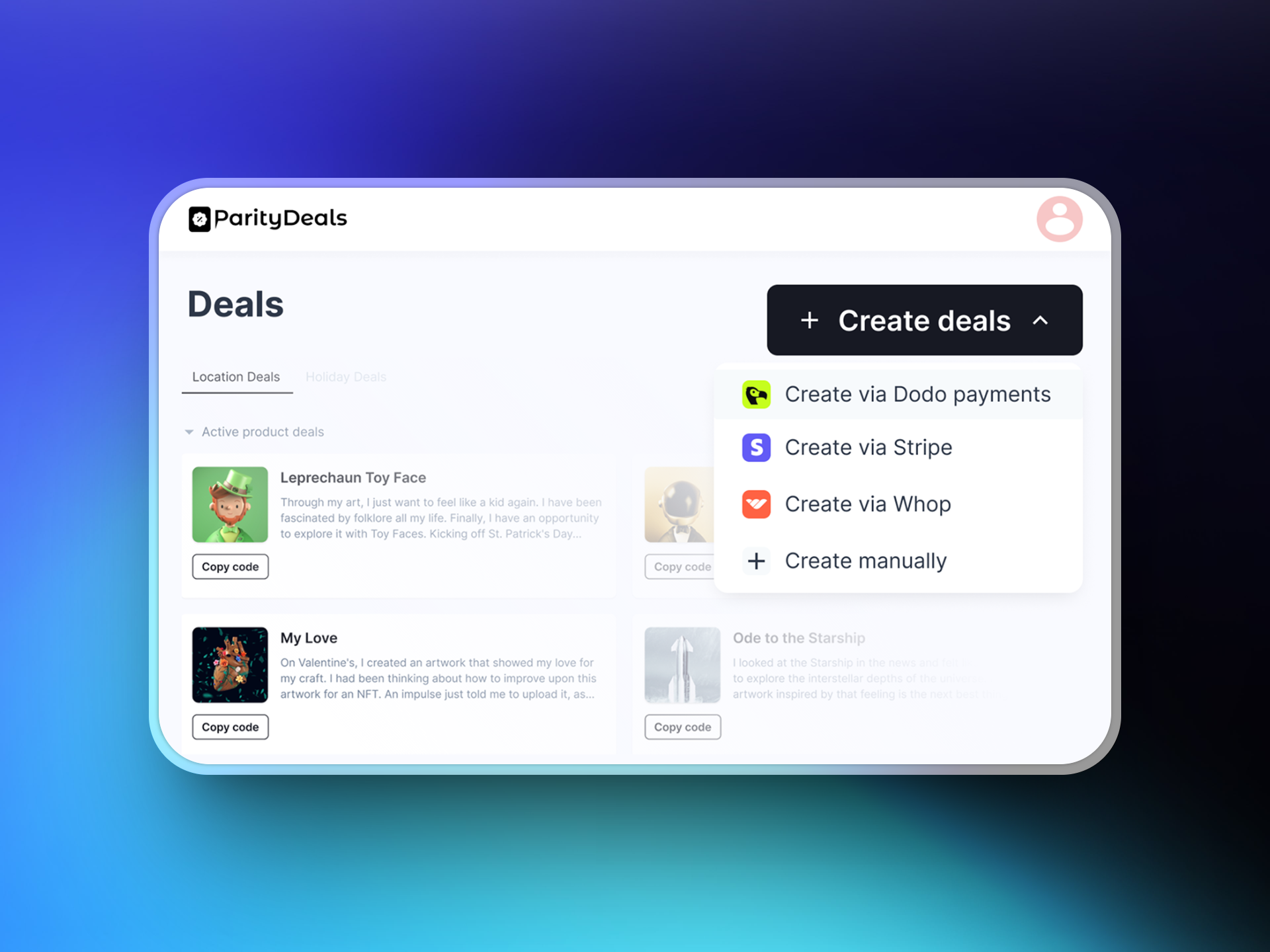
After signing in, locate the option to create deals. From the dropdown menu, select **"Create Deals via Dodo Payments"**.
#### Setup
Visit [app.paritydeals.com](https://app.paritydeals.com/) and create an account.
After signing in, locate the option to create deals. From the dropdown menu, select **"Create Deals via Dodo Payments"**.
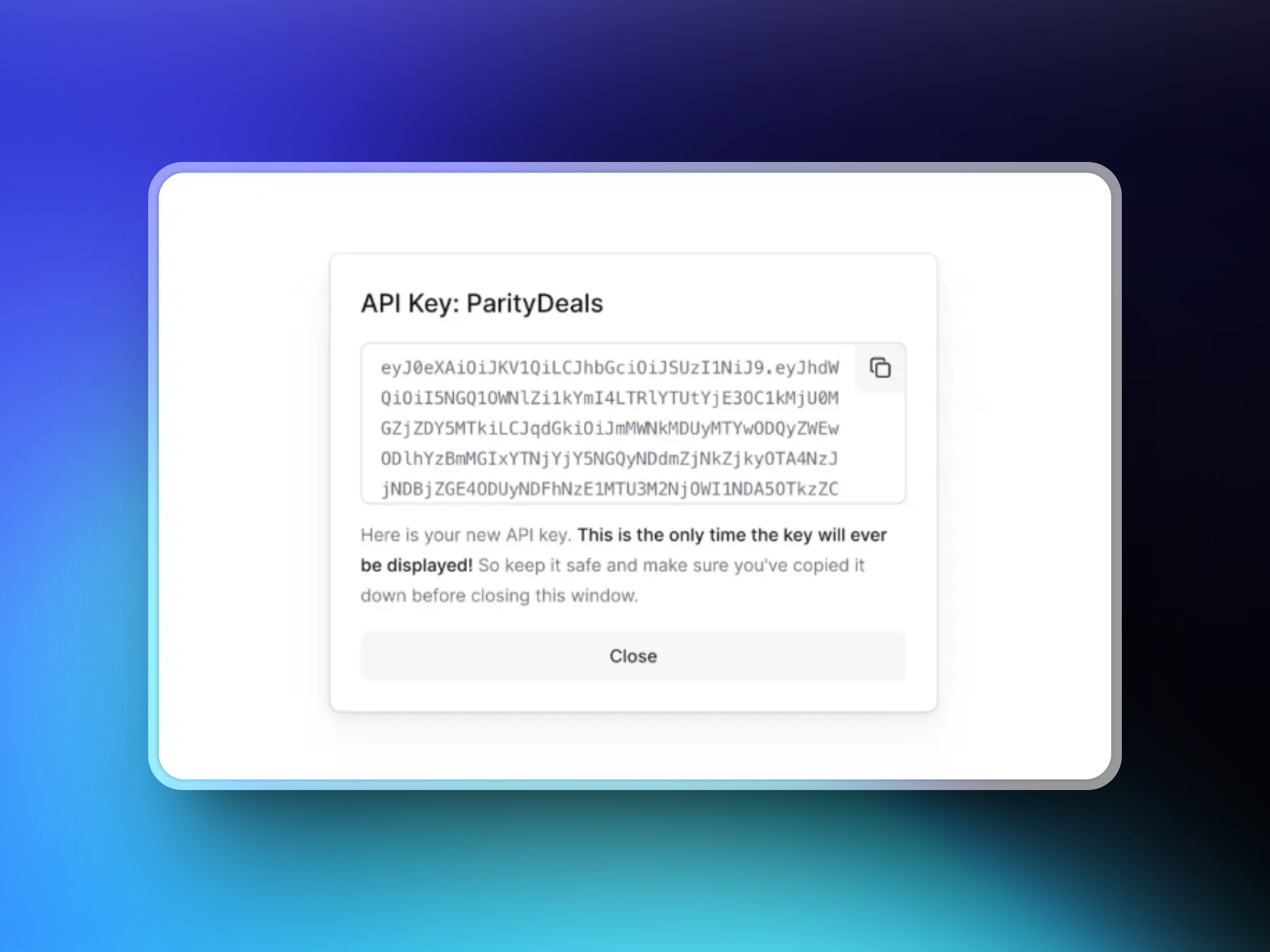
 Log in to your **Dodo Payments dashboard** and navigate to **Developers → API Keys**. Click **"Create New API"**.
Name your API key descriptively (e.g., 'ParityDeals') so you can identify it later.
Log in to your **Dodo Payments dashboard** and navigate to **Developers → API Keys**. Click **"Create New API"**.
Name your API key descriptively (e.g., 'ParityDeals') so you can identify it later.
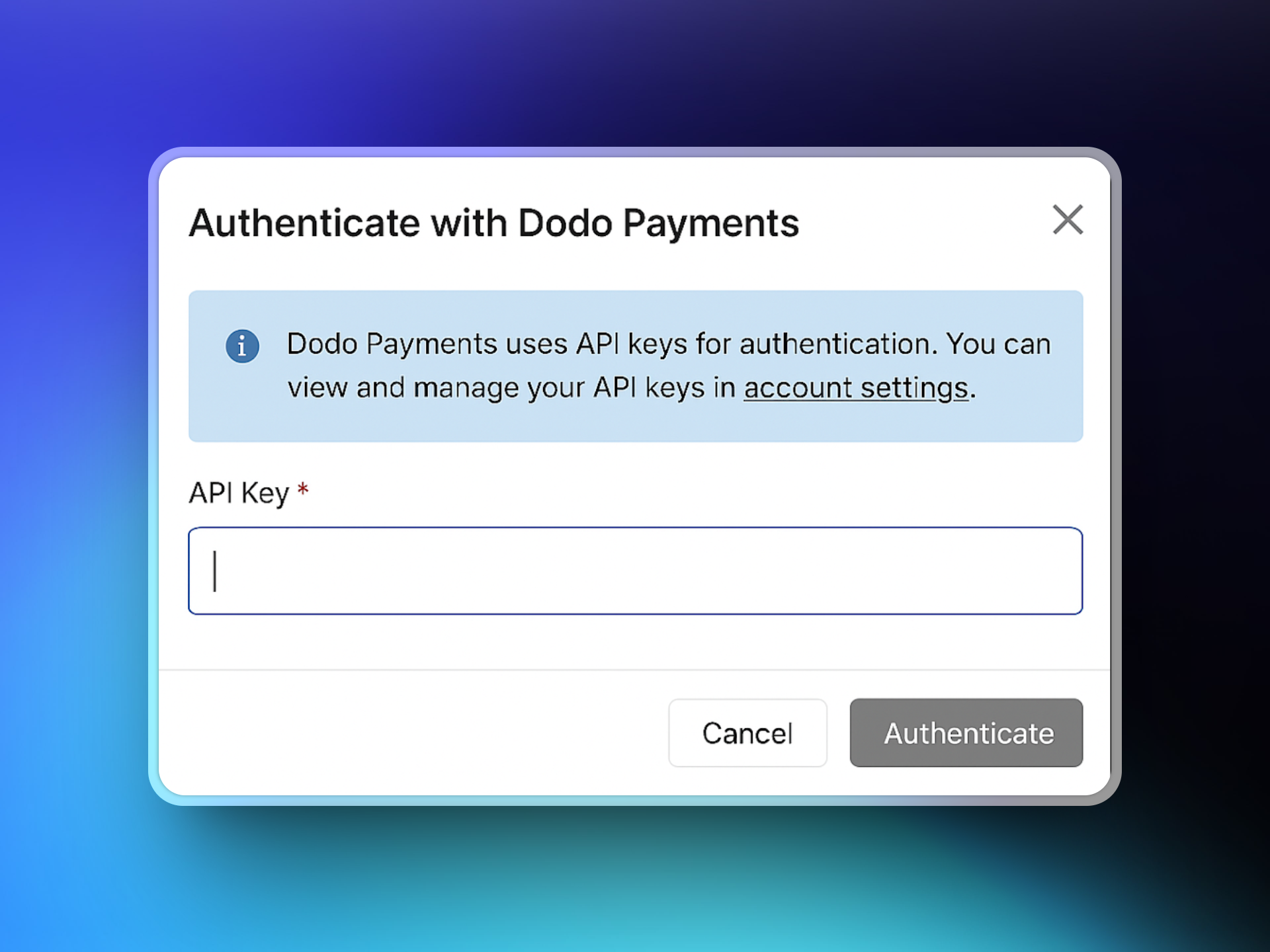
 Copy the API key you created and paste it into the ParityDeals interface to establish the connection with your Dodo Payments account.
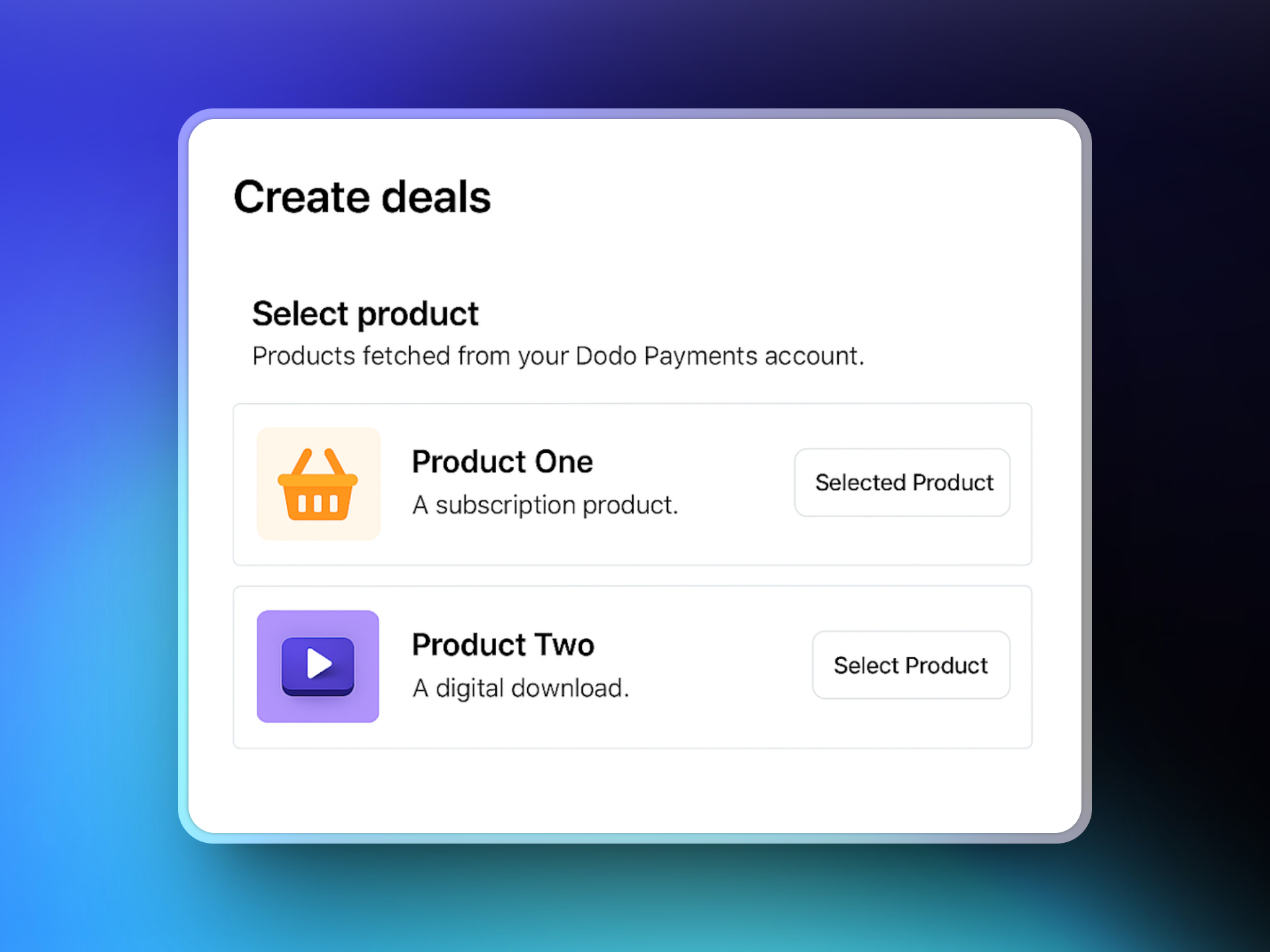
 Once connected, ParityDeals will fetch your Dodo Payments product catalog. Select the products you want to associate with your deals.
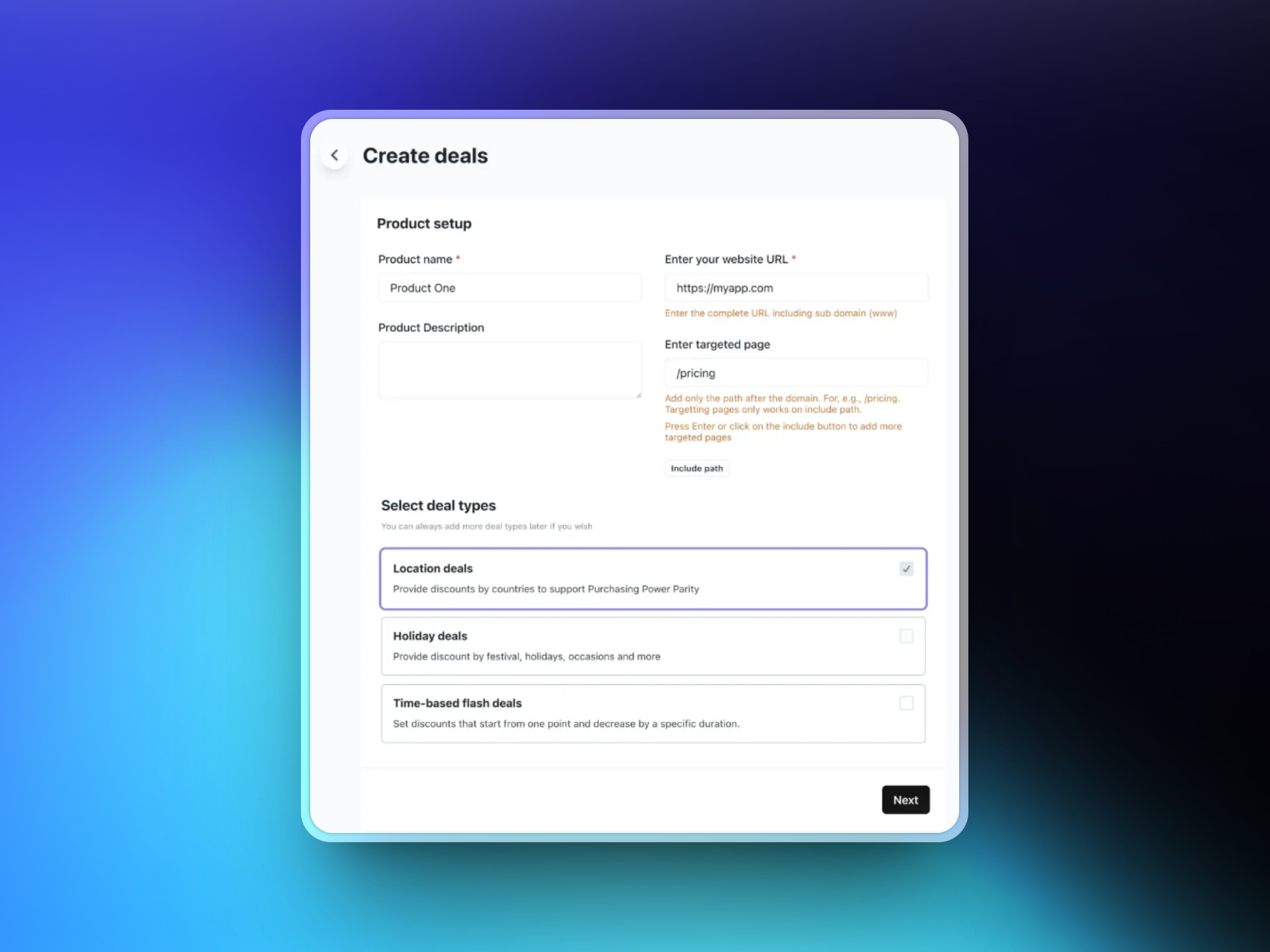
 Enter your website URL and optionally select specific target pages where the discount banner should appear. Then choose your preferred deal type:
* Location-based deals
* Holiday deals
* Time-based flash deals
Enter your website URL and optionally select specific target pages where the discount banner should appear. Then choose your preferred deal type:
* Location-based deals
* Holiday deals
* Time-based flash deals
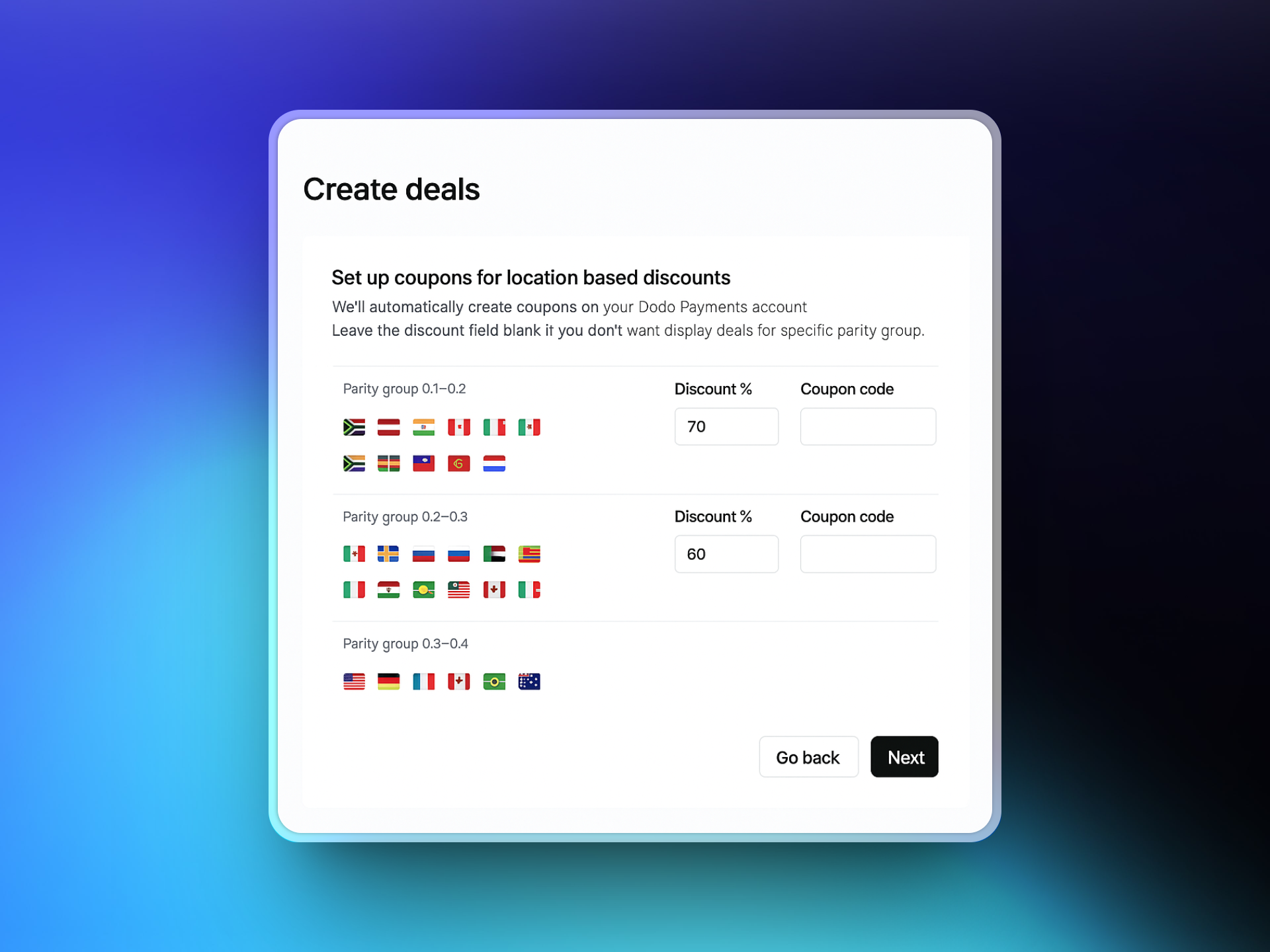
 Select the countries you want to offer localized discounts to and define the discount percentage for each. ParityDeals provides recommended defaults that you can adjust as needed.
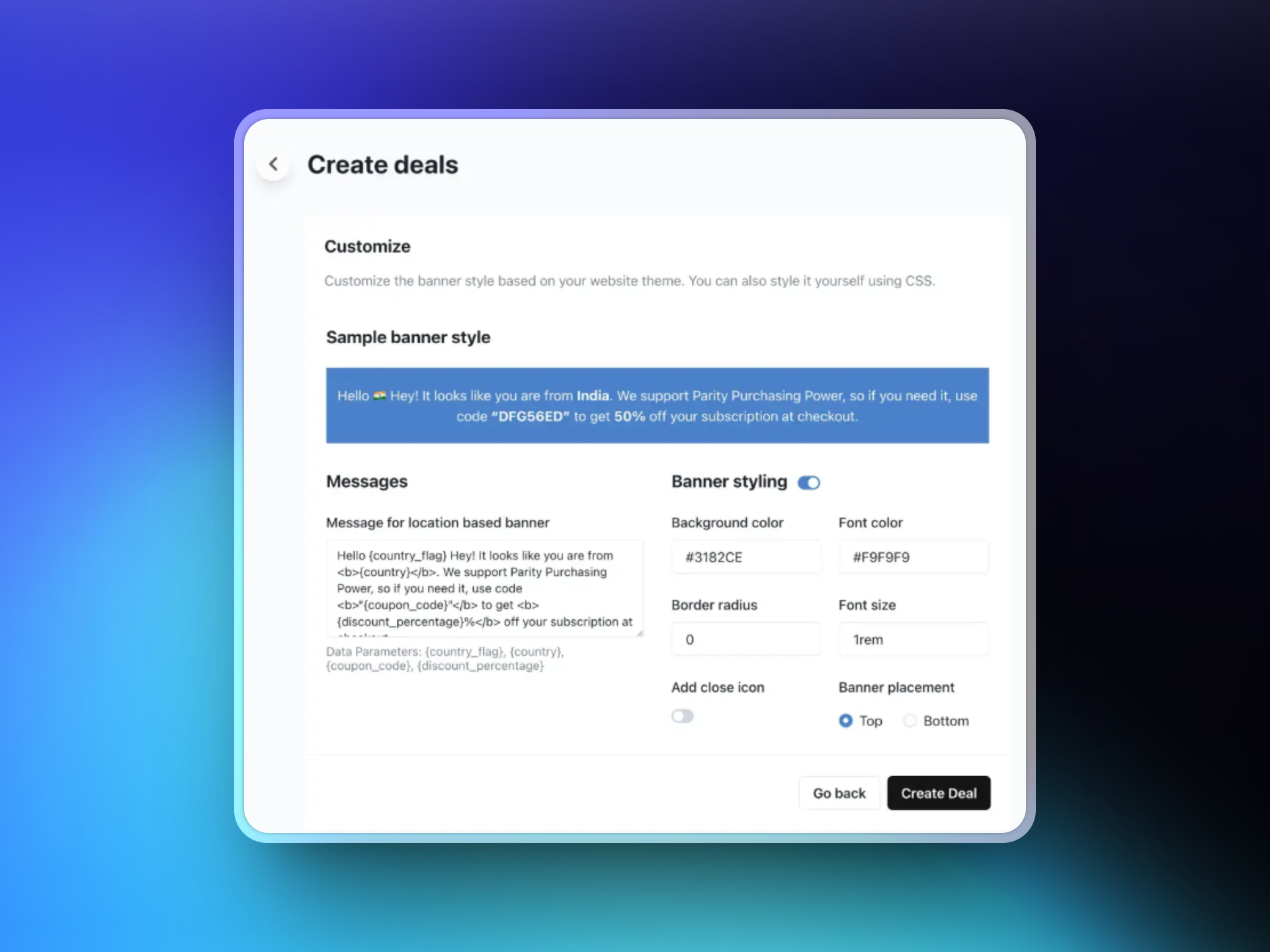
 Design your discount banner by customizing the text, selecting colors and layout, and choosing the banner position (top or bottom of page). This banner will be displayed to eligible visitors based on your configured rules.
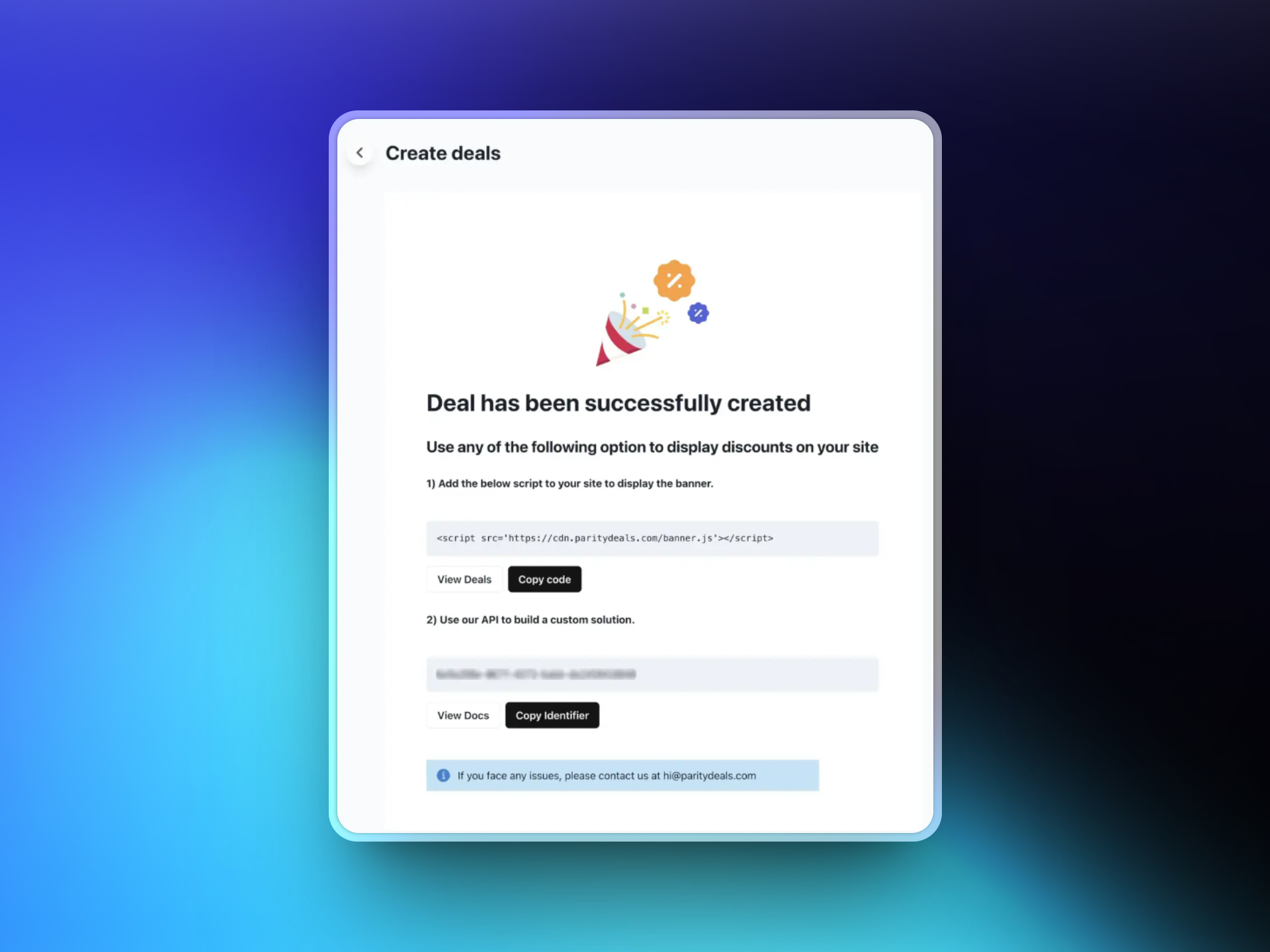
 After saving your deal, ParityDeals will generate a script. Add this script to your website code (typically in the `` section). This script automatically detects visitor locations and displays the appropriate discount banner.
 #### Additional Features
With ParityDeals, you can also offer [automatic time-based discounts](https://www.paritydeals.com/features/time-based-discounts/) and [holiday-based promotions](https://www.paritydeals.com/features/holiday-based-discounts/) throughout the year. For more detailed information, refer to the [ParityDeals Documentation](https://www.paritydeals.com/docs/).
### Evendeals
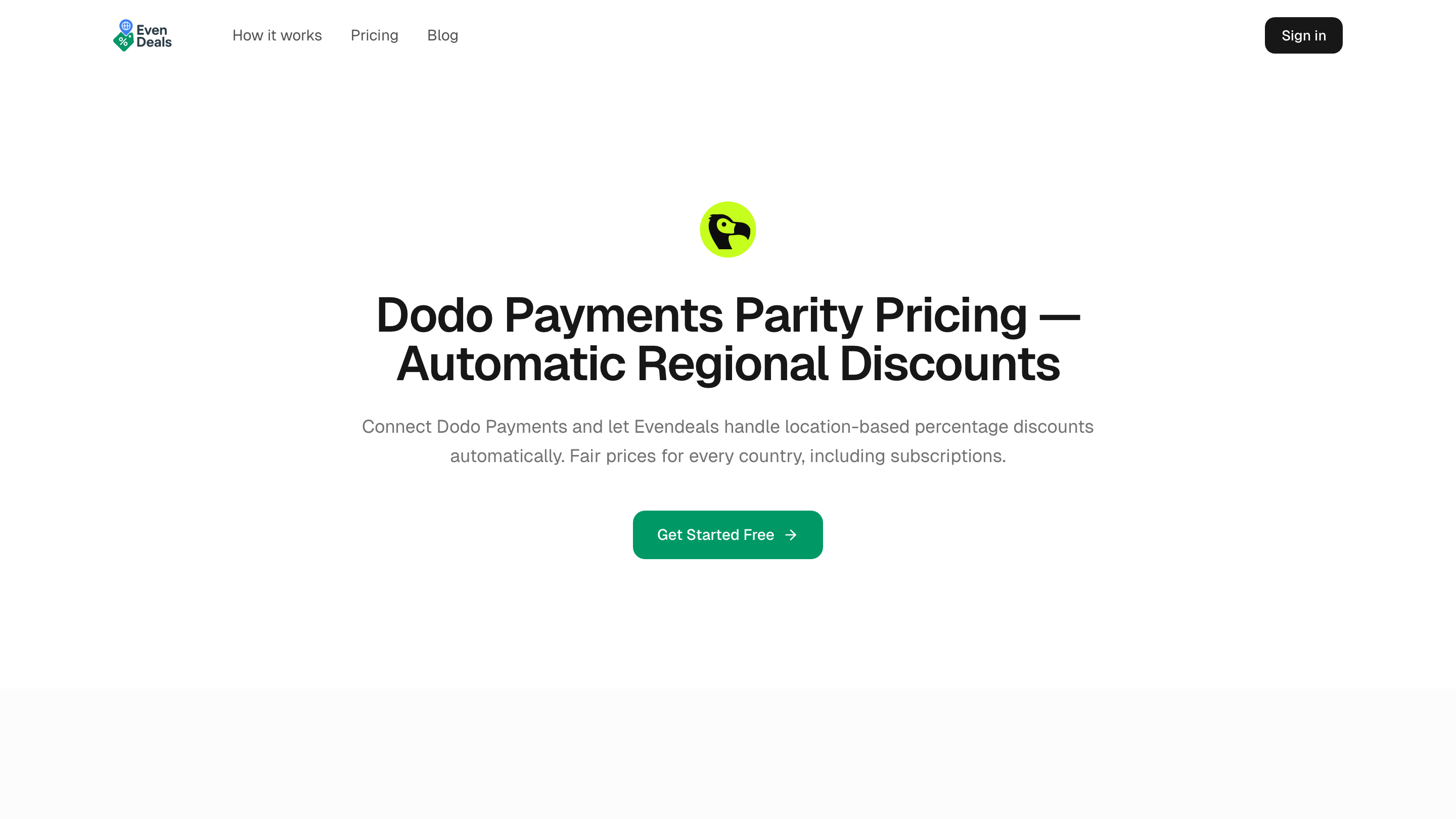
[Evendeals](https://www.evendeals.com/integrations/dodo-payments) is another platform that integrates with Dodo Payments to offer location-based purchasing power parity pricing. It supports both one-time and subscription products.
#### Additional Features
With ParityDeals, you can also offer [automatic time-based discounts](https://www.paritydeals.com/features/time-based-discounts/) and [holiday-based promotions](https://www.paritydeals.com/features/holiday-based-discounts/) throughout the year. For more detailed information, refer to the [ParityDeals Documentation](https://www.paritydeals.com/docs/).
### Evendeals
[Evendeals](https://www.evendeals.com/integrations/dodo-payments) is another platform that integrates with Dodo Payments to offer location-based purchasing power parity pricing. It supports both one-time and subscription products.
 #### Key Features
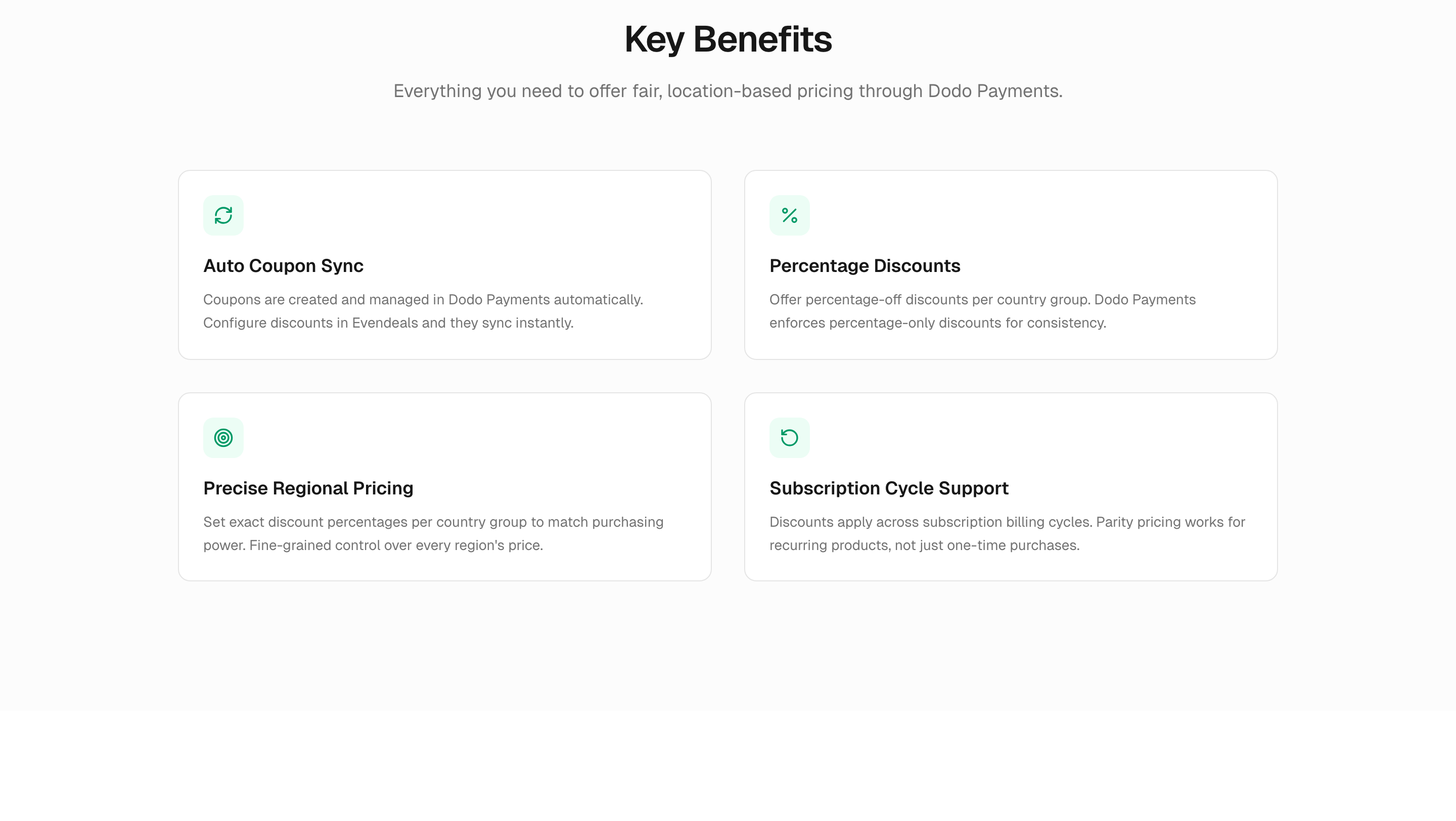
* **Auto coupon sync** — Coupons are created and managed in Dodo Payments automatically
* **Percentage discounts** — Offer percentage-off discounts per country group
* **Subscription support** — Discounts apply across subscription billing cycles
* **Auto-refresh rules** — Rotate coupon codes automatically by time interval, redemption count, or view count to prevent abuse
Discount codes created by Evendeals will automatically appear in your Dodo Payments dashboard under Sales → Discounts.
#### Key Features
* **Auto coupon sync** — Coupons are created and managed in Dodo Payments automatically
* **Percentage discounts** — Offer percentage-off discounts per country group
* **Subscription support** — Discounts apply across subscription billing cycles
* **Auto-refresh rules** — Rotate coupon codes automatically by time interval, redemption count, or view count to prevent abuse
Discount codes created by Evendeals will automatically appear in your Dodo Payments dashboard under Sales → Discounts.
 #### Setup
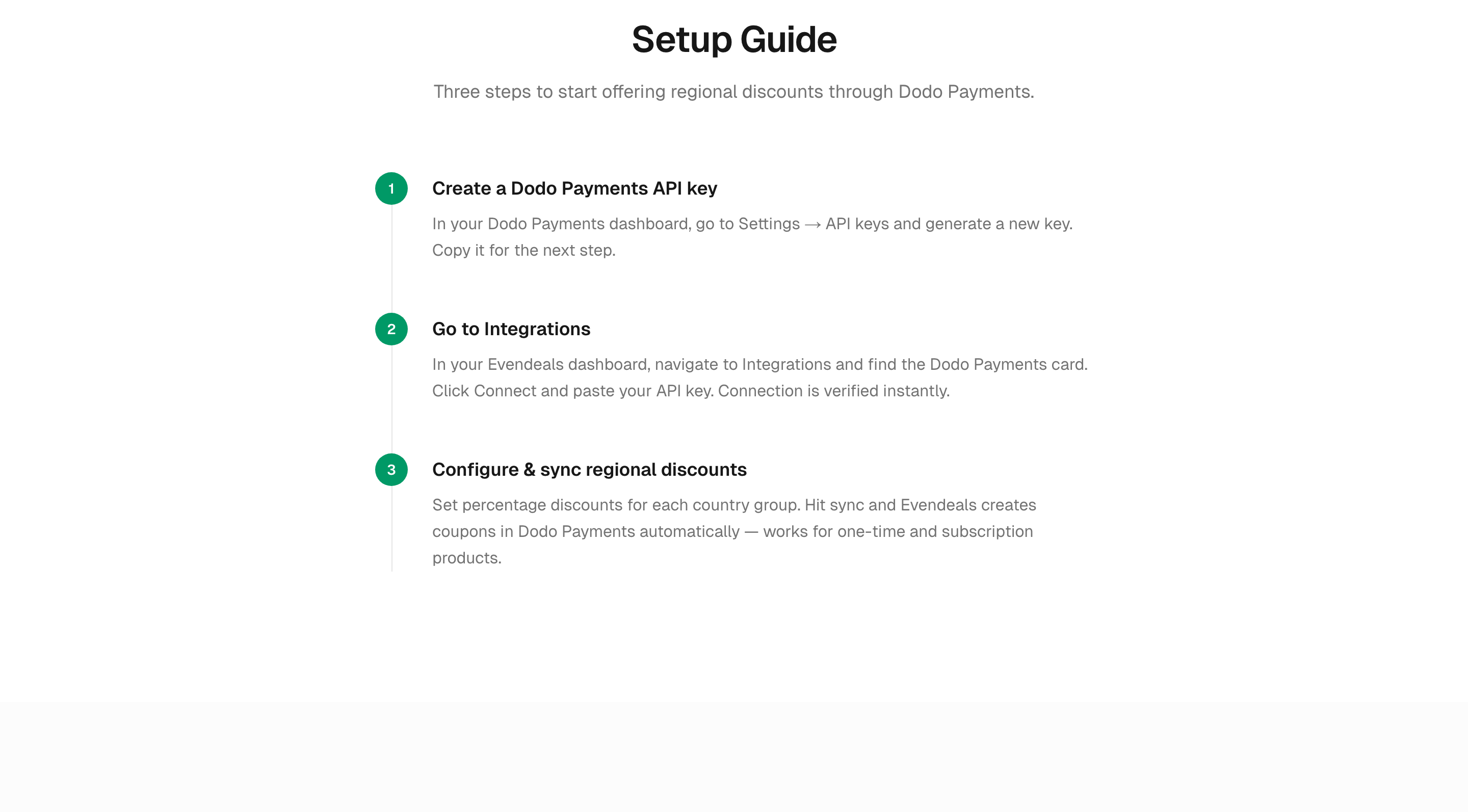
In your Dodo Payments dashboard, go to **Developers → API Keys** and generate a new key.
In your [Evendeals dashboard](https://www.evendeals.com/signin), navigate to **Integrations**, find the Dodo Payments card, and paste your API key.
Set percentage discounts for each country group and hit sync. Evendeals creates coupons in Dodo Payments automatically.
After syncing, open **Sales → Discounts** in your Dodo Payments dashboard to confirm the generated coupons appear. Each coupon will have a recognizable Evendeals prefix.
#### Setup
In your Dodo Payments dashboard, go to **Developers → API Keys** and generate a new key.
In your [Evendeals dashboard](https://www.evendeals.com/signin), navigate to **Integrations**, find the Dodo Payments card, and paste your API key.
Set percentage discounts for each country group and hit sync. Evendeals creates coupons in Dodo Payments automatically.
After syncing, open **Sales → Discounts** in your Dodo Payments dashboard to confirm the generated coupons appear. Each coupon will have a recognizable Evendeals prefix.
 Both ParityDeals and Evendeals work seamlessly with Dodo Payments to help you optimize your global pricing strategy. For more details, visit the [ParityDeals Documentation](https://www.paritydeals.com/docs/) or the [Evendeals Dodo Payments integration page](https://www.evendeals.com/integrations/dodo-payments).