

Dodo Payments also has an official Resend app in the App Marketplace. The app connects with no webhook setup. See Resend App.
Introduction
The Resend integration sends a transactional email through Resend when a Dodo Payments event occurs. Use it to confirm payments, welcome new subscribers, and tell customers when a payment fails, from your own sending domain.This integration requires a Resend API key with Sending access and a sending domain verified in Resend. You also need access to Developer → Webhooks in the Dodo Payments dashboard.
Getting Started
1
Open the Webhook Section
In the Dodo Payments dashboard, go to Developer → Webhooks and click Add endpoint.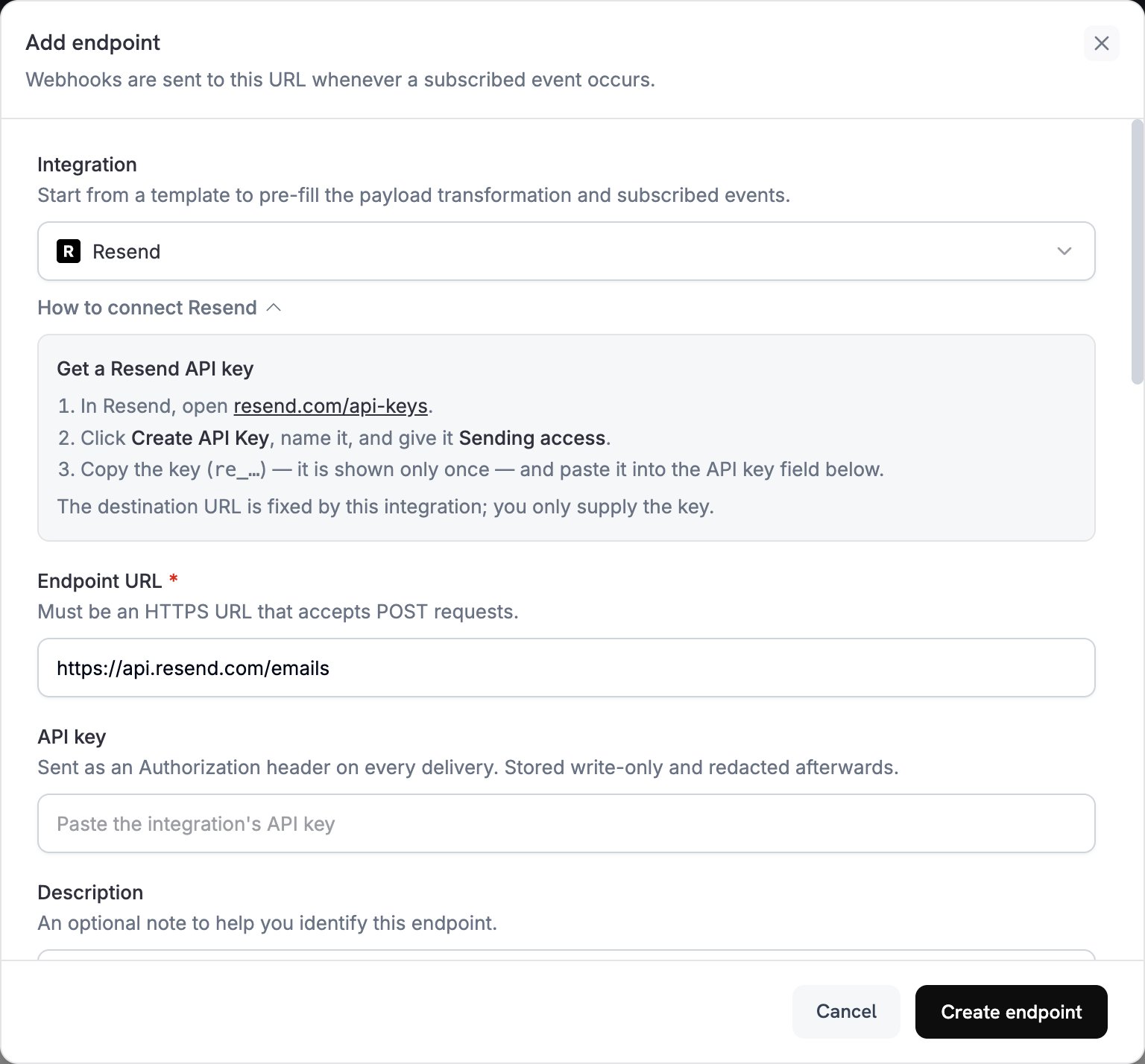
2
Select Resend
In Integration, select Resend. The dashboard fills in the Endpoint URL and the transformation code for Resend, and the How to connect Resend panel shows the setup steps.
3
Enter API Key
In Resend, open API Keys, click Create API Key, and give the key Sending access. Resend shows the key, which starts with
re_, only once. Paste it into API key. Dodo Payments sends it as a bearer token in the Authorization header of every request to Resend.4
Select Events
In Subscribed events, select only the events your transformation handles. An event that the transformation leaves unchanged reaches Resend in the Dodo Payments format, and Resend rejects it.
5
Configure Transformation
Under Transformation code, edit the handler so each subscribed event becomes a Resend email. Start from the examples.
6
Test & Create
Under Test this code, select an event type and click Simulate to preview the request to Resend. Then click Create endpoint.
7
Done
Dodo Payments now sends an email through Resend for each subscribed event. To see each delivery and Resend’s response, open the Logs tab in Developer → Webhooks.
Transformation Code Examples
Each handler setswebhook.url to Resend’s send-email endpoint and replaces webhook.payload with the email. Dodo Payments amounts are in the smallest currency unit, so the examples divide by 100 and show the currency code. For zero-decimal currencies such as JPY and KRW, use the amount as is.
Payment Confirmation Email
Send a receipt when a payment succeeds (payment.succeeded):
payment_confirmation.js
Subscription Welcome Email
Welcome a customer when a subscription becomes active (subscription.active):
subscription_welcome.js
Payment Failure Notification
Ask the customer to update their payment method when a payment fails (payment.failed):
payment_failure.js
Tips
- Send from a domain you’ve verified in Resend, which improves deliverability.
- Include both an
htmland atextversion of each email. - Personalize content with customer data from the payload, such as
customer.name. - Write subject lines that state the result or the action needed.
- Include an unsubscribe link in any email that contains marketing content.
- Preview each template with Simulate before you create the endpoint.
- To skip an event in code, set
webhook.cancel = truebefore you return the webhook. The logs record a skipped delivery as successful.
Troubleshooting
Emails Not Being Sent
Emails Not Being Sent
- Check that the API key is correct, active, and has Sending access. To replace it, edit the endpoint and paste a new key in API key.
- Check that the sender domain is verified in Resend.
- Check that the recipient email addresses are valid.
- Check Resend’s sending limits and quotas for your plan.
- Open the Logs tab in Developer → Webhooks and read Resend’s response to the failed delivery.
Transformation Errors
Transformation Errors
- Check that the payload matches Resend’s send-email format. Resend requires
from,to, andsubject. - Check that every event your code handles sets all the required fields.
- Check that the
htmlvalue is well-formed HTML. - Check that the
fromaddress uses a domain verified in Resend.