

Initiate Refund
You can initiate two types of refunds from the Payment Details Page:- Full refund: Refunds the entire payment amount to the customer.
- Partial refund: Refunds part of the payment. You set the amount to refund for each item.
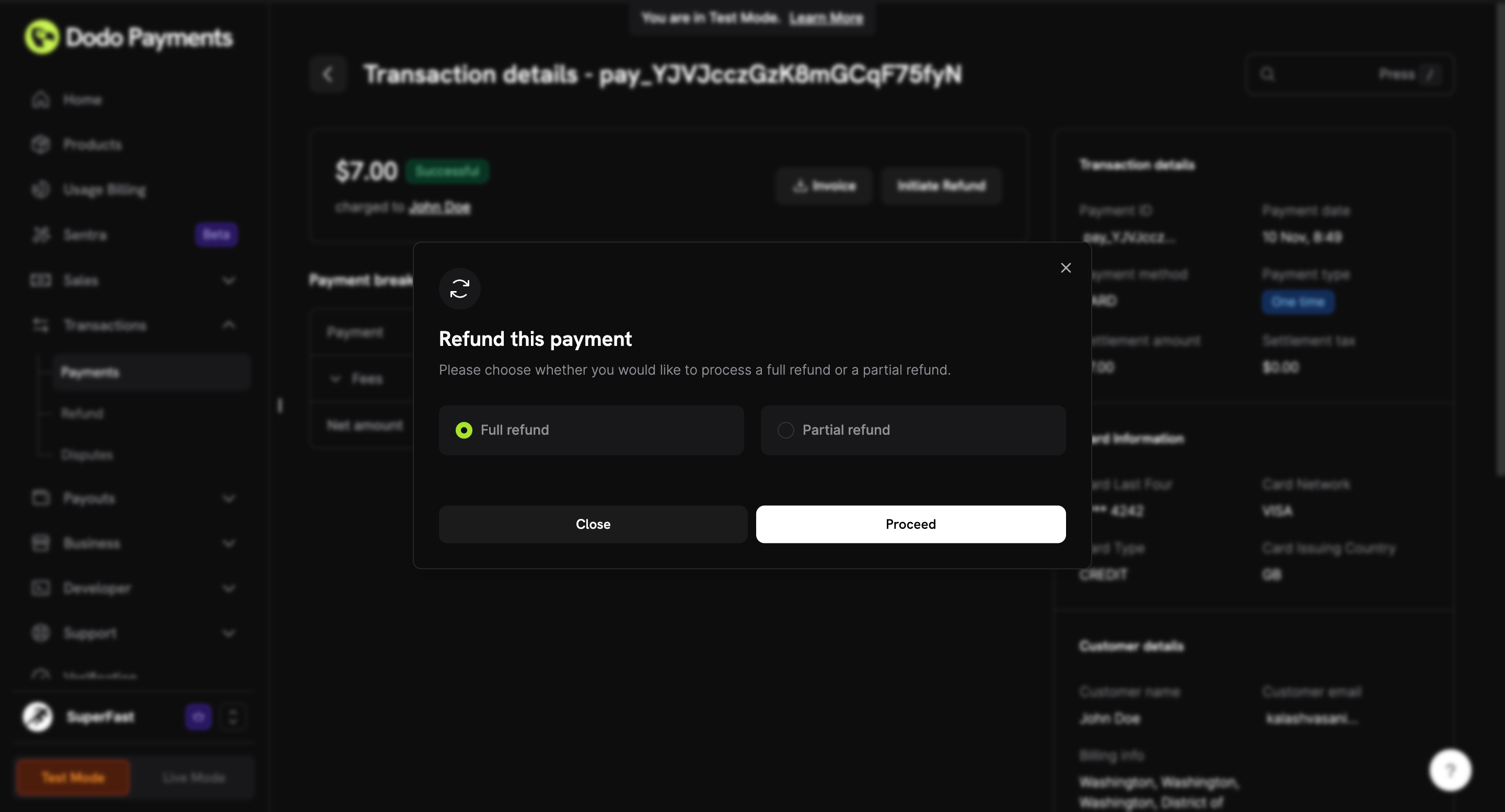
payment_id. For a partial refund, pass items, each with an item_id (the product_id or add-on ID) and the amount to refund.
Details Required for Refund
- Refund Amount: The amount to be refunded. For a partial refund, enter the amount for each item you want to return to the customer. The dashboard shows each item’s refundable amount and prevents you from refunding more than the original payment.
- Refund Reason: The reason for the refund, recorded with the refund. The dashboard requires at least 5 characters, and the API accepts up to 3,000.
Refund Rules
- The payment must have succeeded.
- Our standard policy is that a customer must request a refund within 7 days of making the purchase, and requests after that are invalid. To leave room for edge cases, merchants have a longer window of 30 days from the payment date (default) to process full or partial refunds from the dashboard. After 30 days, refunds are not allowed.
- The refund, together with any earlier refunds on the payment, can’t exceed the amount paid.
- Only one refund per payment can be in progress. A refund with the status
pendingorreviewmust finish before you start another. - Your balance must cover the refund amount.
- In live mode, live payments must be enabled for your business.
- Refunds are issued to the original payment method used by the customer.
When Your Balance Can’t Cover a Refund
Dodo Payments pays a refund from your wallet balance, not from the original payment. If your balance is lower than the refund amount, the refund is denied, even though the payment succeeded. Your balance can be lower than a payment’s full amount for three reasons:- A payment adds less than the customer paid. Your wallet is credited with the payment, and then the tax on it and the Dodo Payments transaction fees are debited. A full refund returns more than the payment added to your balance.
- A payout moves your balance to your bank. On each payout date, your eligible balance is transferred to your bank account. Right after a payout, your balance may not cover a refund for a payment made before it.
- Other entries use the same balance. Earlier refunds, disputes, and their fees are deducted from your balance when they occur.
The Payment Fees entry has no reversal, so Dodo Payments does not return the transaction fees on the original payment when you refund it.
To issue a refund that your balance can’t cover:
- Check your balance under Payouts → Balances.
- Wait until new payments raise your balance, and then initiate the refund. Refunds must be initiated within the refund window, so don’t wait past it.
- If the refund can’t wait, email support@dodopayments.com from your registered email address with the payment ID.
Refund Status
Track the progress of your refund with these statuses:
Dodo Payments sends the
refund.succeeded or refund.failed webhook when a refund reaches a final status. See Refund Webhooks.
Refund Network Reference
A succeeded refund gets a reference number from the card network or the bank. Give this number to your customer when they can’t find the refund, so they can trace it with their bank. The reference appears on the refund details sheet and the refund page, with a copy button. Its heading shows the kind of reference:- The reference is usually available 1 to 3 business days after the refund succeeds. Until then, the refund shows Not available yet. After it arrives, the dashboard shows the date it was made available.
- Funds can take 5 to 10 business days to settle in the customer’s account.
- Failed refunds don’t show a reference.
- The refunds table has a Network reference column. It is visible on the payment page, and you can turn it on from Edit columns on the Refunds page and the customer page.
network_reference and network_reference_type. Both are null until the reference is available. They appear on Get Refund Detail, List Refunds, and the refunds of a payment. The refund.succeeded webhook carries the same fields, but the reference usually arrives after the webhook is sent and no second webhook follows. To get the reference, read the refund from the API.
Refunds Page
The Refunds tab on the Transactions page lists every refund, with its amount, status, refund ID, associated payment, refund type, date, and reason:- To open the Payment Details Page for a refund’s payment, click its ID in the Associated Payment column.
- Refunds are exported from Settings → Reports. The Adjustments Report covers refunds and disputes together, as CSV or XLSX.
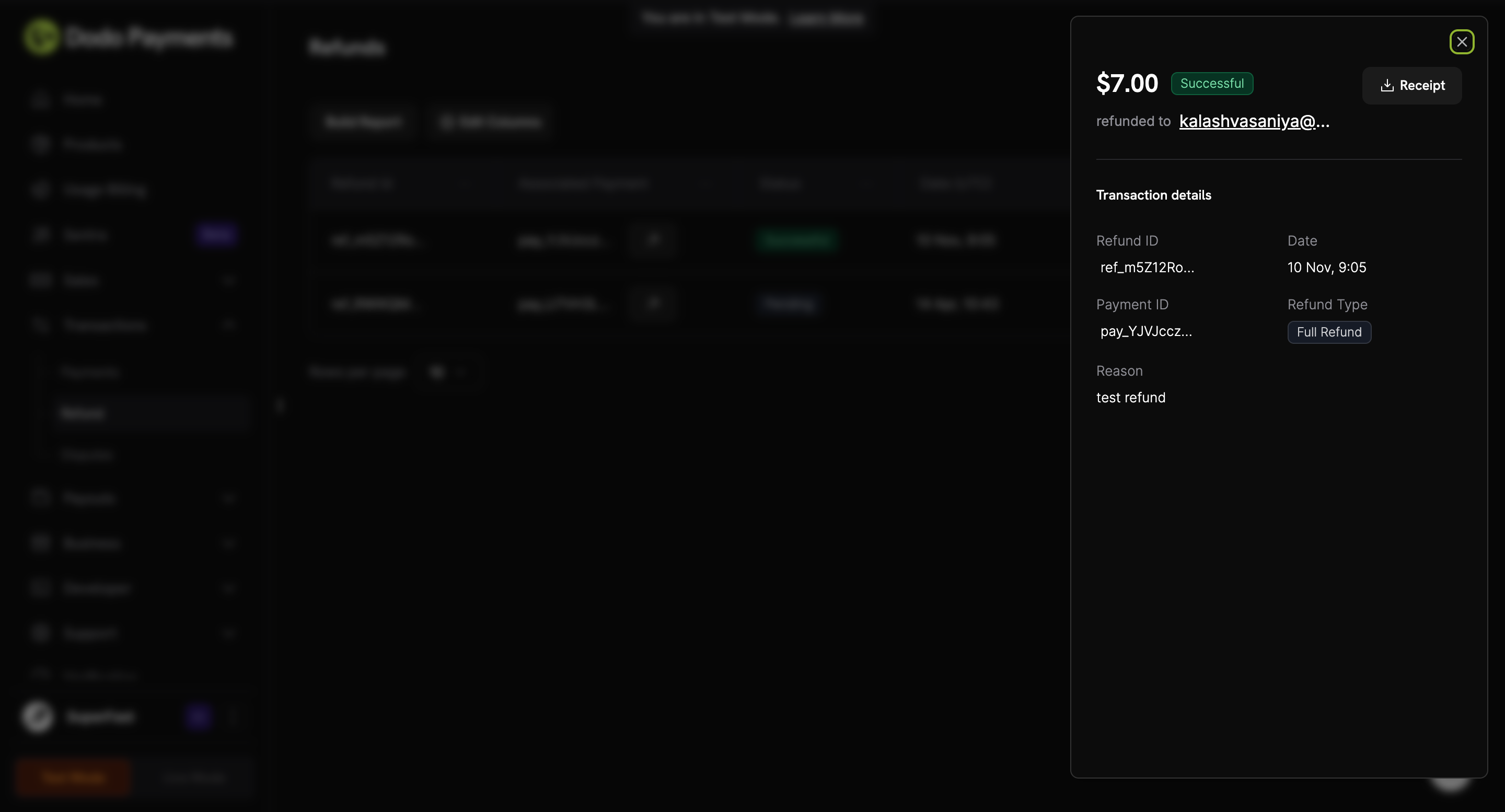
Refund Receipt
When a refund succeeds, Dodo Payments emails the customer. The email shows the refund amount, status, Refund ID, original payment amount, and refund date, and links to the Refund Receipt. The Refund Successful email is on by default; you can turn it off under Customer Emails. To fetch the receipt from your backend, use Get Refund Receipt. Refund Receipt Template: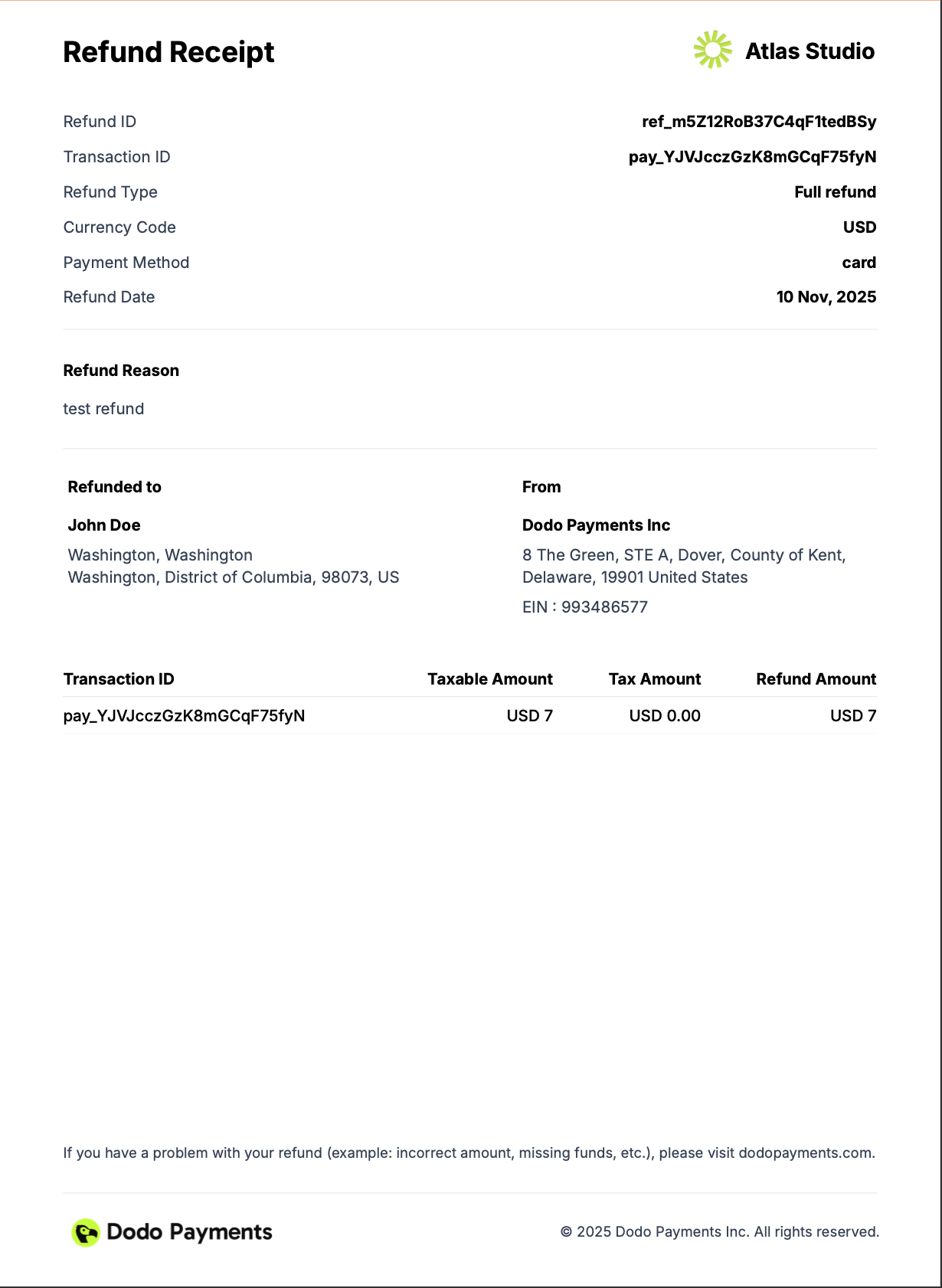
- Refund ID: The unique identifier for the refund, with the ID of the refunded payment.
- Refund type: Whether the refund is full or partial.
- Refund amount: The amount refunded to the customer, with its taxable amount and tax amount.
- Refund date: The date the refund was processed.
- Refund method: The payment method the refund was sent to.
- Refund reason: The reason for the refund.