

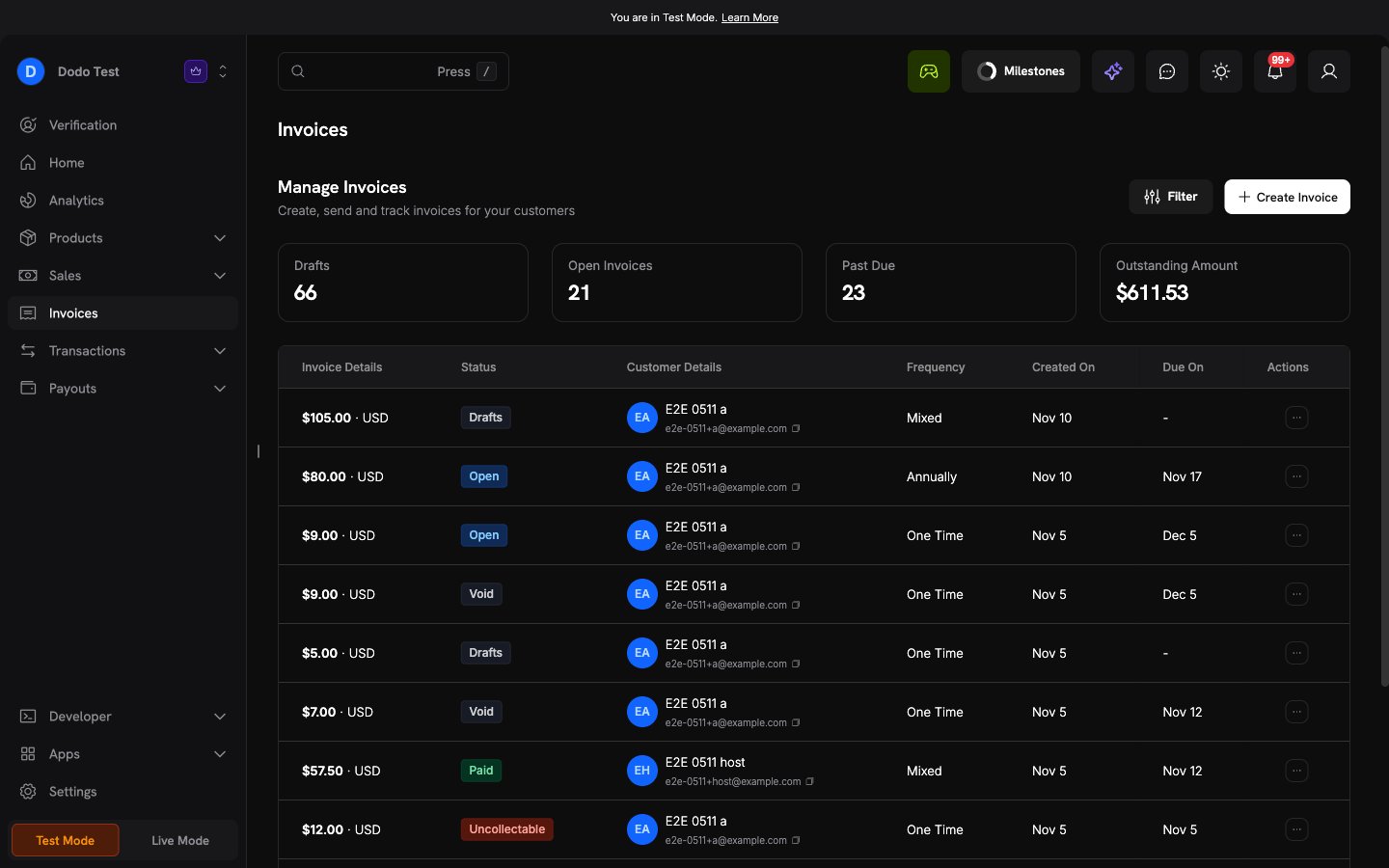
Overview
Invoice-based billing lets you bill a customer before they pay. You issue an invoice with a due date. The customer reviews it, then pays on a hosted invoice page, or Dodo Payments charges their saved card on the due date. Use it for B2B sales on payment terms, such as Net 30, for annual contracts, and for customers who need an invoice before their finance team pays. This is the opposite order to checkout. With checkout, the customer pays first and Dodo Payments generates the invoice after the payment. With invoice-based billing, the invoice comes first and the payment settles it. Dodo Payments is the Merchant of Record on every invoice. The Dodo Payments legal entity is the seller, and your brand name and logo identify the sale for your customer.Invoice Management
Set the brand name and logo that every invoice shows.
Subscription Payment Retries
Configure the retry schedule that auto-charge invoices use.
How It Works
An invoice goes through these steps:1
Draft
You create a draft with a customer, items, a currency, a due date, and a collection method. You can change every field of a draft, or delete it.
2
Finalize
You finalize the draft. Dodo Payments fixes the tax, the currency, the customer address, and the tax ID, sets the due date, and the invoice becomes
open. You can send it to the customer at the same time.3
Collect
With Auto-charge, Dodo Payments charges the customer’s saved card on the due date. With manual collection, the customer pays on the hosted invoice page. Reminder emails follow your reminder schedule.
4
Settle
When the payment succeeds, the invoice becomes
paid. If the due date passes first, the invoice becomes past_due, and you can extend the due date, void the invoice, or mark it uncollectable.Invoice Statuses
An invoice always has one of these statuses:paid, void, and uncollectable are final statuses. A deleted draft is removed from the list.
A paid invoice can also carry tags. Tags do not change the status:
Creating an Invoice
You create invoices on the Invoices page of the dashboard, or with the API. The customer must have a billing address with a country, street, city, and ZIP code before you can finalize the invoice.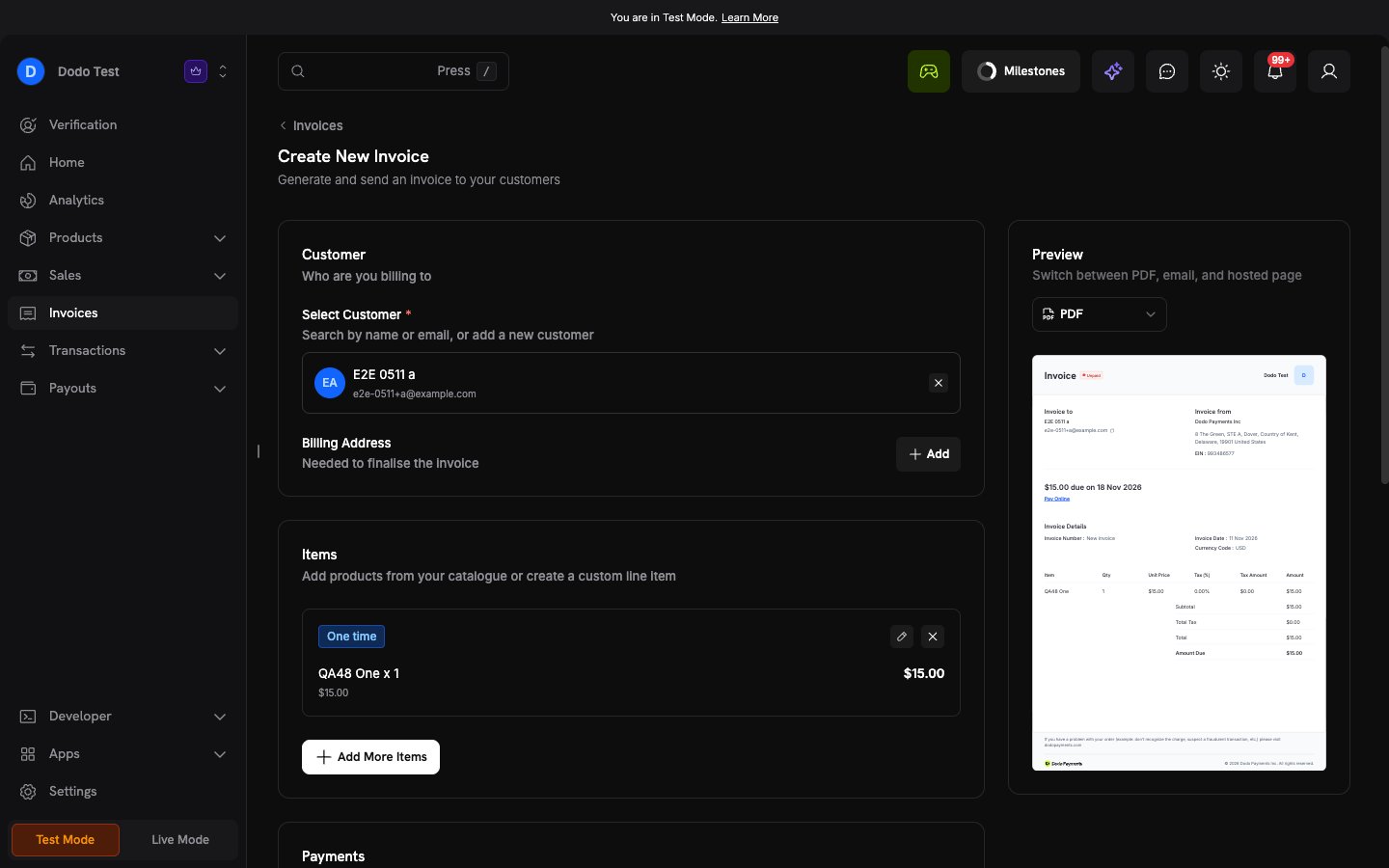
1
Open the invoice form
Go to Invoices and click Create Invoice.
2
Select the customer
In Select Customer, search for a customer by name or email, or add a new customer. If the customer has no billing address, click Add next to Billing Address. A business customer also needs a tax ID. See B2B Payments.
3
Add items
In Items, add products from your catalogue. To bill a subscription through invoices, add a subscription product.
4
Set the payment terms
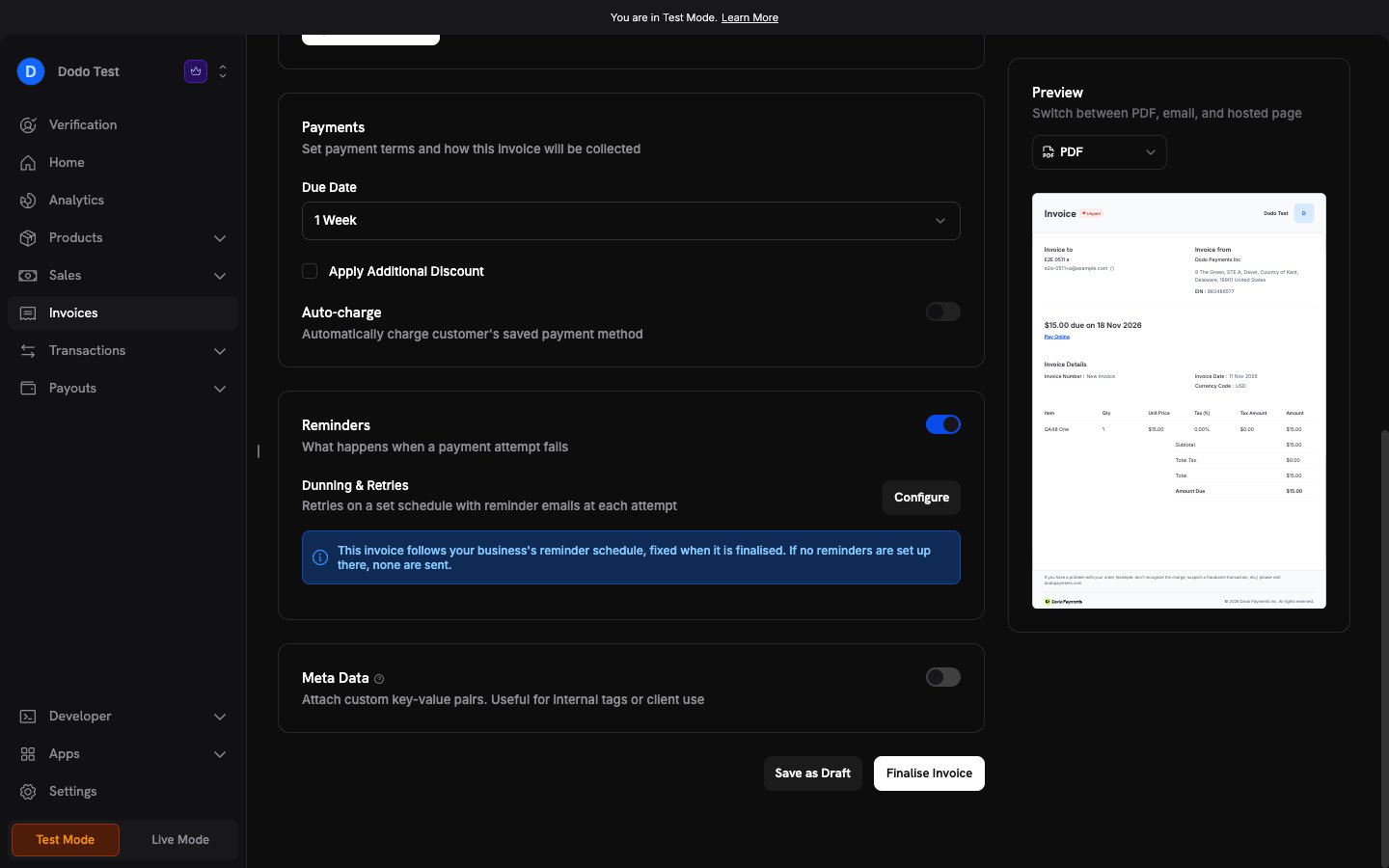
In Payments, select a Due Date: Today, Tomorrow, 1 Week, 2 Weeks, or Pick a date. Terms count from the time you finalize the invoice. To apply a discount, select the Apply Additional Discount checkbox, then select a discount code.
5
Select how to collect
To charge the customer’s saved card on the due date, turn on Auto-charge and select the card. Auto-charge needs a subscription item. Otherwise, leave it off, and the customer pays on the hosted invoice page.
6
Set review and reminders
For an invoice with a subscription item, turn on Manual review to review each renewal invoice before it goes to the customer. See Reviewing Renewal Invoices. Keep Reminders on to send reminder emails on your business reminder schedule.
7
Check the preview
Use the Preview panel to see the PDF, the Email Preview, and the Hosted Preview.
8
Save or finalize
Click Save as Draft to keep the invoice editable. Click Finalise Invoice to issue it. In the Review Invoice dialog, click Add Recipients to set the Send to and Additional CC recipients addresses, then click Finalise & Send.
What Happens at Finalize
When you finalize an invoice, Dodo Payments does these steps:- It calculates the tax and fixes the currency, the billing address, and the tax ID. After this, you cannot change them.
- It sets the due date from the payment terms. A manual invoice that is due on receipt gets 24 hours to be paid.
- It applies the customer’s wallet credit to the amount due.
- It fixes the reminder schedule for the invoice.
paid immediately. No payment method or payment link is necessary.
A custom due date must still be in the future when you finalize. If it is not, select a new due date.
Collecting Payment
Auto-Charge
An auto-charge invoice charges the customer’s saved card on the due date.- If the charge on the due date fails, the invoice becomes
past_due. If you turned on Subscription Payment Retries, Dodo Payments then retries the charge on your retry schedule. A hard decline stops the retries until the customer adds a new card. - If the customer has no saved card on the due date, the invoice becomes
past_due. When the customer saves a card later, Dodo Payments charges it at once. If that charge fails, retries follow your schedule. - To charge the saved card again before the next scheduled attempt, use the Retry Invoice API. The invoice must be
openorpast_due, use auto-charge, and have a saved card, and its subscription must not be cancelled. You cannot retry while a payment is processing or while dunning is paused.
Manual Collection
A manual invoice is not charged automatically. The customer pays on the hosted invoice page. If the customer does not pay by the due date, the invoice becomespast_due.
Reminder Emails
Each invoice follows your business reminder schedule. Dodo Payments fixes that schedule on the invoice when you finalize it. If your business has no reminder schedule, no reminders are sent. Configure the schedule in Settings → Recovery. The Configure button next to Dunning & Retries on the invoice form opens that page. Reminders go out only for an invoice that you sent. A finalized invoice that you never send gets no reminders. On an auto-charge invoice with a saved card, only the reminders before the due date go out, because retries take the place of later reminders. To change the schedule of one invoice, use the API:- Send
dunningwhen you create or update a draft, withreminders_enabledandoffsets_days. Each offset is a number of days from the due date. A negative offset sends the reminder before the due date. - Send
pause,resume, orrescheduleto the dunning endpoint of an open or past-due invoice. A paused invoice gets no reminders, no retries, and no automatic write-off.
The Hosted Invoice Page
The hosted invoice page lets the customer pay without a login. It shows the amount due, the due date, the line items, and the totals. The customer can pay the amount due and download the invoice PDF. After a refund, the page also links to the refund receipt.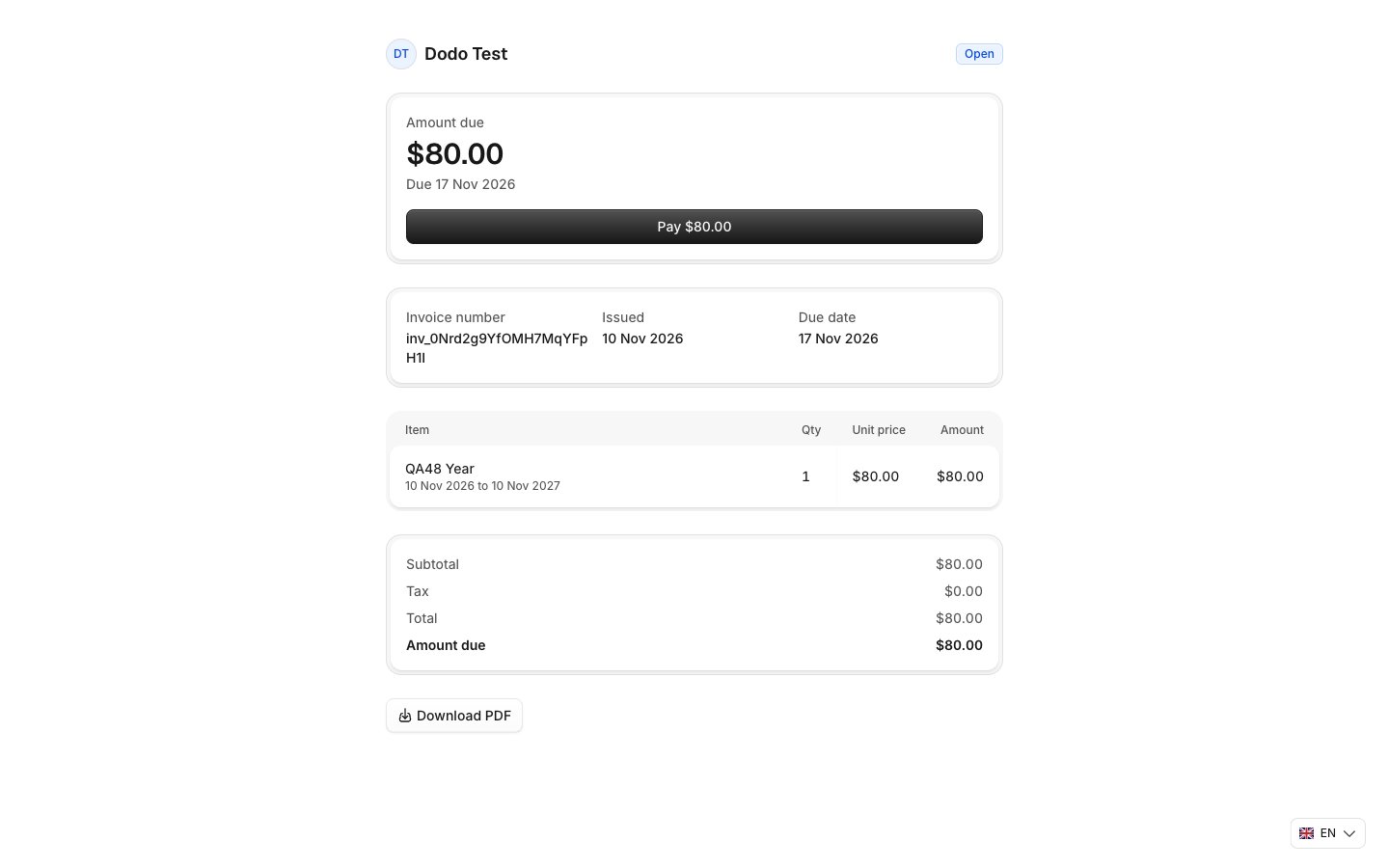
- In the dashboard, copy the link from the invoice details page, or click Copy Link on the invoice in the list.
- In the API, read
hosted_urlon a sent invoice, or call the hosted link endpoint.
Emails to the Customer
Dodo Payments sends these emails to the customer:
Every email except the void email has a link to the hosted invoice page. The void email goes only to the customer email of a sent invoice.
You also get emails when a renewal draft is ready for review, and when an invoice is sent, paid, past due, voided, has a failed payment, or reaches the end of dunning.
Managing Invoices
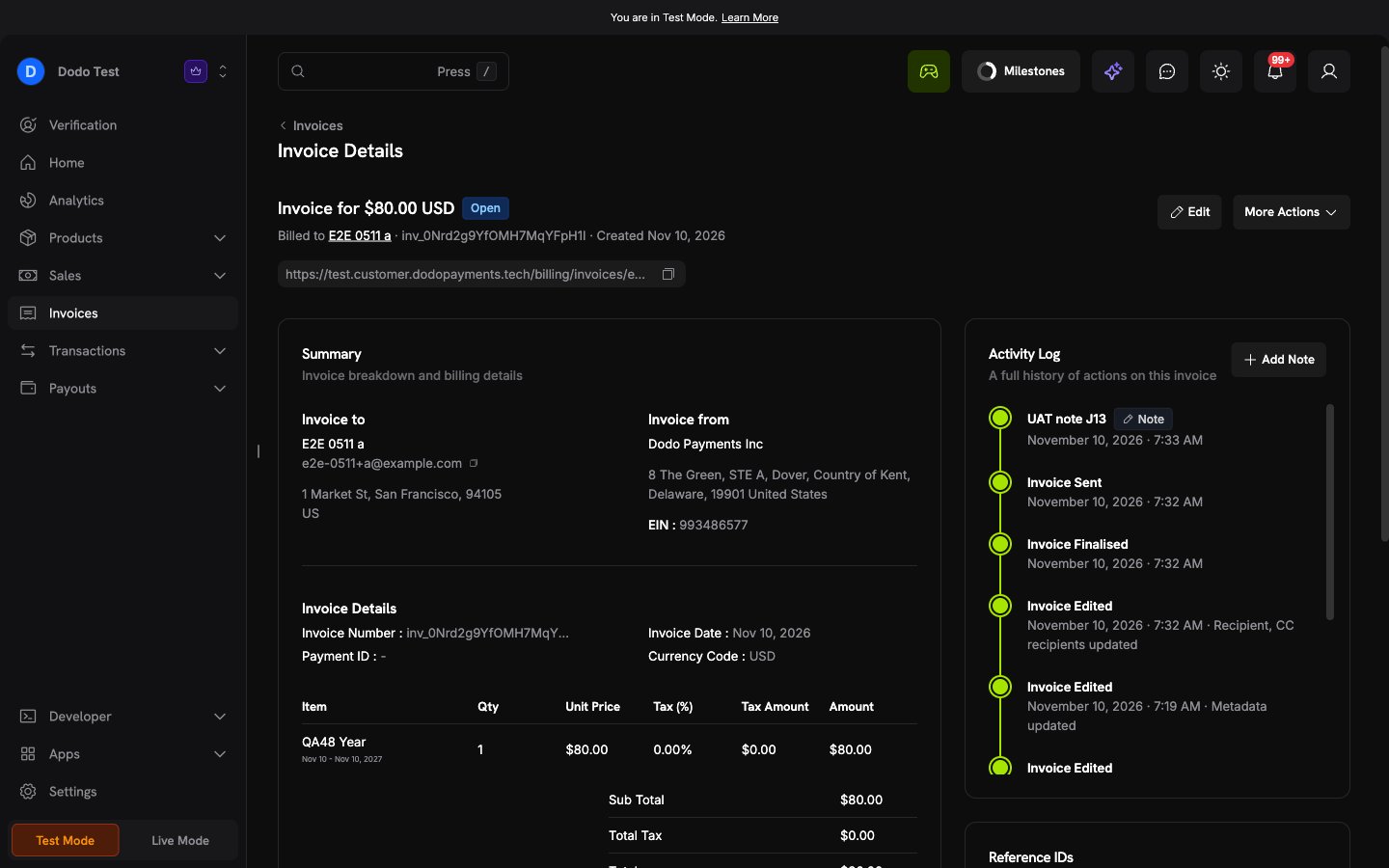
Editing an Invoice
What you can edit depends on the status:
A new due date must be in the future. If you move the due date of a
past_due invoice to the future, the invoice becomes open again. If the invoice was sent, the customer gets an email with the new due date.
To correct an amount, an item, the currency, the customer, or the tax ID on an issued invoice, void the invoice and create a new one.
Voiding an Invoice
To void an invoice, open it, click More Actions, then Update Status, select Mark as Void, and click Continue.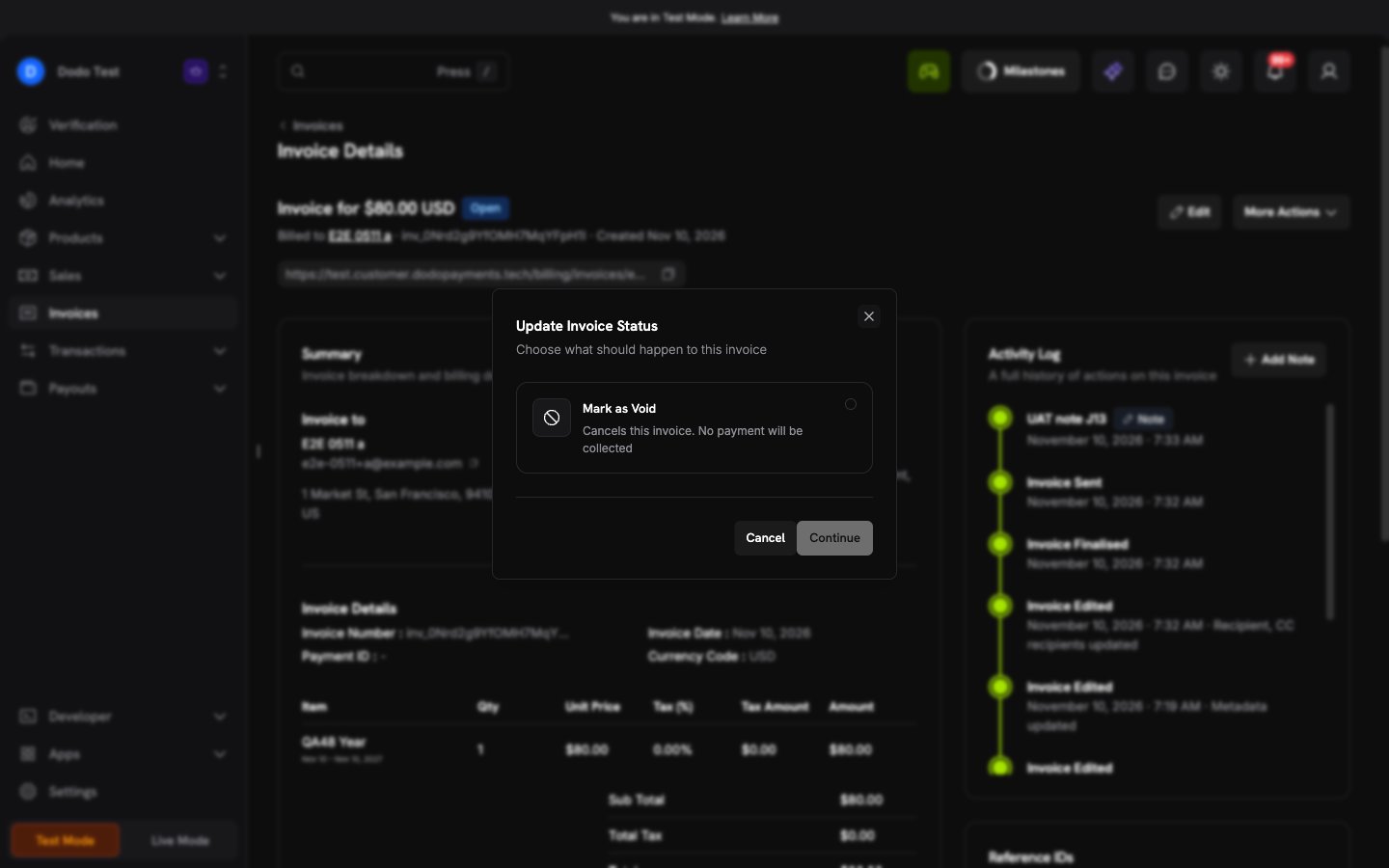
- You can void only an
openorpast_dueinvoice. To remove a draft, delete it. - You cannot void an invoice while a payment is processing.
- Wallet credit applied to the invoice goes back to the customer’s wallet.
- The hosted page and the PDF stay available, without a payment button.
- If the invoice is the first invoice of a subscription, the subscription fails.
Marking an Invoice Uncollectable
When dunning of apast_due invoice ends, you get an email. You then have 7 days to extend the due date, void the invoice, or mark it uncollectable. If you do nothing, Dodo Payments marks the invoice uncollectable after 7 days.
Dunning ends at these times:
- Manual collection: at the due date plus the recovery window of your Payment Retries settings. With no retry settings, dunning ends at the due date.
- Auto-charge: at the last failed retry.
past_due invoice can be marked uncollectable.
Late Payments
If a payment succeeds on avoid or uncollectable invoice, Dodo Payments refunds the full payment automatically. The invoice keeps its status. A second payment on a paid invoice is also refunded.
Duplicating an Invoice
To create a new draft with the same details, click Duplicate Invoice on the invoice in the list. The copy does not keep a custom due date, the manual review setting, or usage lines. You cannot duplicate a renewal invoice or a plan change invoice.Recurring Invoices
When an invoice has a subscription item, it starts a subscription that invoices bill. Dodo Payments creates the subscription with the draft, in thepending status. The subscription becomes active when the customer pays the first invoice. If you delete the draft, or void the first invoice, or it becomes uncollectable, the subscription fails.
On each next billing date, Dodo Payments creates a renewal invoice with the same payment terms and collection method. If the first invoice used a custom due date, renewal invoices are due on receipt. For a usage-based subscription, the renewal invoice comes 1 hour after the billing date, so that late usage events count.
The renewal invoice controls the subscription status:
- If a renewal or plan change invoice becomes
past_due, the subscription enters its grace period, or goeson_holdif you have no grace period. - When the customer pays, the subscription becomes
activeagain. - An
on_holdsubscription gets no new renewal invoice until the customer pays.
collect_via_payment_link on a plan change.
Free Trials
An invoice-billed subscription can start with a free trial. Dodo Payments creates the subscription and a paid $0 invoice for the trial. The first invoice that bills an amount comes when the trial ends.1
Add one subscription product
In Create Invoice, select the customer and add one subscription product. The trial is available only with one product, no add-ons, no other items, and no discount.
2
Turn on the trial
Turn on Start with a free trial. Trial days shows the trial length of the product. You can set 1 to 730 days.
3
Set the terms after the trial
Select the payment terms and the collection method for the invoices after the trial. For Auto-charge, select a saved card. Discounts, reminders, and metadata do not apply to a trial.
4
Start the trial
Click Start Trial, check the details in the dialog, and click Start Trial again.
- Preventing Trial Misuse applies only when you keep the trial length of the product. A custom length skips the check.
- The customer gets a reminder email before the trial ends.
- You cannot change the plan during the trial.
- Paid trials are not available.
- With the API, send
POST /billing/subscriptions. Settrial_period_daysto change the trial length. For auto-charge, sendpayment_method_id.
Reviewing Renewal Invoices
With Manual review on, each renewal invoice is saved as a draft. You get an email when the draft is ready. You have 72 hours after the billing date to review and send it. If you do not, Dodo Payments finalizes the draft and sends it to the customer automatically. You can change the due date, the collection method, the recipients, the reminders, and the metadata of a renewal draft. You cannot change its prices or items.Changing Plans
Change the plan of an invoice-billed subscription from the dashboard or with the Change Plan API. The proration uses the same proration modes as other subscriptions.- Change now: Dodo Payments creates a plan change invoice. A positive total is an amount due. Use the
invoiceobject to set itspayment_termsandcollection_method. They default to the subscription values. To review the invoice before it is issued, setinvoice.finalizetofalse. If you do not finalize the draft in 72 hours, Dodo Payments finalizes it. - Change at the next billing date: nothing is billed now. The next renewal invoice bills the new plan.
- Downgrade credit: set
credittocustomer_balance(default) to add the credit to the customer’s wallet, or torefundto refund it to the last paid payment. The credit goes to the wallet if there is no paid payment, if the last payment uses a different currency, or if the refund fails.
Cancelling a Subscription
- Cancel now: the subscription becomes
cancelled, and renewal drafts are deleted. Open invoices stay open, and the customer can still pay them. Auto-charge stops. - Cancel at the next billing date: no renewal invoice is created, and the subscription ends at the billing date.
pending subscription, void its first invoice.
Refunds and Disputes
Refund an invoice payment from the payment, the same as any other payment. On the invoice details page, click More Actions, then Refund via Payment. See Refunds. A refund does not change the invoice status. It adds therefunded or partially_refunded tag and a refund receipt.
A dispute on an invoice payment adds the disputed tag. If the dispute is lost, accepted, or expires, the tag changes to payment_reversed. To bill the customer again, duplicate the invoice.
Limits
These limits apply to each invoice:Webhooks
Dodo Payments sends these webhook events for invoices. See Invoice Webhooks for the payload schema. The payload is the invoice object, the same as the response ofGET /billing/invoices/{id}. It shows the invoice at the time of delivery, not at the time of the event.
Refunds and disputes on invoice payments send the usual refund and dispute events.
API Management
All invoice endpoints accept your API key. Each invoice response has anETag header. Send its value in the If-Match header when you change the invoice. If the invoice changed after you read it, the request fails, and you must read the invoice again.
Create and Edit Invoices
Create and Edit Invoices
Create a draft, list and read invoices, update a draft, or delete it. Send an
Idempotency-Key header on create to prevent duplicate drafts.Create Invoice
Create a draft invoice.
List Invoices
List invoices with filters.
Get Invoice
Get one invoice with its lines and payments.
Update Invoice
Change the editable fields of an invoice.
Delete Invoice
Delete a draft.
Duplicate Invoice
Copy an invoice to a new draft.
Preview Invoices
Preview Invoices
Show the PDF, the email, or the data of an invoice before you issue it.
Preview Invoice Request
Preview an invoice without saving it.
Preview Invoice
Preview a saved draft.
Get Upcoming Invoice
Preview the next renewal invoice of a subscription.
Issue and Send Invoices
Issue and Send Invoices
Finalize a draft, email it, or get the hosted invoice page link. Send
"send": true on finalize to also send the invoice.Finalize Invoice
Issue a draft.
Send Invoice
Email the invoice to the customer.
Create Hosted Link
Get the hosted invoice page link.
Collect Payment
Collect Payment
Charge the saved card now, or pause, resume, or reschedule the reminders of an invoice.
Retry Invoice
Charge the saved card of an auto-charge invoice.
Change Dunning
Pause, resume, or reschedule reminders.
Close Invoices
Close Invoices
Void an unpaid invoice, or write off a past-due invoice.
Void Invoice
Cancel an open or past-due invoice.
Mark Uncollectable
Write off a past-due invoice.
Notes and History
Notes and History
Add an internal note, or read every action on an invoice.
Add Note
Add a note to the activity log.
List Invoice Events
Get the event history of an invoice.
Not Supported
These items are not available for invoice-based billing:- Marking an invoice paid for a payment made outside Dodo Payments.
- Partial payments. The customer pays the full amount due.
Subscriptions
Learn how subscriptions, plan changes, and grace periods work.
Webhook Events Guide
See every webhook event that Dodo Payments sends.