

Multi-Brand Setup
Policy links are set on each brand.
Checkout Sessions
Create the checkout session that asks for consent.
Disputes
Use the acceptance record as evidence.
Single Page Checkout
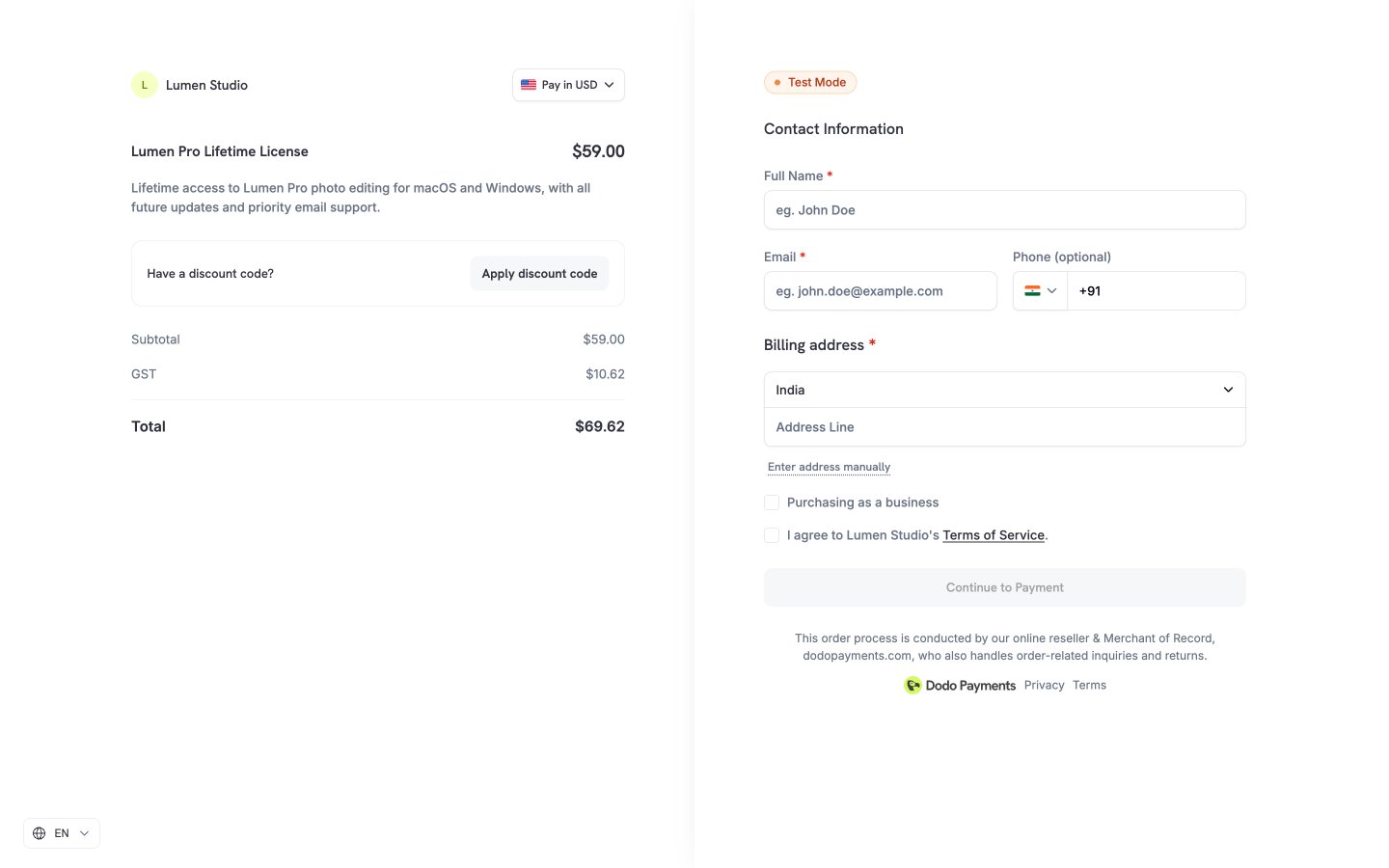
Where the checkbox sits in the one-page flow.
How It Works
Terms consent has two parts. You add your policy links to a brand once, then you turn the checkbox on for each checkout session that needs it:- You add a Terms of Service URL, and optionally a Refund Policy URL and a Privacy Policy URL, to a brand.
- You create a checkout session with
feature_flags.require_terms_acceptanceset totrue. - The checkout page shows a checkbox with links to the brand’s policies. The customer must tick it before they can continue.
- Dodo Payments records the acceptance with the payment. You see it in the dashboard, in the Payments API, and in payment and dispute webhooks.
Adding Policy Links to a Brand
Each brand has its own policy links, so a business with several brands can show different terms for each one. The primary brand also has its own links. Set up policy links separately in test mode and live mode.From the Dashboard
1
Open the Brand
Go to Settings → Business. In the Brands Under [Your Business] panel, open the
... menu next to the brand and select Edit.2
Enter the Policy Links
In the Policies section, fill in the links: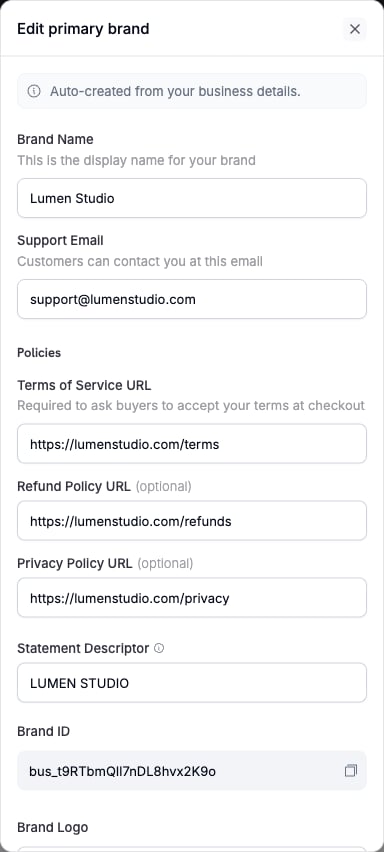
- Terms of Service URL (required to ask customers to accept your terms at checkout)
- Refund Policy URL (optional)
- Privacy Policy URL (optional)
http:// or https:// and be 500 characters or fewer. A Terms of Service URL is required to save any policy links, so a brand can’t have only a refund or privacy link.3
Save the Brand
Save the brand. The links apply to every new checkout session for this brand that requires terms acceptance.
After you set a Terms of Service URL, you can change it but you can’t remove it. The refund and privacy links can be cleared at any time.
Through the API
To set the links through the API, send them toPUT /brands/{id}/policies. Use the brand ID of a secondary brand, or your business ID for the primary brand. terms_of_service is required. refund_policy and privacy_policy are optional, and an empty value means no link.
cURL
GET /brands/{id}/policies. It returns 404 with the message The brand has no policy links. when the brand has none.
The PUT request returns these errors:
The policy endpoints are not in the SDKs yet, so call them over HTTP. The brand list and brand detail responses don’t include policy links.
Changing Your Policy Links
Each save adds a new version of the brand’s links, and saved versions are not changed. New checkout sessions show the latest links. A customer who already accepted keeps the version they accepted, so the record on their payment still shows the links that were on the checkout page when they paid. Saving the same links again creates no new version.Requiring Acceptance on a Checkout Session
To show the checkbox, setfeature_flags.require_terms_acceptance to true when you create the checkout session:
cURL
checkout_url in the response. There is no dashboard setting for this flag. You turn it on for each checkout session through the API.
The API checks the flag when you create the session:
The
confirm: true combination is rejected because confirm skips the checkout page, and the checkbox is on that page.
For a product collection checkout, the brands of all active products in the collection count when the API checks for a Terms of Service URL.
What the Customer Sees
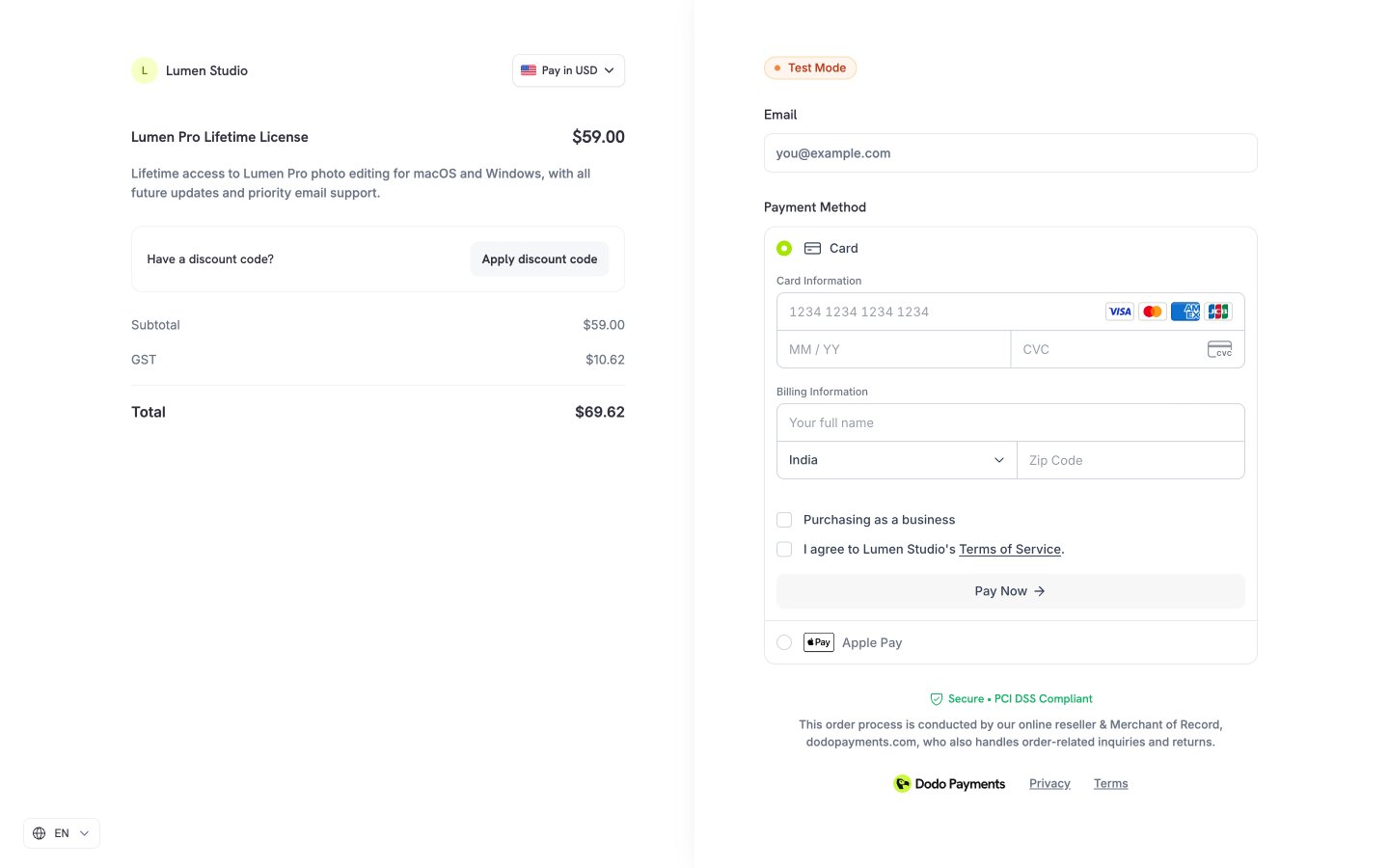
The checkbox reads “I agree to [brand]‘s Terms of Service”, followed by each other policy the brand has. Each policy name is a link that opens in a new tab. Opening a link does not tick the box. The label names only the links the brand has:
The checkbox starts unticked, and the customer must tick it to pay. The label is translated into the checkout’s language.
- Two-Page Checkout
- Single Page Checkout
The checkbox sits below the billing address and the Purchasing as a business checkbox, above Continue to Payment. The button stays disabled until the customer ticks the box.
- Product cart: all products in
product_cartmust belong to one brand, and the API rejects a cart that mixes brands. The customer sees one checkbox, for that brand. - Product collection: a collection can include products from more than one brand. The page shows one checkbox for each brand in the collection that has policy links, and the customer must tick all of them to pay.
Viewing the Acceptance Record
Dodo Payments records each acceptance on the payment: the version of the policy links the customer accepted and the time they accepted. It also stores the customer’s IP address and browser details with the record, for use as dispute evidence. The IP address and browser details are not returned by the API.In the Dashboard
- Payment details: go to Transactions → Payments and open the payment. The Terms consent section shows Accepted at and the Policies the customer accepted.
- Dispute details: open the dispute. Terms accepted shows the time, and Accepted policies lists the links.
In the API and Webhooks
The payment object carries three fields for terms consent. They are in theGET /payments/{payment_id} response and in the payment.succeeded, payment.failed, payment.processing, and payment.cancelled webhooks. They are not in the payment list response.
The policy links the customer accepted, one item for each brand. Empty when
terms_accepted is false. Each item has brand_id, terms_of_service, refund_policy (or null), and privacy_policy (or null).GET /disputes/{dispute_id} and the dispute.* webhooks, carries terms_accepted_at and accepted_policies with the same shape. It has no terms_accepted field.
Subscriptions
The customer accepts once, on the first payment of a subscription. Renewals, payment retries, and plan changes ask for no new acceptance. Their payments show the acceptance from the first payment, including the version of the links the customer accepted then. A dispute on a renewal therefore has the same record as a dispute on the first payment. A subscription whose first payment was made without terms consent showsterms_accepted: false on every payment.
Where the Checkbox Does Not Appear
The checkbox shows only on checkout sessions created withrequire_terms_acceptance: true. It does not show on:
- Payment links. A URL parameter can’t turn it on.
- Checkout sessions created with
confirm: true, which the API rejects with the flag on. - Subscriptions and payments created without a checkout session.
- Abandoned cart recovery checkouts.
- Plan changes in the Customer Portal.
Disputes
Respond to disputes with the evidence you have.
Checkout Features
Other checkout options you set per session.