

Product Collections mengelompokkan produk terkait (misalnya paket Starter, Pro, Enterprise) di bawah satu payung. Tampilkan semua opsi dalam satu checkout, tentukan alur upgrade/downgrade, dan biarkan pelanggan berganti paket langsung dari Customer Portal.
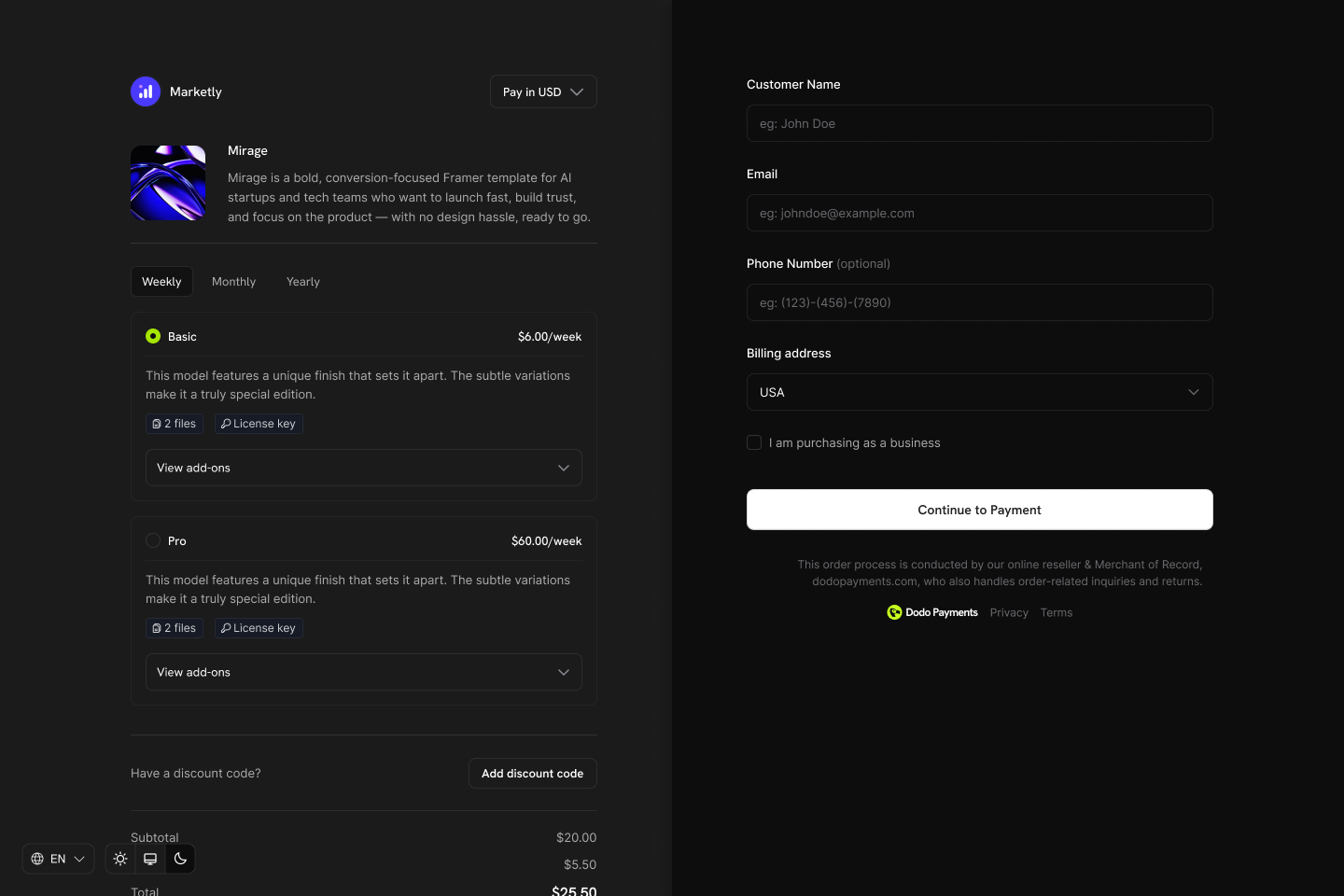
Key Highlights
Product Collections memungkinkan Anda:- Mengelompokkan produk terkait (paket, tingkatan, opsi harga) untuk pengelolaan yang teratur.
- Menyertakan beberapa produk, seperti Starter, Pro, dan Lifetime, masing-masing dengan model harga sendiri.
- Menampilkan semua produk dalam satu tampilan checkout, sehingga pelanggan dapat membandingkan dan memilih paket yang diinginkan.
- Memungkinkan pelanggan melakukan upgrade atau downgrade antarproduk dalam collection yang sama melalui Customer Portal.
- Mengontrol produk yang terlihat, urutannya, dan produk yang dipilih sebelumnya saat checkout.
Membuat Product Collection
Buat dan kelola collection dari dashboard atau melalui API.1
Create the collection
Tentukan collection dengan nama dan deskripsi opsional. Unggah gambar untuk mewakilinya dalam checkout.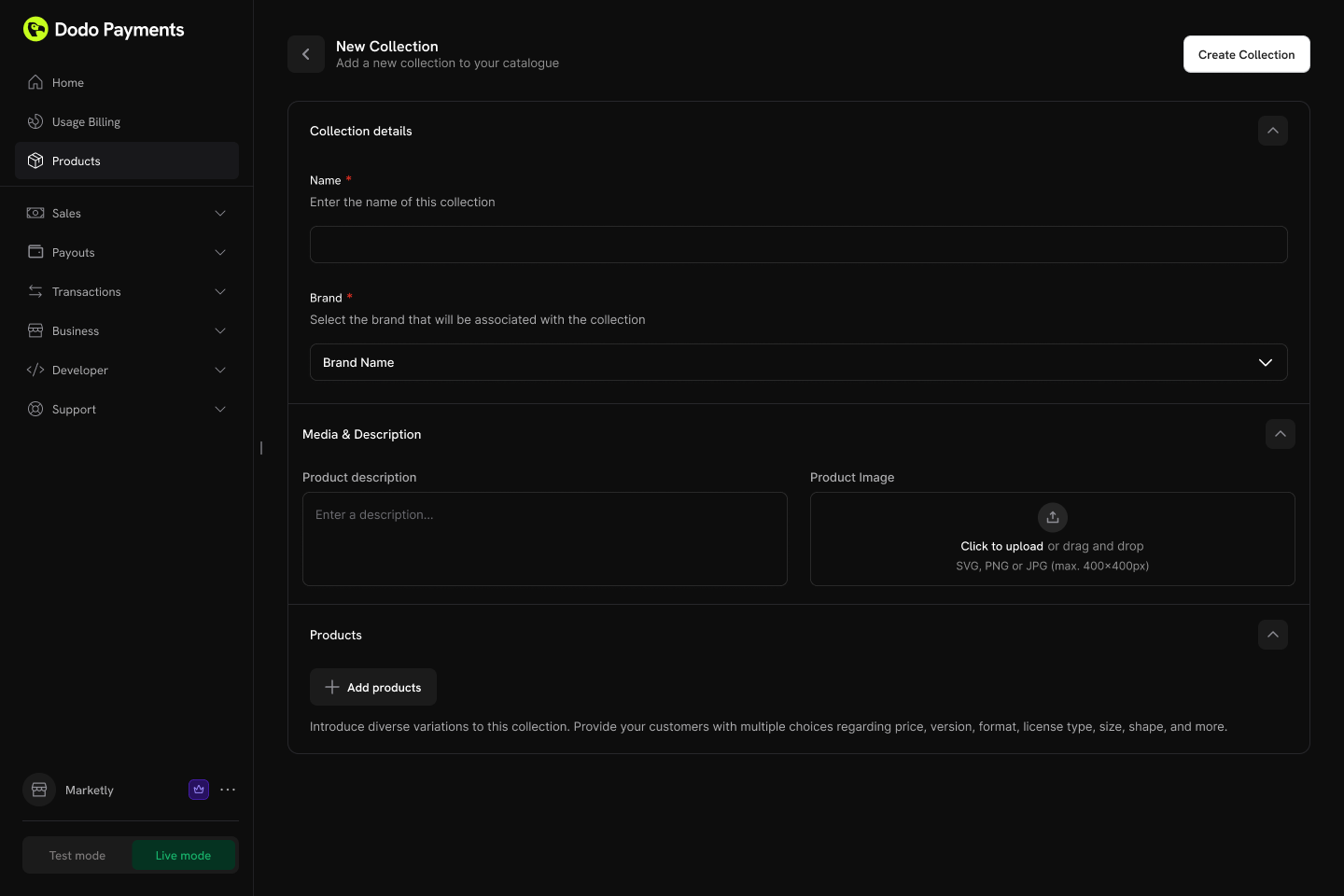
- Name (wajib): Nama tampilan (misalnya, “SaaS Plans”, “License Tiers”).
- Description (opsional): Penjelasan singkat yang ditampilkan dalam checkout.
- Image (opsional): Branding visual untuk collection.
2
Add products to the collection
Tambahkan produk yang sudah ada ke collection Anda. Atur produk ke dalam grup untuk struktur yang lebih baik.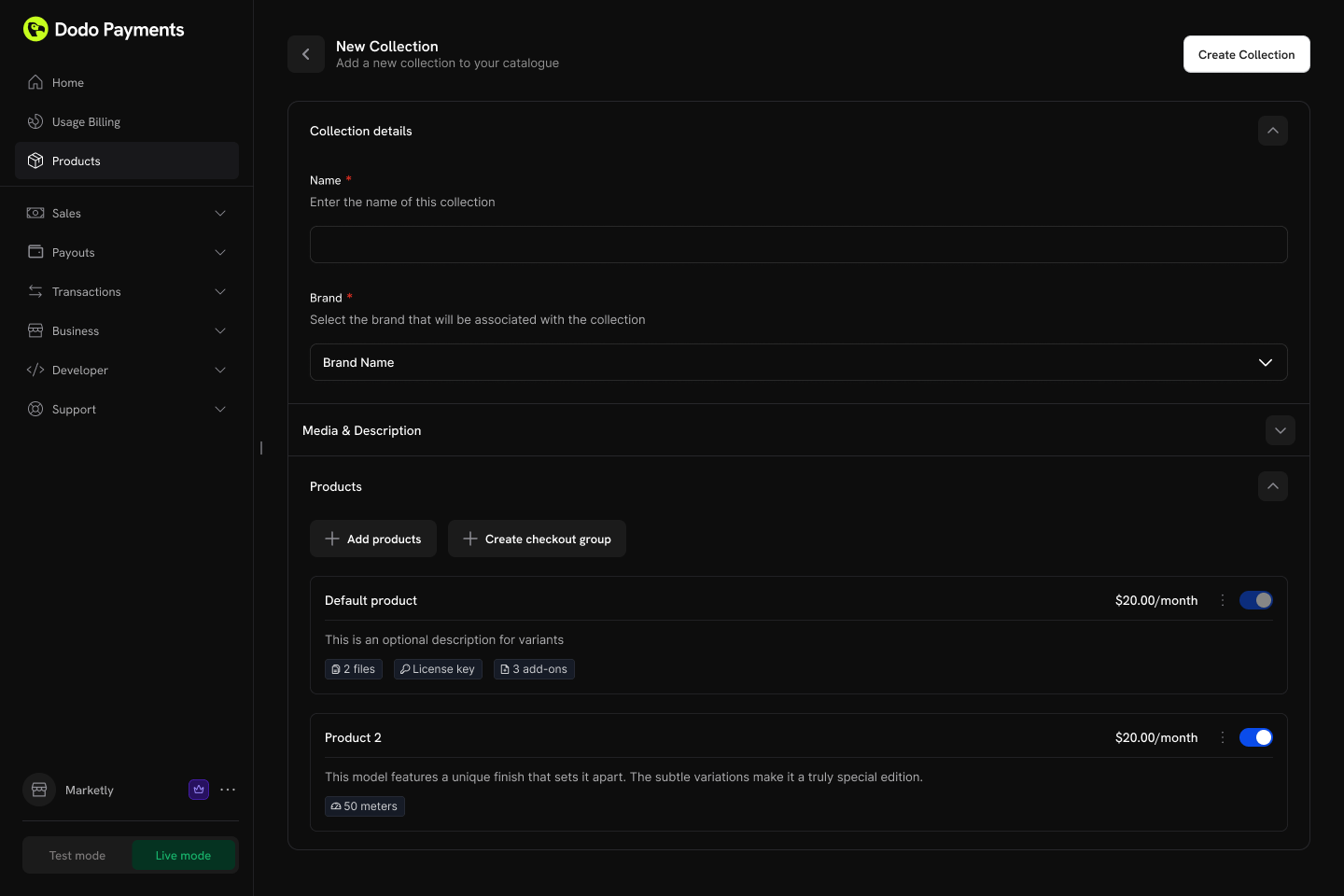
- Groups: Kelompokkan produk secara opsional ke dalam grup bernama (misalnya, “Monthly Plans”, “Annual Plans”).
- Ungrouped products: Produk tanpa grup muncul pada tingkat collection.
- Ordering: Seret dan lepas untuk mengatur urutan tampilan.
3
Configure ordering and visibility
Kontrol urutan tampilan dan visibilitas produk dalam collection.Opsi konfigurasi:
- Product status: Aktifkan atau nonaktifkan produk individual dalam collection.
- Display order: Seret dan lepas untuk mengatur urutan kemunculan produk dalam checkout.
Produk pertama dalam collection otomatis dipilih sebelumnya saat checkout. Atur ulang produk untuk mengubah produk yang dipilih secara default.
Checkout Collection
Collection menyediakan pengalaman checkout terpadu, tempat pelanggan dapat melihat dan memilih semua produk yang tersedia di satu tempat.Jenis Checkout
Pengalaman Collection Checkout
Saat menggunakan collection checkout:- Semua produk aktif dalam collection ditampilkan.
- Produk pertama dalam urutan collection otomatis dipilih sebelumnya.
- Setiap produk menampilkan nama, deskripsi, dan harga.
- Pelanggan memilih satu produk untuk dibeli.
- Checkout dilanjutkan dengan harga dan pengaturan penagihan produk yang dipilih.
Integrasi API
Buat checkout session untuk sebuah collection:Integrasi Customer Portal
Pelanggan dapat melakukan upgrade atau downgrade antarproduk dalam collection yang sama secara langsung dari Customer Portal.Tindakan Pengelolaan Paket
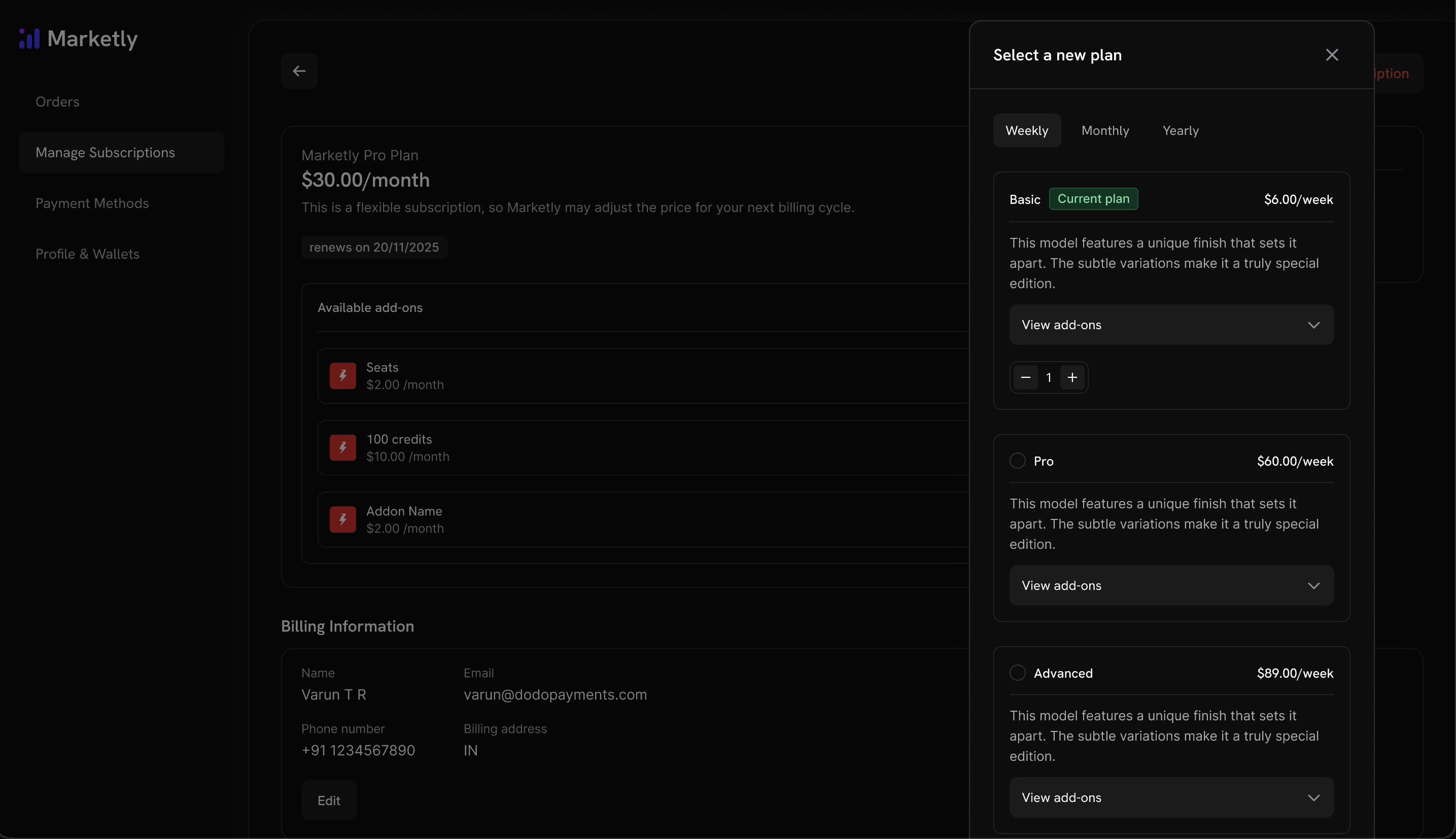
Aturan Upgrade/Downgrade
- Upgrade dan downgrade hanya tersedia antarproduk dalam collection yang sama.
- Proration untuk perubahan paket di Customer Portal mengikuti perilaku upgrade dan downgrade default dalam Settings → Subscriptions, dan setiap collection dapat mengganti default tersebut. Perubahan paket yang dibuat melalui Change Plan API menggunakan
proration_billing_modeyang dikirim bersama request. - Notifikasi email dikirim ke bisnis pada setiap upgrade, downgrade, atau pembatalan.
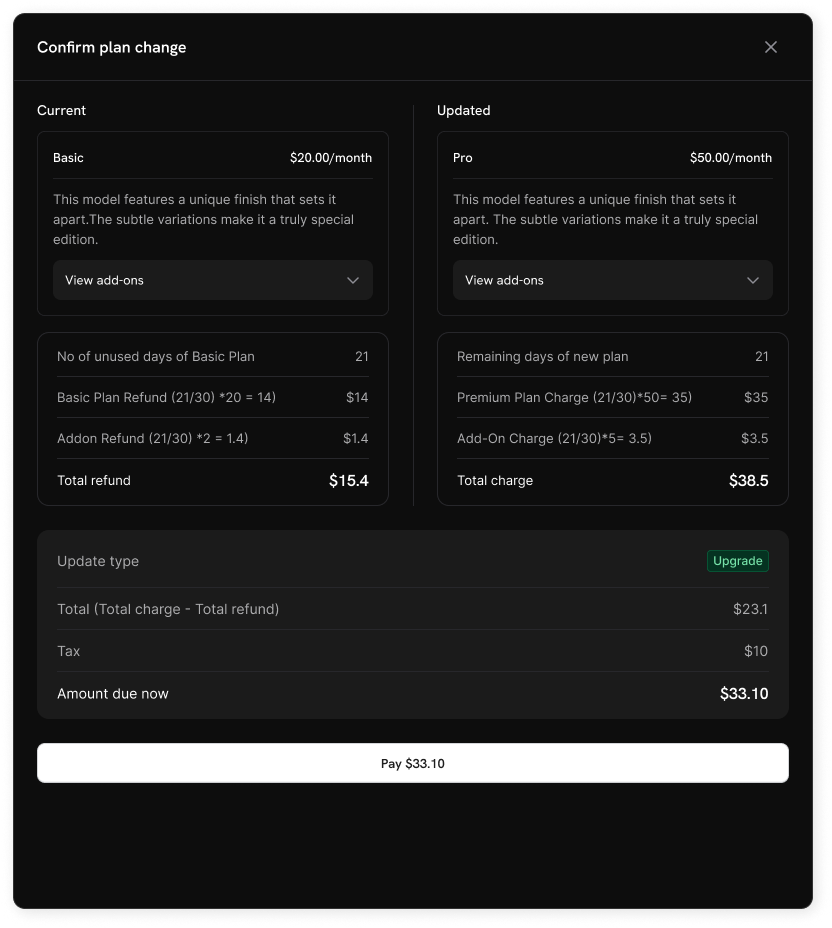
Pelanggan tidak dapat beralih ke produk di luar collection mereka saat ini. Buat collection terpisah untuk lini produk yang berbeda.
Pengaturan Subscription
Konfigurasikan cara kerja subscription dan perubahan paket di seluruh bisnis Anda dari Settings → Subscriptions di dashboard.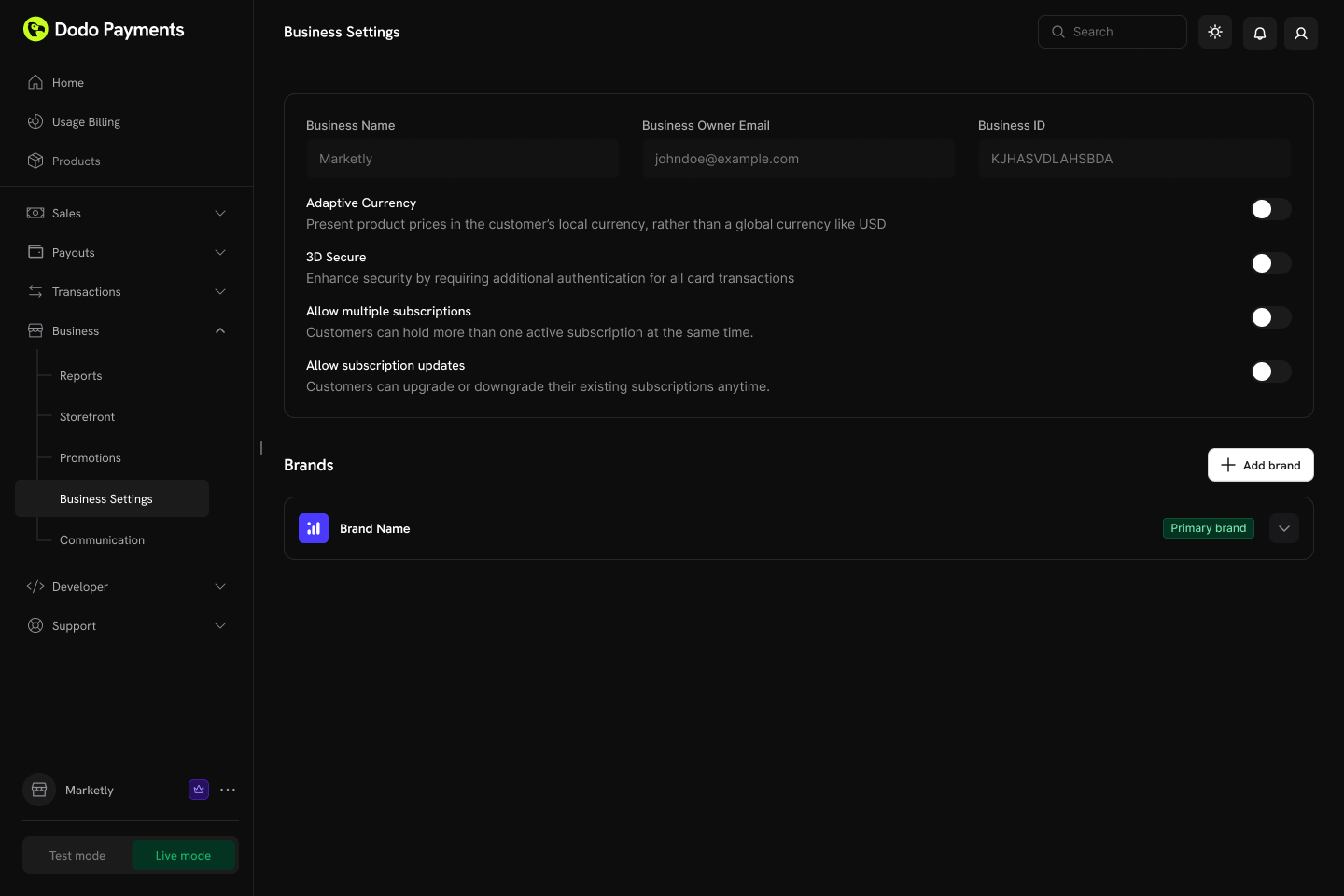
Pengaturan yang Tersedia
Perubahan paket melalui Customer Portal dinonaktifkan secara default. Aktifkan “Allow Subscription Updates” dalam Settings → Subscriptions agar pelanggan dapat melakukan upgrade atau downgrade antarproduk dalam collection yang sama.
Kedua pengaturan pembatalan bersifat independen, sehingga Anda dapat mengizinkan pelanggan menyelesaikan periode yang sudah mereka bayar sambil tetap menyimpan pembatalan instan untuk Anda sendiri, atau sebaliknya. Menonaktifkan salah satunya akan menyembunyikan opsi tersebut di Customer Portal dan menolak request untuk opsi tersebut melalui Customer Portal API. Pembatalan dari sisi merchant sendiri tidak terpengaruh. Lihat Cancelling a Subscription.
“Allow Subscription Pause” hanya mengatur Customer Portal — Anda dapat menjeda dan melanjutkan subscription dari dashboard atau API, terlepas dari pengaturannya. “Bill Usage at Pause” hanya berlaku untuk subscription berbasis penggunaan dan dicatat per billing cycle, sehingga mengubahnya di tengah cycle tidak mengubah cara cycle yang sedang berlangsung diselesaikan. Lihat Pausing and Resuming Subscriptions.
Untuk detail tentang cara penukaran trial dicocokkan dan dicatat, lihat Preventing Trial Misuse.
“Payment Method Reminder” hanya berpengaruh pada subscription yang mengaktifkan Card-Optional at Zero Price — pengaturan ini tidak berpengaruh pada subscription yang sudah mewajibkan kartu. Lihat What Happens Without a Card untuk urutan lengkap, termasuk apa yang terjadi jika pengingat diabaikan.
Subscription Plan Changes
Pelajari selengkapnya tentang mode proration dan perilaku perubahan paket.
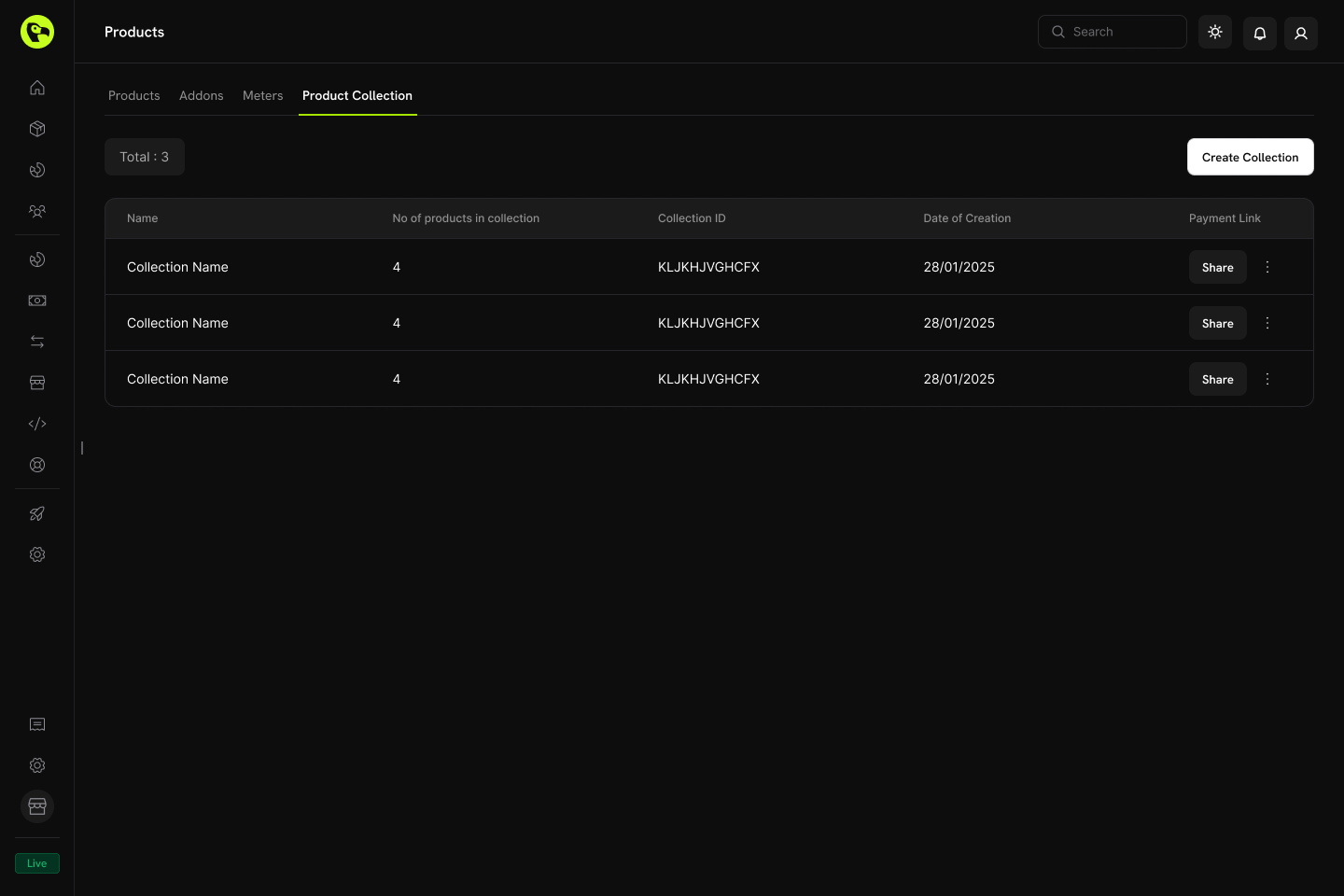
Mengelola Collection
Kelola collection melalui dashboard atau secara terprogram melalui API.Operasi Dashboard
- Create: Siapkan collection baru dengan produk dan grup.
- Update: Ubah nama, deskripsi, gambar, dan pengaturan produk.
- Reorder: Seret dan lepas untuk mengubah urutan tampilan produk.
- Enable/Disable products: Kontrol produk yang muncul dalam checkout.
- Archive: Sembunyikan collection tanpa menghapusnya secara permanen (dapat dibatalkan pengarsipannya nanti).
Pengelolaan API
Gunakan endpoint berikut untuk membuat, memperbarui, mengambil, mengarsipkan, dan mengatur product collection secara terprogram, termasuk mengelola grup dan produk bertingkat.Listing Product Collections
Listing Product Collections
Ambil semua product collection yang terkait dengan akun Anda menggunakan request
GET ke endpoint /product-collections. Mendukung pagination, pemfilteran berdasarkan brand, dan penyertaan collection yang diarsipkan.List Product Collections API
Lihat struktur request dan response terperinci dalam dokumentasi List Product Collections API.
Creating a Product Collection
Creating a Product Collection
Buat koleksi produk baru dengan mengirimkan permintaan
POST ke endpoint /product-collections dengan name dan groups produk yang diperlukan, serta detail opsional seperti deskripsi dan merek.Create Product Collection API
Lihat struktur request dan response terperinci dalam dokumentasi Create Product Collection API.
Retrieving a Product Collection
Retrieving a Product Collection
Dapatkan informasi terperinci tentang product collection tertentu — termasuk grup dan item produknya — menggunakan request
GET ke endpoint /product-collections/{id}.Get Product Collection API
Lihat struktur request dan response terperinci dalam dokumentasi Get Product Collection API.
Updating a Product Collection
Updating a Product Collection
Ubah detail product collection (nama, deskripsi, brand, dan sebagainya) dengan mengirim request
PATCH ke endpoint /product-collections/{id}.Update Product Collection API
Lihat struktur request dan response terperinci dalam dokumentasi Update Product Collection API.
Uploading Collection Images
Uploading Collection Images
Kaitkan gambar dengan collection dengan mengunggahnya melalui pre-signed URL. Minta URL upload dari endpoint
/product-collections/{id}/images, lalu PUT gambar ke URL yang dikembalikan dalam waktu 60 detik.Update Collection Images API
Lihat struktur request dan response terperinci dalam dokumentasi Update Collection Images API.
Archiving a Product Collection
Archiving a Product Collection
Arsipkan collection dengan mengirim request
DELETE ke endpoint /product-collections/{id}. Tindakan ini menyembunyikan collection dari penggunaan baru, tetapi tidak menghapusnya secara permanen.Archive Product Collection API
Lihat struktur request dan response terperinci dalam dokumentasi Archive Product Collection API.
Unarchiving a Product Collection
Unarchiving a Product Collection
Pulihkan collection yang diarsipkan dengan mengirim request
POST ke endpoint /product-collections/{id}/unarchive.Unarchive Product Collection API
Lihat struktur request dan response terperinci dalam dokumentasi Unarchive Product Collection API.
Managing Groups within a Collection
Managing Groups within a Collection
Groups memungkinkan Anda mengatur produk di dalam collection (misalnya, “Monthly Plans” dibandingkan dengan “Annual Plans”). Gunakan endpoint groups untuk menambahkan, memperbarui, atau menghapus grup dalam collection.
- Create a group:
POST /product-collections/{id}/groups - Update a group:
PATCH /product-collections/{id}/groups/{group_id} - Delete a group:
DELETE /product-collections/{id}/groups/{group_id}
Create Group
Tambahkan grup baru ke product collection.
Update Group
Ubah nama atau atribut grup.
Delete Group
Hapus grup dari collection.
Managing Products within a Group
Managing Products within a Group
Kelola item produk individual di dalam grup — tambahkan produk baru, perbarui item yang ada (seperti urutan tampilan), atau hapus sepenuhnya.
- Add products to a group:
POST /product-collections/{id}/groups/{group_id}/items - Update a group item:
PATCH /product-collections/{id}/groups/{group_id}/items/{item_id} - Delete a group item:
DELETE /product-collections/{id}/groups/{group_id}/items/{item_id}
Add Products to Group
Tambahkan satu atau beberapa produk ke grup dalam collection.
Update Group Item
Perbarui item produk dalam grup.
Delete Group Item
Hapus item produk dari grup.
Praktik Terbaik
- Kelompokkan secara logis: Atur produk berdasarkan interval penagihan (bulanan/tahunan) atau tingkat fitur (starter/pro/enterprise).
- Atur urutan secara strategis: Tempatkan paket yang paling populer atau direkomendasikan di urutan pertama karena akan dipilih sebelumnya saat checkout.
- Gunakan penamaan yang jelas: Nama produk harus menyampaikan perbedaan nilai dengan jelas.
- Aktifkan kedua arah: Izinkan upgrade dan downgrade agar pelanggan memiliki fleksibilitas.
- Pertimbangkan proration: Pilih mode proration yang sesuai dengan model bisnis Anda.
- Uji secara menyeluruh: Verifikasi alur checkout dan perubahan paket dalam test mode sebelum digunakan secara live.
Products
Buat produk sekali bayar, subscription, atau berbasis penggunaan untuk ditambahkan ke collection.
Checkout
Tampilkan produk collection dalam pengalaman checkout terpadu.
Customer Portal
Izinkan pelanggan melakukan upgrade atau downgrade dalam collection yang sama.
Subscriptions
Kelola plan berulang dengan proration dan perubahan plan.